Author: admin

  • TikTok Engagement Rate Calculator: Measure Your Performance

    TikTok Engagement Rate Calculator: Measure Your Performance

    TikTok Engagement Rate Calculator: Measure Your Performance

    Creating videos on TikTok is only one part of building a successful social media presence. Understanding how people interact with your videos is equally important. You might receive thousands of views on a video, but those views do not always translate into likes, comments, shares, or meaningful audience interactions.

    This is where a TikTok engagement rate calculator becomes useful.

    It helps you measure how effectively your content encourages viewers to interact with your videos. By entering your video views, likes, comments, shares, and other available engagement metrics, you can calculate an engagement percentage and better understand your content performance.

    Whether you are a TikTok creator, influencer, digital marketer, social media manager, small business owner, or brand representative, tracking engagement rate can help you make more informed content decisions.

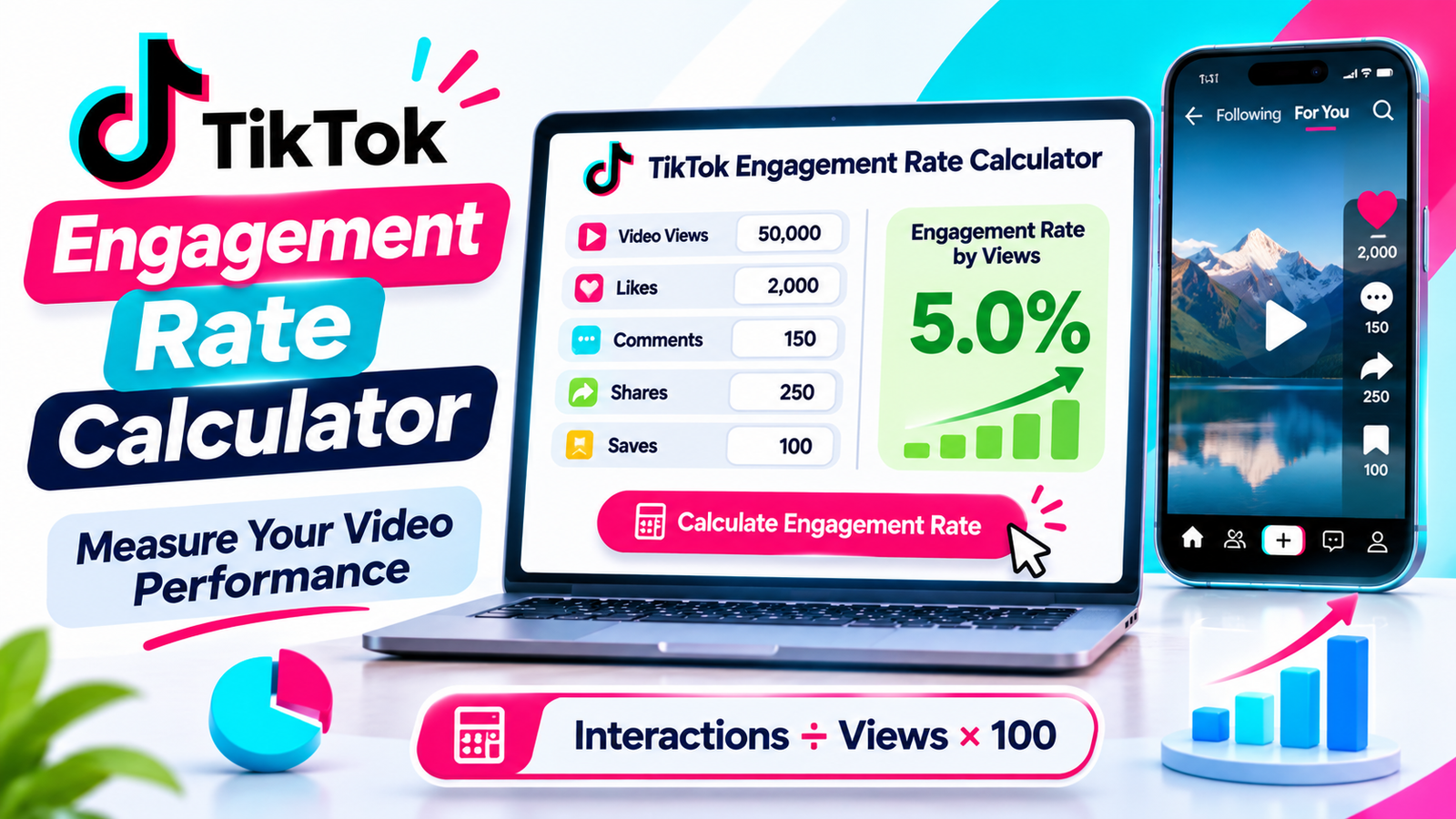
    For example, imagine that one of your TikTok videos receives 50,000 views, 2,000 likes, 100 comments, and 250 shares. Although the video has attracted significant attention, you still need to understand how many of those views resulted in active interactions.

    A TikTok engagement rate calculator helps turn these numbers into a percentage that is easier to evaluate and compare.

    In this complete guide, you will learn how to calculate TikTok engagement rate, understand the different formulas, use an online engagement calculator, interpret your results, and identify opportunities to improve your video performance.

    You will also discover current engagement benchmarks, practical examples for different industries, important TikTok analytics metrics, and common calculation mistakes to avoid.

    What Is a TikTok Engagement Rate Calculator?

    A TikTok engagement rate calculator is an online tool that measures the percentage of interactions generated by a TikTok video relative to a selected performance metric, such as video views or follower count.

    It helps you understand whether viewers are simply watching your content or actively interacting with it.

    Engagement usually includes actions such as:

    Likes.

    Comments.

    Shares.

    Saves or favorites, when included in the selected calculation method.

    The exact calculation depends on the formula used by the calculator.

    For example, a views-based engagement rate compares the total interactions on a video with its total views.

    A follower-based engagement rate compares interactions with the creator’s follower count.

    Both measurements can provide useful information, but they answer different questions.

    A free TikTok engagement rate calculator makes these calculations easier by allowing you to enter your available statistics and receive a result without manually performing the mathematical operations.

    Depending on the tool’s features, you may also be able to calculate average engagement across multiple videos, compare performance between posts, and evaluate different content strategies.

    The main purpose is simple: help you understand how effectively your TikTok content encourages audience interaction.

    Why Is TikTok Engagement Rate Important?

    Views and followers are useful performance indicators, but they do not explain everything about your TikTok account.

    A creator might have a large audience but receive relatively few comments or shares on individual videos.

    Another creator might have a smaller following but attract meaningful discussions and interactions.

    Engagement rate provides additional context by comparing audience interactions with views or another selected denominator.

    Here are several reasons why this metric matters.

    1. Measure Your Content Performance

    Engagement rate helps you understand whether viewers respond to your videos.

    For example, imagine two videos receive 20,000 views each.

    The first video receives 500 interactions, while the second receives 1,500 interactions.

    Although both videos receive the same number of views, their engagement rates are different.

    The second video generates more interactions relative to its views.

    This information can help you identify which topics, formats, and creative approaches deserve further testing.

    2. Understand Audience Interest

    People interact with videos for different reasons.

    A useful tutorial might receive many saves, while an entertaining video might generate more shares and comments.

    Reviewing these actions can help you understand which types of content your audience finds valuable.

    Instead of focusing only on views, you can look at the complete interaction pattern.

    3. Evaluate Influencer Performance

    Brands often examine engagement metrics when evaluating potential influencer partnerships.

    A creator’s follower count alone does not explain how actively their audience interacts with sponsored or organic content.

    Engagement rate can provide another way to evaluate a creator’s performance.

    However, it should not be used alone. Brands should also examine audience relevance, content quality, audience authenticity, average views, and campaign results.

    4. Compare Different TikTok Videos

    A calculator makes it easier to compare multiple videos using the same formula.

    For example, you might discover that educational tutorials generate a higher views-based engagement rate than general entertainment videos.

    You can use these observations to plan future content experiments.

    5. Identify Changes in Performance

    Your engagement rate may increase or decrease over time.

    These changes can indicate shifts in audience interest, content quality, video topics, or distribution.

    Monitoring performance consistently helps you notice patterns instead of reacting to the results of only one video.

    6. Make Better Content Decisions

    Engagement data can help creators identify which ideas deserve more attention.

    For example, if practical tutorials consistently generate comments and saves, you might test a series of related educational videos.

    If behind-the-scenes videos encourage more discussion, you could explore additional content in that format.

    Use the results as evidence for experimentation rather than assuming that the same approach will always work.

    7. Support Social Media Marketing Decisions

    Businesses can use TikTok engagement metrics alongside website visits, leads, purchases, and other campaign outcomes.

    A high engagement rate does not automatically mean a campaign generates sales.

    However, the metric can help businesses understand how viewers respond to their content.

    This makes it useful as one part of a wider marketing performance report.

    How to Use Our Free TikTok Engagement Rate Calculator

    Using a free TikTok engagement rate calculator is simple.

    You do not need advanced mathematical knowledge or professional analytics software to calculate your engagement percentage.

    Follow these steps.

    Step 1: Select Your TikTok Video

    Start by choosing the video you want to evaluate.

    You can calculate the performance of an individual video or prepare statistics for several videos if your calculator supports account-level analysis.

    For a single-video calculation, make sure all the numbers come from the same video.

    Step 2: Enter Your Video Views

    Enter the total number of views received by your selected TikTok video.

    For example:

    Video Views: 50,000

    Views are used as the denominator when calculating engagement rate by views.

    Step 3: Enter Your Total Likes

    Enter the number of likes received by the video.

    Likes provide one indication of how viewers respond to your content.

    For example:

    Likes: 2,000

    Step 4: Enter Your Comments

    Add the total number of comments received by the video.

    Comments can provide useful information about audience discussion and interest.

    For example:

    Comments: 150

    Step 5: Add Shares

    Enter the number of times the video was shared.

    Shares are particularly useful when evaluating whether viewers found a video interesting or relevant enough to pass along.

    For example:

    Shares: 250

    Step 6: Include Saves or Favorites

    If your calculator supports saves, enter the available number.

    Saves can indicate that someone wants to return to the video later.

    For example:

    Saves: 100

    Do not add a value for a metric you cannot reliably verify. Use the same interaction fields whenever you compare multiple videos.

    Step 7: Enter Your Follower Count if Needed

    If you want to calculate engagement relative to your audience size, enter your current follower count.

    For example:

    Followers: 10,000

    This is optional when calculating a views-based engagement rate.

    Step 8: Select the Calculation Method

    Choose whether you want to measure engagement relative to video views or followers.

    The views-based formula is generally more useful for understanding interaction relative to video consumption.

    The follower-based formula is useful for comparing interaction volume with account audience size.

    Step 9: Calculate Your Engagement Rate

    Select the Calculate button.

    The calculator uses your entered metrics to calculate the percentage.

    Review the result and record the formula used.

    Step 10: Use Your Result to Evaluate Performance

    Once you have your result, consider the content topic, audience, video format, and publishing period.

    Do not judge your entire account based on one video.

    Compare several videos using consistent formulas and observation periods to identify more reliable patterns.

    TikTok Engagement Rate Formula: How to Calculate It

    Understanding the formula behind your calculator helps you interpret the result correctly.

    There is no single universally standardized TikTok engagement rate formula for every reporting purpose.

    However, engagement rate by views is a widely used approach for evaluating TikTok video performance.

    1. Engagement Rate by Views

    The views-based formula measures total interactions relative to video views.

    Formula:

    Engagement Rate by Views = (Likes + Comments + Shares + Saves) ÷ Video Views × 100

    This formula is useful when you want to understand how many interactions a video generated relative to its views.

    For example, suppose your TikTok video receives:

    MetricResult
    Video Views50,000
    Likes2,000
    Comments150
    Shares250
    Saves100

    First, calculate total engagement:

    2,000 + 150 + 250 + 100 = 2,500

    Next, divide total interactions by video views:

    2,500 ÷ 50,000 = 0.05

    Finally, multiply by 100:

    0.05 × 100 = 5%

    Example Result: 5% Engagement Rate by Views

    This means the video generated interactions equivalent to 5% of its total view count.

    It does not mean that exactly 5% of unique viewers interacted with the video. Views can include repeat plays, depending on how the platform counts them.

    2. Engagement Rate by Followers

    Another commonly used formula measures interactions relative to your follower count.

    This approach can help evaluate how a video performs in relation to the size of your existing audience.

    Formula:

    Engagement Rate by Followers = (Likes + Comments + Shares + Saves) ÷ Followers × 100

    For example, imagine the following account statistics:

    MetricResult
    Followers10,000
    Likes2,000
    Comments150
    Shares250
    Saves100

    First, calculate total interactions:

    2,000 + 150 + 250 + 100 = 2,500

    Now divide by followers:

    2,500 ÷ 10,000 = 0.25

    Multiply by 100:

    0.25 × 100 = 25%

    Example Result: 25% Follower-Based Engagement Rate

    This means interactions on the selected video are equivalent to 25% of the account’s follower count.

    It does not mean that 25% of your followers necessarily interacted with the video.

    A video may also reach many people who do not follow the account, which is why follower-based and views-based rates can produce very different results.

    3. Engagement Rate by Reach

    Some analytics systems provide a reach metric representing the number of unique accounts that viewed content.

    When reliable reach data is available, you can use it as another denominator.

    Formula:

    Engagement Rate by Reach = Total Interactions ÷ Accounts Reached × 100

    For example:

    Total interactions: 2,500

    Accounts reached: 40,000

    Calculation:

    2,500 ÷ 40,000 × 100 = 6.25%

    Example Result: 6.25% Reach-Based Engagement Rate

    This measurement compares interactions with unique accounts reached rather than total video plays.

    Use this method only when you have access to a suitable reach figure for the same video and reporting period.

    Which Formula Should You Use?

    The best formula depends on your objective.

    FormulaDenominatorBest Use
    Engagement by ViewsVideo viewsMeasuring video interaction
    Engagement by FollowersFollower countComparing audience-size-based performance
    Engagement by ReachUnique accounts reachedMeasuring interactions relative to reach

    For most TikTok video performance reviews, engagement rate by views is a practical starting point.

    For influencer comparisons, follower-based engagement may also be useful.

    Always label the formula when sharing results with clients or comparing accounts.

    What Counts as Engagement on TikTok?

    Not every TikTok metric should be included in an engagement rate calculation.

    Understanding which interactions count is important because different calculators may use different formulas.

    Let’s look at the most common engagement metrics.

    1. Likes

    Likes are one of the most visible forms of interaction.

    When viewers appreciate your video, they may tap the Like button.

    For example, a travel creator might receive likes on a destination video because viewers enjoy the scenery.

    Likes can help indicate audience response, but they do not explain every aspect of video performance.

    2. Comments

    Comments represent written responses from viewers.

    They can include questions, opinions, feedback, and conversations about the content.

    For example, a cooking creator might receive comments asking about ingredients or preparation methods.

    Comments can reveal the topics viewers want to discuss.

    3. Shares

    Shares occur when viewers send or share your video with other people.

    A useful tutorial, entertaining video, or informative demonstration may encourage viewers to share it.

    Shares are worth tracking because they provide a different form of interaction from likes.

    4. Saves or Favorites

    Favorites allow viewers to save videos for later.

    For example, someone might save a fitness workout, recipe, educational tutorial, or product guide.

    When the metric is available, saves can provide additional information about the usefulness of your content.

    However, not every reporting system includes saves in its engagement calculation.

    5. Views

    Views measure video playback activity.

    They are especially important when calculating engagement by views.

    However, views are the denominator in this formula, not an additional engagement interaction.

    Adding views to likes, comments, shares, and saves would incorrectly mix exposure with interaction.

    6. New Followers

    A video may generate new followers.

    This is a useful growth metric, but follower acquisition is usually better measured separately from engagement rate.

    For example, you could calculate follow conversion by dividing new followers attributed to a video by its views, then multiplying by 100, when reliable video-level follow data is available.

    7. Profile Visits

    Profile visits show that viewers took an additional step after discovering your content.

    They are useful for understanding interest in your account, but they should generally be tracked as a separate profile-conversion metric.

    Important: For a consistent views-based calculation, use likes, comments, shares, and saves if available. Do not add views to the interaction total or switch between including and excluding saves when comparing results over time.

    What Is a Good TikTok Engagement Rate in 2026?

    One of the most common questions among creators is whether their TikTok engagement rate is good, average, or low.

    The answer depends on several factors, including:

    Account size.

    Industry.

    Content format.

    Audience interests.

    Video topic.

    Calculation method.

    Observation period.

    There is no single percentage that guarantees good performance for every account.

    A useful starting point is the latest available industry benchmark.

    2026 TikTok Engagement Benchmark

    Socialinsider’s 2026 TikTok benchmark report provides a useful reference for views-based engagement.

    Its quarterly update reports an average TikTok engagement rate by views of 3.90% in Q3 2026, based on its analysis of approximately 40.7 million videos from 257,000 TikTok brand accounts.

    The study’s views-based calculation includes likes, comments, shares, and saves divided by video views.

    This is a benchmark for the particular dataset and methodology, not a guarantee of what every creator should achieve.

    The report also provides 2025 engagement rates by follower-size category:

    TikTok Account Size2025 Engagement by Views
    1K–5K followers4.40%
    5K–10K followers4.00%
    10K–50K followers3.90%
    50K–100K followers3.75%
    100K–1M followers3.95%

    These figures illustrate why comparing accounts of different sizes can require additional context.

    The report focuses on organic brand posts and does not represent every personal creator or industry.

    Is a 1% TikTok Engagement Rate Good?

    A 1% result may be worth investigating, but it cannot be judged accurately without knowing the formula and account category.

    If the rate is calculated by views, compare it with relevant views-based benchmarks and your own historical results.

    If it is calculated by followers, use follower-based benchmarks instead.

    Never compare a follower-based rate directly with a views-based rate.

    Is a 3% TikTok Engagement Rate Good?

    A 3% views-based engagement rate can be a useful result.

    It is close to the 3.90% Q3 2026 views-based benchmark reported by Socialinsider.

    However, the comparison depends on the creator’s niche, account type, and interaction-counting method.

    Is a 5% TikTok Engagement Rate Good?

    A 5% views-based rate is above the 3.90% Q3 2026 reference point from Socialinsider.

    That can indicate positive interaction relative to views.

    However, one unusually successful video does not necessarily establish your normal account performance.

    Review several comparable posts before making a long-term judgment.

    Why Do Engagement Benchmarks Differ?

    Different research companies use different datasets and measurement methods.

    Some use followers as the denominator, while others use views.

    They may also include different interaction types, reporting periods, industries, and account sizes.

    For this reason, always read the methodology behind a benchmark before comparing it with your own calculator result.

    TikTok Engagement Rate Examples for Different Creators

    Understanding formulas becomes easier when you see how they work in different situations.

    Below are practical examples.

    These figures are illustrative calculations, not industry benchmark claims.

    Example 1: Small TikTok Creator

    Imagine a creator with 5,000 followers publishes a video that receives:

    Views: 10,000

    Likes: 600

    Comments: 40

    Shares: 60

    Saves: 50

    Total interactions:

    600 + 40 + 60 + 50 = 750

    Views-based engagement:

    750 ÷ 10,000 × 100 = 7.5%

    The video has a 7.5% engagement rate by views.

    Example 2: Fitness Influencer

    A fitness influencer publishes a workout tutorial.

    The video receives:

    Views: 80,000

    Likes: 3,200

    Comments: 160

    Shares: 320

    Saves: 320

    Total interactions:

    3,200 + 160 + 320 + 320 = 4,000

    Views-based engagement:

    4,000 ÷ 80,000 × 100 = 5%

    The result is a 5% engagement rate by views.

    For a fitness creator, saves may also be a useful supporting metric because viewers might want to revisit a workout tutorial.

    Example 3: Food Creator

    A food creator publishes a simple recipe video.

    The video receives:

    Views: 40,000

    Likes: 1,500

    Comments: 100

    Shares: 200

    Saves: 200

    Total interactions:

    1,500 + 100 + 200 + 200 = 2,000

    Views-based engagement:

    2,000 ÷ 40,000 × 100 = 5%

    The result is a 5% engagement rate by views.

    Example 4: Business Account

    A small business publishes a product demonstration.

    The video receives:

    Views: 100,000

    Likes: 2,500

    Comments: 150

    Shares: 250

    Saves: 100

    Total interactions:

    2,500 + 150 + 250 + 100 = 3,000

    Views-based engagement:

    3,000 ÷ 100,000 × 100 = 3%

    The business can review this result alongside product clicks, website traffic, enquiries, and sales.

    A 3% engagement rate does not automatically indicate a successful sales campaign.

    It measures interaction relative to video views, not purchases.

    Example 5: Entertainment Creator

    An entertainment creator shares a funny video.

    The video receives:

    Views: 250,000

    Likes: 12,000

    Comments: 800

    Shares: 1,200

    Saves: 500

    Total interactions:

    12,000 + 800 + 1,200 + 500 = 14,500

    Views-based engagement:

    14,500 ÷ 250,000 × 100 = 5.8%

    The creator can compare this video with other entertainment videos to understand whether similar themes generate consistent audience interaction.

    How to Find Your TikTok Engagement Statistics

    Before calculating your engagement rate, you need accurate performance data.

    TikTok provides analytics tools that allow creators and businesses to review content performance.

    The exact interface can vary with account type, app version, and region.

    Step 1: Open TikTok

    Launch the TikTok application.

    Make sure you are logged into the account you want to evaluate.

    Step 2: Visit Your Profile

    Tap Profile at the bottom of the screen.

    This opens your account page.

    Step 3: Open TikTok Studio

    Tap the menu button in the upper-right corner.

    Select TikTok Studio.

    Step 4: Open Analytics

    Find the Analytics section and open it.

    The available sections may include overview, content, audience, or other performance categories.

    Step 5: Review Individual Video Performance

    Select the video you want to evaluate.

    Open its analytics or More insights section, depending on the interface.

    Review the available information, including video views and engagement metrics.

    Step 6: Record Your Statistics

    For your views-based calculation, record the metrics included in your chosen formula:

    Likes.

    Comments.

    Shares.

    Saves, if available.

    Total video views.

    Use the same video and observation period for all the values.

    Step 7: Enter the Numbers Into the Calculator

    Open the TikTok engagement rate calculator.

    Enter the required statistics and calculate your result.

    Keep a record of the result so that you can compare it with future videos.

    Why Should You Track TikTok Engagement Over Time?

    Calculating engagement once can be useful, but regular tracking provides more meaningful information.

    A single video may perform unusually well because of its subject, timing, or distribution.

    Looking at multiple videos helps you understand whether the result represents a consistent pattern.

    1. Compare Weekly Performance

    Review your latest videos once a week.

    Record views, likes, comments, shares, saves, and engagement rates.

    This allows you to identify changes in performance.

    2. Compare Monthly Results

    A monthly review can provide a broader view of your content strategy.

    You might discover that certain content categories consistently generate more interactions.

    3. Identify Your Best Content Format

    Compare tutorials, demonstrations, entertainment videos, educational posts, and behind-the-scenes content.

    Look for formats that produce meaningful audience responses.

    4. Review Audience Growth

    Track how many followers your videos generate alongside their engagement rates.

    A video can receive a high engagement rate without generating many new followers.

    Likewise, a viral video may attract many views without converting viewers into long-term followers.

    5. Use Consistent Measurement Methods

    Always use the same formula when comparing results.

    If one month’s report includes saves and another does not, the comparison may become misleading.

    Consistency is essential for meaningful tracking.

    How to Improve Your TikTok Engagement Rate

    Calculating your engagement rate is only the beginning.

    The next step is understanding what your audience responds to and using that information to improve future videos.

    Here are practical approaches to consider.

    1. Create an Interesting Opening

    The opening moments of a video should help viewers understand why they should continue watching.

    Instead of beginning with a long introduction, show the main result, introduce a question, or explain the problem your video addresses.

    For example, a cooking creator could start by showing the completed recipe.

    A fitness creator could demonstrate the final exercise result before explaining the steps.

    The opening should match the actual content rather than making exaggerated promises.

    2. Understand Your Target Audience

    Create videos that address your audience’s interests, questions, and problems.

    For example:

    A fitness audience may appreciate workout demonstrations.

    A food audience may prefer practical recipes.

    A technology audience may want useful tutorials and product explanations.

    Understanding audience interests can help you choose more relevant topics.

    3. Encourage Meaningful Comments

    Ask questions that are naturally connected to your video.

    For example:

    “Which recipe would you try first?”

    “Have you used this editing technique before?”

    “Which destination should we explore next?”

    Avoid repeatedly asking generic questions that do not add value.

    4. Create Useful and Shareable Content

    People may share videos that are informative, entertaining, relatable, or useful.

    Think about what someone would gain by sending your video to a friend.

    Examples include:

    Quick tutorials.

    Helpful demonstrations.

    Practical tips.

    Interesting discoveries.

    Creative ideas.

    Relatable experiences.

    Focus on providing value rather than asking viewers to share every video.

    5. Reply to Relevant Comments

    Responding to genuine questions can help maintain conversations.

    If someone asks how you created a particular video, consider explaining the process.

    You can also turn common questions into future video ideas.

    6. Experiment With Different Video Formats

    Try different content formats within your niche.

    For example:

    A business could test product demonstrations, customer questions, behind-the-scenes videos, and educational content.

    A creator could experiment with tutorials, storytelling, and short explanatory videos.

    Compare the results using the same engagement calculation method.

    7. Use Clear Captions

    Your caption should provide useful context.

    A short description can explain the subject and help viewers understand what the video contains.

    Avoid writing captions that repeat the entire video without adding anything useful.

    8. Use Relevant Hashtags

    Choose hashtags that accurately describe the topic of your video.

    Avoid using unrelated tags simply because they seem popular.

    A hashtag generator can help you brainstorm ideas, but review the final selection before publishing.

    9. Maintain Consistent Content Quality

    Consistency does not mean publishing videos without considering quality.

    Prepare a manageable publishing schedule that allows enough time for planning, recording, and editing.

    It is better to maintain a realistic schedule than to publish additional videos that do not provide value.

    10. Study Watch Time and Video Completion

    Engagement rate is only one performance measure.

    Average watch time and completion rate can help you understand whether viewers continue watching.

    If viewers leave very early, review the opening and overall structure.

    If they watch most of the video but rarely interact, consider whether the content encourages a natural response.

    11. Experiment With Video Length

    Different topics require different amounts of explanation.

    A short tip may need only a few seconds, while a detailed tutorial may require a longer video.

    Test different lengths and review performance rather than assuming that all videos should have the same duration.

    12. Learn From Your Best-Performing Videos

    Identify videos that perform consistently well.

    Review their:

    Topics.

    Opening hooks.

    Visual presentation.

    Video length.

    Captions.

    Audience response.

    Interaction patterns.

    Use these observations to create new experiments without simply duplicating the same content.

    13. Avoid Artificial Engagement

    Buying followers, likes, or automated comments may make account statistics less meaningful.

    Artificial interactions also create risks for your account and undermine the reliability of performance reporting.

    Focus on genuine audience interest instead.

    14. Review Analytics Regularly

    Use TikTok Studio to monitor available video metrics.

    Compare views, interactions, watch time, and audience information.

    Do not depend on engagement rate alone when evaluating overall performance.

    TikTok Engagement Rate Calculator vs. Manual Calculation

    You can calculate engagement rate manually using a basic mathematical formula.

    However, an online calculator can make repeated calculations more convenient.

    FeatureManual CalculationOnline Calculator
    Calculate total interactionsManualAutomatic if supported
    Calculate percentageManualAutomatic
    Compare multiple videosRequires a recordDepends on the tool
    Check follower-based rateManualDepends on the tool
    Save resultsSeparate documentDepends on the tool
    Time requiredMore effortUsually quicker
    Mathematical knowledgeBasic arithmeticMinimal

    Manual calculations are useful when evaluating one or two videos.

    An online TikTok engagement rate calculator is more convenient when you regularly review content or compare multiple performance results.

    The best approach is to use a calculator for the mathematics while keeping a consistent record of the original metrics.

    Common TikTok Engagement Rate Calculation Mistakes

    Even when using an accurate calculator, incorrect input values can produce misleading results.

    Here are some common mistakes to avoid.

    1. Using the Wrong Denominator

    The views-based and follower-based formulas measure different things.

    Do not use views in one calculation and followers in another while treating the results as directly comparable.

    2. Adding Views to Total Engagement

    Views represent video exposure, not an interaction in the standard views-based formula.

    The numerator should contain the selected interaction metrics.

    3. Counting Saves Inconsistently

    Some methods include saves, while others use likes, comments, and shares only.

    Choose a consistent method and label it clearly.

    4. Using Statistics From Different Videos

    All values should relate to the same video when calculating an individual video’s engagement rate.

    Combining likes from one video with views from another produces an incorrect result.

    5. Comparing Different Reporting Periods

    A video measured after one day may have fewer interactions than the same video measured after two weeks.

    Allow a consistent observation window when comparing posts.

    6. Confusing Views With Unique Viewers

    Video views are not necessarily the same as the number of unique individuals who watched the video.

    Repeated plays can affect the views-based calculation.

    7. Looking Only at One Video

    One unusually successful or unsuccessful video may not represent your normal content performance.

    Compare a reasonable group of recent posts.

    8. Ignoring Account Size

    Follower count can influence comparisons between accounts.

    When evaluating creators, consider both follower-based and views-based engagement where appropriate.

    9. Treating a High Rate as Guaranteed Business Success

    A high engagement rate does not automatically mean a video produces sales or leads.

    Track conversions separately when evaluating business results.

    10. Ignoring the Original Data

    A calculator cannot independently verify your TikTok statistics unless it connects to an authorized data source.

    The accuracy of a manually entered result depends on the numbers you provide.

    How to Calculate Average TikTok Engagement Rate Across Multiple Videos

    Calculating engagement for a single video is useful, but creators often need to evaluate their overall account performance.

    There are two common ways to calculate an average across several videos.

    Method 1: Average the Individual Video Rates

    First, calculate the views-based engagement rate for each video.

    Then add the individual rates and divide by the number of videos.

    Formula:

    Average Engagement Rate = Sum of Individual Video Engagement Rates ÷ Number of Videos

    For example:

    VideoEngagement Rate
    Video 14%
    Video 25%
    Video 36%

    Calculation:

    (4% + 5% + 6%) ÷ 3 = 5%

    The average engagement rate across the three videos is 5%.

    This method gives each video equal weight, regardless of how many views it received.

    Method 2: Calculate a Combined Engagement Rate

    You can also combine all interactions and all views across the selected videos.

    Formula:

    Combined Engagement Rate = Total Interactions Across Videos ÷ Total Views Across Videos × 100

    For example:

    VideoViewsInteractions
    Video 110,000500
    Video 220,000800
    Video 370,0002,100
    Total100,0003,400

    Calculation:

    3,400 ÷ 100,000 × 100 = 3.4%

    The combined engagement rate is 3.4%.

    Which Method Is Better?

    Neither method is universally better.

    The arithmetic average gives every video the same importance.

    The combined calculation gives more weight to videos with more views.

    For account-level reporting, label which method you used and apply it consistently.

    Do not compare an arithmetic average with a combined rate as though they were identical measurements.

    How Businesses and Brands Can Use TikTok Engagement Rate

    TikTok engagement rate is useful for businesses because it provides additional context about audience interaction.

    However, businesses should connect engagement data with their actual marketing goals.

    For Ecommerce Businesses

    Online stores can use engagement rate to evaluate product demonstrations, product comparisons, and educational videos.

    For example, a clothing store might compare videos showing different styling ideas.

    The business can review interaction rates alongside product clicks and purchases.

    For Influencer Marketing

    Brands can calculate engagement rates when comparing creators for potential partnerships.

    They should also examine audience quality, content relevance, average views, historical sponsorship performance, and campaign objectives.

    For Local Businesses

    Restaurants, salons, fitness studios, and local shops can evaluate the response to their TikTok content.

    A restaurant might compare recipe videos, food demonstrations, and customer experiences.

    The business can use these findings to guide future content planning.

    For Digital Marketing Agencies

    Agencies may manage several TikTok accounts simultaneously.

    A consistent engagement reporting method makes it easier to compare results across clients and campaigns.

    However, different industries should be evaluated using suitable benchmarks.

    For Personal Brands

    Coaches, educators, consultants, and professional creators can use engagement data to understand whether their content connects with their intended audience.

    They can also track profile visits, enquiries, and other actions separately.

    Frequently Asked Questions About TikTok Engagement Rate Calculator

    1. What is a TikTok engagement rate calculator?

    A TikTok engagement rate calculator is an online tool that measures audience interactions relative to video views or follower count.

    It helps creators and businesses understand how effectively their content encourages likes, comments, shares, and saves.

    2. Is there a free TikTok engagement rate calculator?

    Yes. You can use a free TikTok engagement rate calculator to calculate your engagement percentage using available video statistics.

    Enter the required metrics, select the calculation method, and review the result.

    3. How do I calculate my TikTok engagement rate?

    For a common views-based calculation, add likes, comments, shares, and saves if available.

    Divide the total interactions by video views and multiply by 100.

    For example, 2,500 interactions on 50,000 views produce a 5% engagement rate.

    4. What is the TikTok engagement rate formula?

    A commonly used formula is:

    Engagement Rate by Views = (Likes + Comments + Shares + Saves) ÷ Views × 100.

    Some calculators use a follower-based formula instead.

    Always check the calculation method before comparing results.

    5. What is a good TikTok engagement rate?

    There is no universal engagement rate that applies to every account.

    Socialinsider reported a 3.90% average views-based engagement rate for Q3 2026 in its brand-account dataset.

    However, your own industry, account size, and calculation method should be considered when interpreting the result.

    6. Is a 5% TikTok engagement rate good?

    A 5% views-based engagement rate is above the 3.90% Q3 2026 reference point reported by Socialinsider.

    It may indicate positive interaction relative to video views.

    Compare several videos before treating it as your normal account performance.

    7. Does TikTok provide an official engagement rate?

    TikTok provides analytics and interaction metrics, but there is no single universally standardized engagement-rate formula used for every reporting purpose.

    Creators and third-party tools calculate engagement using selected metrics and denominators.

    8. Do views count as engagement?

    Views indicate video playback and are generally used as the denominator in a views-based engagement rate.

    They should not be added to likes, comments, shares, or saves when calculating the interaction total.

    9. Do saves count toward TikTok engagement rate?

    Some engagement-rate formulas include saves or favorites, while others do not.

    If you include them, use the same definition whenever you compare videos.

    10. Should I calculate engagement by views or followers?

    Use views when evaluating how viewers interact with a video.

    Use followers when comparing interactions with account audience size.

    The correct method depends on your reporting objective.

    11. Can I calculate engagement rate for one TikTok video?

    Yes. You can calculate the engagement rate of an individual video using its own views and interaction statistics.

    Make sure every input belongs to the same video.

    12. Can I calculate average engagement rate for my TikTok account?

    Yes. You can calculate an average across individual video rates or combine total interactions and total views across several videos.

    These methods produce different results, so identify the method you choose.

    13. Why is my TikTok engagement rate low?

    A lower rate may reflect differences in audience interest, content topics, video format, views, or interaction patterns.

    Review several videos and compare similar content before deciding what needs improvement.

    14. Does a higher TikTok engagement rate mean more followers?

    Not necessarily.

    Engagement rate measures interactions relative to a selected denominator.

    Follower growth is a separate outcome. Track new followers alongside your engagement results.

    15. Does engagement rate affect TikTok video performance?

    Engagement metrics provide useful information about how audiences respond to content.

    However, TikTok recommendations involve multiple factors. Engagement rate alone does not determine whether a video will be recommended.

    16. How often should I calculate TikTok engagement rate?

    For regular content reviews, calculating engagement weekly or monthly can help identify patterns.

    Use consistent reporting periods and compare similar types of videos.

    17. Can brands use a TikTok engagement rate calculator?

    Yes. Brands can use it to evaluate content performance and compare creators.

    They should also examine audience relevance, authenticity, campaign results, and business outcomes.

    18. Can I use an engagement rate calculator for influencer marketing?

    Yes. It can help evaluate how much interaction a creator receives relative to views or followers.

    However, engagement rate should be considered alongside average video views, audience quality, niche relevance, and previous sponsored content performance.

    19. Why do different TikTok calculators show different results?

    Calculators may use different formulas, interaction types, and denominators.

    One may include saves, while another counts only likes, comments, and shares.

    Others may divide engagement by views or followers.

    Compare the formulas before comparing the percentages.

    20. Can a viral TikTok video have a low engagement rate?

    Yes. A video may receive a large number of views but a relatively small number of interactions.

    This can result in a lower views-based engagement rate even when the video has significant reach.

    21. Does TikTok engagement rate include profile visits?

    Profile visits are generally tracked separately from standard video engagement calculations.

    They can provide additional information about whether viewers are interested in exploring your account.

    22. Can I improve TikTok engagement without buying followers?

    Yes. Focus on relevant content, clear video openings, useful information, audience interaction, and consistent experimentation.

    Artificial followers and interactions do not provide a reliable foundation for measuring genuine audience interest.

    23. What is the difference between engagement rate and engagement count?

    Engagement count represents the total number of selected interactions.

    Engagement rate expresses those interactions as a percentage of views, followers, or another selected denominator.

    For example, 2,500 interactions on 50,000 views produce a 5% views-based rate.

    24. Can I compare TikTok engagement with Instagram engagement?

    You can compare engagement metrics across platforms, but the formulas, audiences, and platform behaviors may differ.

    Use clearly labeled formulas and appropriate industry benchmarks to avoid misleading comparisons.

    25. Is a TikTok engagement rate calculator useful for beginners?

    Absolutely. Beginners can use an online calculator to understand basic performance metrics without manually performing calculations.

    It is a practical way to learn how views, likes, comments, shares, and saves relate to one another.

    Final Thoughts

    Understanding how people interact with your TikTok videos is an important part of building a more effective content strategy.

    A TikTok engagement rate calculator helps you measure audience interaction relative to video views or follower count, giving you a clearer picture of how your content performs.

    Whether you are a beginner, influencer, business owner, or professional marketer, calculating engagement can help you identify useful content patterns, compare video performance, and make more informed decisions.

    Remember to select the right formula, enter accurate statistics, and use consistent measurement methods.

    Do not focus only on one video or a single percentage. Review your results over time and consider other important metrics such as watch time, completion rate, audience growth, and conversions.

    Most importantly, concentrate on creating original and relevant videos that give viewers a reason to interact.

    Ready to measure your TikTok performance?

    Try our free TikTok engagement rate calculator, enter your video statistics, and discover how effectively your content engages its audience.

    Further Reading and Research Sources

    TikTok Newsroom – TikTok Analytics.

    TikTok Help Center – Comment Insights on TikTok.

    Hootsuite – How to Boost TikTok Engagement: Tips and Free Calculator.

    Hootsuite – How to Calculate Engagement Rate in 2026.

    Socialinsider – 2026 TikTok Engagement Benchmarks.

    Search Engine Land – TikTok Engagement Rate Calculator and Formulas.
  • TikTok Bio Generator: Create a Short and Catchy Profile Bio for Any Niche

    TikTok Bio Generator: Create a Short and Catchy Profile Bio for Any Niche

    TikTok Bio Generator: Create a Short and Catchy Profile Bio for Any Niche

    Your TikTok profile is often the first place people visit when they want to learn more about you. After watching one of your videos, a potential follower may open your profile to discover what type of content you create, what your account offers, and why they should follow you.

    This is where your TikTok bio becomes important.

    A well-written bio can introduce your personality, explain your content niche, highlight your business, and give visitors a reason to explore your videos.

    However, writing a short and memorable profile description is not always easy. You have very limited space to communicate your message, especially when you want to include emojis, keywords, a business description, or a call to action.

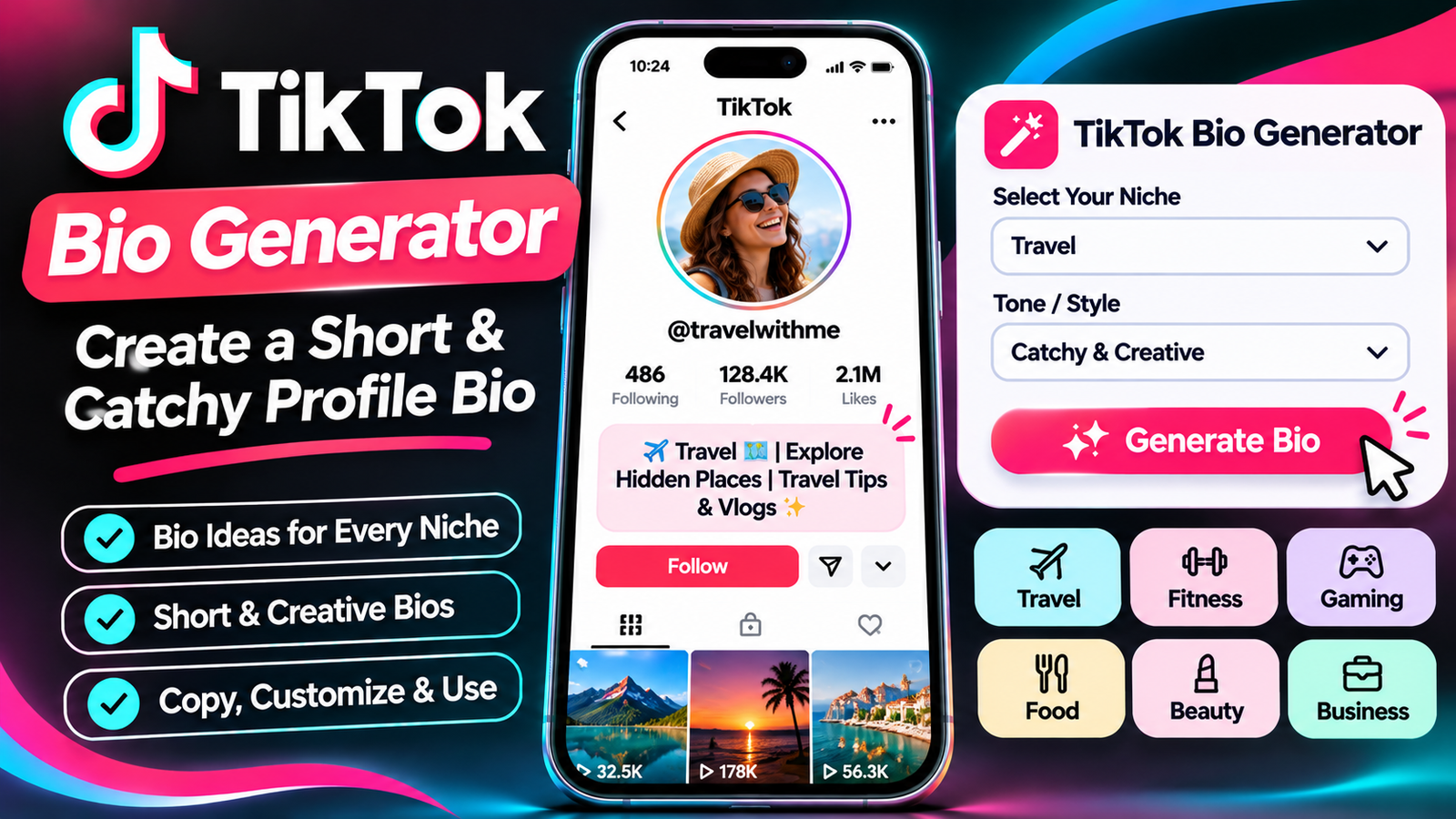
    A TikTok bio generator makes this process easier by helping you create short, creative, and attractive profile descriptions based on your niche, personality, or account purpose.

    Whether you are a content creator, influencer, gamer, entrepreneur, photographer, fitness enthusiast, or small business owner, a free TikTok bio generator can help you discover different bio ideas without spending hours writing them manually.

    For example, a travel creator might want a bio that communicates adventure and destination inspiration, while a fitness coach may prefer a description that highlights workout tips and healthy living.

    Similarly, an online business may need a professional bio that explains its products and encourages potential customers to explore its profile.

    In this guide, you will learn how to use a TikTok bio generator, understand the TikTok bio character limit, discover creative bio ideas for different niches, and learn how to write a short profile description that represents your account.

    You will also find practical examples, profile optimization tips, common mistakes to avoid, and answers to frequently asked questions.

    What Is a TikTok Bio Generator?

    A TikTok bio generator is an online writing tool that helps users create short profile descriptions for their TikTok accounts.

    Instead of starting from a blank text box, you can provide information about your account, interests, business, or content niche and explore suitable bio ideas.

    The purpose of the tool is to make bio writing faster and easier.

    For example, imagine that you run a TikTok account where you publish travel videos, destination guides, and photography content.

    You could enter keywords such as:

    Travel creator

    Adventure

    Photography

    Exploring new places

    Travel inspiration

    A TikTok bio generator can use these details to suggest short profile descriptions that reflect your content.

    Some generators also allow users to explore different writing styles, including funny, professional, aesthetic, creative, minimalist, and motivational bios.

    Depending on the tool’s features, you may be able to generate ideas for:

    Personal TikTok bios.

    Creator profile bios.

    Business account bios.

    Funny TikTok bios.

    Aesthetic TikTok bios.

    Professional profile descriptions.

    Gaming bios.

    Fitness bios.

    Travel bios.

    Influencer bios.

    You can review the suggestions, select your favorite, customize the wording, and add it to your TikTok profile.

    A generator provides ideas, but your final bio should accurately represent who you are and what visitors can expect from your account.

    Why Should You Use a Free TikTok Bio Generator?

    Creating a professional profile description may seem like a small task, but it can take more time than expected.

    You might write several versions, change the wording, remove unnecessary information, and try different emojis before finding a suitable option.

    A free TikTok bio generator can simplify this process.

    Here are some practical reasons to use one.

    1. Save Time When Writing a Bio

    Writing a short bio from scratch can be challenging.

    You might know exactly what your account is about but struggle to explain it in a few words.

    A generator gives you a starting point by producing ideas based on your selected niche and keywords.

    Instead of creating every sentence yourself, you can review different options and choose the one that communicates your message.

    2. Discover Creative Bio Ideas

    Sometimes, the biggest difficulty is finding inspiration.

    You may want a bio that sounds different from other accounts in your niche.

    A bio generator can help you explore alternative wording, creative descriptions, and different tones.

    For example, instead of writing:

    “I post fitness videos.”

    You could use a more descriptive version:

    “Helping you move better, train smarter, and stay consistent.”

    The second description communicates more personality and provides a clearer idea of the content.

    3. Create Short and Catchy Bios

    TikTok bios have limited space.

    You cannot write a long introduction explaining your complete background, business history, or content strategy.

    You need to focus on the most important information.

    A TikTok bio generator can help you explore shorter descriptions that communicate your account’s purpose.

    4. Find Ideas for Different Niches

    A general bio may not be suitable for every account.

    A gaming creator needs a different writing style from a business owner or travel influencer.

    A generator can help you discover niche-specific ideas.

    For example:

    Fitness accounts can emphasize workouts and healthy living.

    Food accounts can describe recipes and cooking content.

    Travel accounts can highlight destinations and adventures.

    Business accounts can communicate products and services.

    Educational accounts can introduce the knowledge they share.

    5. Improve Your Profile Presentation

    Your bio is one part of your overall profile.

    When combined with a recognizable profile picture, suitable username, and consistent video content, it can help make your account easier to understand.

    A clear description tells visitors what they can expect before they scroll through your videos.

    6. Experiment With Different Writing Styles

    A bio generator can help you compare several approaches.

    You might prefer a professional introduction for a business account, while a personal creator profile may benefit from a relaxed and humorous tone.

    Testing different versions helps you find wording that fits your identity.

    7. Useful for Beginners and Experienced Creators

    You do not need professional copywriting experience to create a good TikTok bio.

    Beginners can use a generator for inspiration, while experienced creators can use it to explore new ways of communicating their content.

    The main objective is to create a description that is short, clear, relevant, and memorable.

    How to Use Our Free TikTok Bio Generator

    Using a TikTok bio generator is a straightforward process.

    You only need a few details about your account to begin exploring bio ideas.

    Follow these steps to create a profile description.

    Step 1: Identify Your TikTok Niche

    First, decide what your account is about.

    Your niche is the main subject or category of content you publish.

    For example, your account might focus on:

    Travel and adventure.

    Fitness and workouts.

    Food and recipes.

    Fashion and styling.

    Beauty and skincare.

    Gaming and entertainment.

    Business and entrepreneurship.

    Photography and videography.

    Education and learning.

    Lifestyle and daily routines.

    Choosing a clear niche makes it easier to create a bio that matches your content.

    Step 2: Enter Your Keywords

    Think about the words that best describe your account.

    For example, a travel creator could enter:

    “Travel, adventure, destinations, photography.”

    A fitness creator might enter:

    “Fitness, workout tips, healthy lifestyle, motivation.”

    Keywords help establish the main subject of your bio.

    Choose descriptive terms rather than adding unrelated popular words.

    Step 3: Choose Your Preferred Bio Style

    Depending on the generator, you may be able to select a writing style.

    Common styles include:

    Professional.

    Funny.

    Cute.

    Aesthetic.

    Minimalist.

    Creative.

    Motivational.

    Inspirational.

    Friendly.

    Business-focused.

    Choose the style that matches your personality and audience.

    For example, a personal entertainment account may use a humorous bio, while a professional business account may prefer a clear and informative description.

    Step 4: Generate Bio Ideas

    After entering your niche and relevant keywords, select the Generate option.

    The generator can provide bio suggestions based on the information you entered.

    Review the results carefully.

    Look for a description that communicates your account’s purpose without sounding confusing or unnecessarily complicated.

    Step 5: Customize Your Favorite Bio

    You do not have to use a generated bio exactly as written.

    Change the wording to match your personality or brand.

    You can add:

    Your name or brand identity.

    Your content category.

    A special interest.

    A short description.

    A relevant emoji.

    A call to action.

    For example:

    “Fitness tips for everyday life.”

    Could become:

    “💪 Simple fitness tips | Stronger every day.”

    The revised version communicates the topic while giving the profile a more personal style.

    Step 6: Check the Character Limit

    Before adding your bio to TikTok, check the total character count.

    TikTok’s Help Center documentation states that bios cannot exceed 80 characters.

    Your letters, spaces, punctuation, and emojis all contribute to the available space.

    Some emoji combinations can contain multiple underlying characters, so the app’s own bio counter should be treated as the final check.

    Step 7: Copy and Paste Your Bio

    Once you are satisfied with the result, copy your selected bio.

    Open TikTok, visit your profile, and select Edit profile.

    Find the Bio field and paste your text.

    Review the final result and save the changes.

    Your updated bio should now appear on your profile.

    What Is the TikTok Bio Character Limit?

    One of the most important things to understand before writing a profile description is the available character allowance.

    TikTok’s Help Center states that a bio cannot exceed 80 characters.

    This means you need to communicate your main message using a limited number of characters.

    For many people, 80 characters may sound sufficient.

    However, when you include emojis, spaces, punctuation, and descriptive phrases, the available space can disappear quickly.

    TikTok Bio Character Limit Explained

    Bio ElementUses Character Space?
    LettersYes
    NumbersYes
    SpacesYes
    PunctuationYes
    EmojisYes
    SymbolsYes
    Hashtag textYes
    Line breaksYes

    For example:

    “Travel lover | Sharing adventures ✈️”

    This short description introduces a travel-related account while keeping the message simple.

    However, remember that emoji sequences may be counted differently by some tools and interfaces.

    Always check the final version using TikTok’s own bio field before saving it.

    How to Write a Bio Within 80 Characters

    The easiest way to stay within the available space is to focus on three important elements:

    What your account is about.

    What type of content people can expect.

    Why someone might want to follow you.

    For example:

    “Easy recipes 🍳 | Simple meals for busy days.”

    This description communicates the content category and its intended audience.

    You do not need to explain everything about your account.

    A short and understandable description is usually more useful than a complicated introduction.

    What If Your Bio Is Longer Than 80 Characters?

    If your profile description exceeds the supported limit, TikTok may prevent you from saving it.

    To shorten your bio:

    Remove unnecessary words.

    Replace long phrases with shorter expressions.

    Remove repetitive information.

    Use fewer emojis.

    Focus on one primary content topic.

    Check the result again.

    You can also use an online TikTok character counter before pasting the final version into your profile.

    What Makes a Good TikTok Bio?

    A good TikTok bio should be short, understandable, and connected to your account.

    It should give visitors a quick idea of what they can expect from your content.

    However, creating an effective bio involves more than adding a few keywords.

    Here are the main qualities of a strong profile description.

    1. Clear and Understandable

    Your bio should explain the purpose of your account without confusing visitors.

    For example:

    “Daily recipes and easy cooking tips.”

    This immediately tells visitors what type of content the account provides.

    Avoid descriptions that use too many unrelated phrases.

    2. Short and Memorable

    Because TikTok has a limited bio character allowance, every word should contribute to your message.

    Try to remove unnecessary expressions.

    For example:

    Long version:

    “I am a person who really enjoys creating and sharing interesting videos about traveling to different places.”

    Short version:

    “✈️ Exploring new places and sharing adventures.”

    The second option is easier to scan and more suitable for a short profile description.

    3. Relevant to Your Content

    Your bio should reflect the videos you actually publish.

    If your account focuses on fitness tutorials, a bio about cooking or travel may confuse visitors.

    Keep your profile description aligned with your content niche.

    4. Shows Your Personality

    A personal account does not need to sound like a business advertisement.

    You can use humor, creativity, interests, or an individual writing style.

    For example:

    “Living on coffee, creativity, and good vibes ☕”

    This communicates a more relaxed personality.

    5. Includes a Useful Call to Action

    A call to action encourages visitors to take a relevant next step.

    Examples include:

    Follow for daily tips.

    Explore my latest videos.

    Discover new recipes.

    Follow my fitness journey.

    Shop my collection.

    Choose a call to action that matches your account and the features available on your profile.

    6. Uses Emojis Naturally

    Emojis can make your bio more visually interesting.

    For example:

    “📸 Photography | 🌍 Travel | ✨ Creative moments”

    However, too many emojis can make the description difficult to understand.

    Use a few that support your message.

    7. Represents Your Brand Consistently

    For businesses and professional creators, the bio should match the overall brand presentation.

    Use a consistent tone across your profile picture, username, video covers, and profile description.

    This can help visitors recognize your content and understand your brand.

    Best TikTok Bio Ideas for Different Niches

    Choosing a bio becomes easier when you look at examples created for specific interests.

    Below are original TikTok bio ideas for different categories.

    You can use them as inspiration and customize them according to your account.

    1. TikTok Bio Ideas for Travel Creators

    Travel creators share destination videos, travel experiences, photography, and adventure content.

    Their bio can introduce their interest in exploring different places.

    Bio examples:

    ✈️ Exploring places and sharing adventures.

    🌍 Travel stories from around the world.

    📍 New destinations, unforgettable memories.

    Adventure seeker | Travel creator ✨

    🌎 Your daily dose of travel inspiration.

    Collecting memories, not things ✈️

    📸 Capturing beautiful places and moments.

    One trip at a time 🌍

    A good travel bio should reflect the destinations and experiences featured in your videos.

    2. TikTok Bio Ideas for Fitness Creators

    Fitness creators can use their bios to introduce their workouts, health interests, and motivational content.

    Bio examples:

    💪 Stronger every day.

    Fitness tips for everyday life.

    🏋️ Workout smarter, live healthier.

    Building strength one day at a time.

    Fitness | Motivation | Progress 🔥

    Helping beginners enjoy fitness.

    Your daily fitness inspiration 💪

    Progress over perfection.

    If you are a fitness professional, make sure your bio describes your actual qualifications and services accurately.

    3. TikTok Bio Ideas for Food Creators

    Food accounts can use their bios to introduce recipes, cooking tutorials, restaurant experiences, and food photography.

    Bio examples:

    🍳 Simple recipes, delicious moments.

    Sharing food worth remembering.

    🍕 Food lover | Recipe creator.

    Easy meals for busy days.

    Cooking with love and creativity ❤️

    🥗 Fresh ideas for your kitchen.

    Your daily dose of food inspiration.

    Good food, good mood 🍽️

    A specific description can help food lovers understand what type of cooking content they will find.

    4. TikTok Bio Ideas for Fashion Creators

    Fashion creators share outfit inspiration, styling advice, clothing collections, and personal fashion content.

    Bio examples:

    ✨ Style ideas for everyday living.

    Fashion, outfits, and creative looks.

    👗 Helping you discover your style.

    Everyday fashion inspiration.

    Style is my favorite language.

    Fashion lover | Outfit creator 🖤

    Dressing with confidence every day.

    Trends, outfits, and good vibes.

    5. TikTok Bio Ideas for Beauty and Skincare

    Beauty creators often publish makeup tutorials, skincare routines, product reviews, and beauty tips.

    Bio examples:

    ✨ Beauty tips and skincare routines.

    Makeup, skincare, and self-care.

    💄 Your daily beauty inspiration.

    Simple routines, confident moments.

    Exploring beauty one video at a time.

    Skincare lover | Beauty creator 🌸

    Makeup ideas for everyday looks.

    Beauty begins with self-care.

    6. TikTok Bio Ideas for Gaming Creators

    Gaming accounts can use creative and energetic bios to introduce gameplay, gaming tutorials, live sessions, and entertainment content.

    Bio examples:

    🎮 Playing, learning, and leveling up.

    Gaming is my favorite adventure.

    Daily gameplay and good vibes.

    🎧 Gamer | Creator | Entertainer.

    One more game, one more victory.

    Your daily gaming destination.

    Gaming moments worth sharing.

    Respawn. Retry. Repeat. 🎮

    7. TikTok Bio Ideas for Business Owners

    A business bio should make it easy for visitors to understand what the company offers.

    Bio examples:

    Quality products for everyday life.

    Helping you find your next favorite.

    Small business | Big ideas ✨

    Discover products made with care.

    Creating better everyday experiences.

    Your trusted source for creative finds.

    Building a brand with purpose.

    Explore our latest collection.

    If you operate a business, consider including your category and a relevant website link when your account is eligible to use TikTok’s website field.

    8. TikTok Bio Ideas for Influencers

    Influencers often use their bios to describe their content niche, personality, and collaborations.

    Bio examples:

    Creating content worth watching ✨

    Sharing life, ideas, and inspiration.

    Digital creator | Everyday stories.

    A little creativity every day.

    Here to inspire and entertain.

    Lifestyle, laughter, and creativity.

    Making everyday moments memorable.

    Follow along for more inspiration.

    9. TikTok Bio Ideas for Photographers

    Photography creators can use their bios to introduce their visual style and the subjects they capture.

    Bio examples:

    📸 Capturing moments that matter.

    Photography | Creativity | Stories.

    Turning moments into memories.

    Through my lens, one story at a time.

    Visual storyteller ✨

    Finding beauty in everyday moments.

    Life looks better through a lens.

    Photography is my language.

    10. TikTok Bio Ideas for Educational Creators

    Educational creators share tutorials, learning resources, explanations, and practical information.

    Bio examples:

    Learning something new every day.

    Simple explanations, useful knowledge.

    📚 Making learning easier.

    Tips, tutorials, and useful ideas.

    Knowledge worth sharing.

    Your daily learning destination.

    Learn, practice, and improve.

    Making complicated topics simple.

    11. TikTok Bio Ideas for Lifestyle Creators

    Lifestyle creators publish a mixture of routines, personal experiences, inspiration, and daily activities.

    Bio examples:

    ✨ Everyday moments and good vibes.

    Creating a life I love.

    Lifestyle | Inspiration | Little joys.

    Sharing my everyday journey.

    Life, creativity, and positivity.

    Making ordinary moments special.

    A little bit of everything.

    Finding joy in simple things.

    12. TikTok Bio Ideas for Pet Creators

    Pet accounts can use friendly and playful descriptions.

    Bio examples:

    🐾 Life is better with pets.

    Daily adventures with furry friends.

    Pet moments and endless happiness.

    🐶 Sharing pawsome memories.

    Cats, cuddles, and cute moments.

    Your daily dose of pet happiness.

    Little paws, big personalities.

    Welcome to our pet family.

    13. TikTok Bio Ideas for Music Creators

    Music accounts can use their bios to introduce original songs, performances, covers, and music-related videos.

    Bio examples:

    🎵 Living life one song at a time.

    Music, creativity, and good vibes.

    Creating sounds and sharing stories.

    Music is my favorite language.

    🎧 Your daily music inspiration.

    Singing my way through life.

    Sounds, rhythms, and creativity.

    Making moments sound better.

    14. TikTok Bio Ideas for Comedy Creators

    Comedy creators benefit from bios that reflect their humorous personality.

    Bio examples:

    Here to make your day less serious.

    😂 Laugh first, think later.

    Professional overthinker.

    Making ordinary moments funny.

    Your daily dose of laughter.

    Humor is my superpower.

    Smiles are always in style.

    Creating laughs one video at a time.

    15. TikTok Bio Ideas for Technology Creators

    Technology creators publish gadget reviews, software tutorials, app recommendations, and technology news.

    Bio examples:

    💻 Exploring technology and innovation.

    Tech tips made simple.

    Gadgets, apps, and useful tools.

    Making technology easier to understand.

    Your daily dose of tech.

    Exploring the digital world.

    Smart tools, smarter ideas.

    Technology | Tutorials | Reviews.

    16. TikTok Bio Ideas for Real Estate Creators

    Real estate professionals can use their bios to explain their market, property content, or services.

    Bio examples:

    Helping you explore better home choices.

    🏡 Homes, property, and inspiration.

    Real estate insights made simple.

    Your guide to finding a home.

    Property tips and market updates.

    Exploring beautiful homes and spaces.

    Real estate | Homes | Lifestyle.

    Helping people find their next home.

    Only include licensed professional titles or service claims when they accurately describe your qualifications.

    17. TikTok Bio Ideas for Home Decor Creators

    Home decor creators can highlight interior design, organization, DIY projects, and decorating inspiration.

    Bio examples:

    🏡 Creating spaces that feel like home.

    Simple home decor inspiration.

    Interiors, ideas, and cozy spaces.

    Making everyday spaces beautiful.

    Home styling | DIY | Inspiration.

    Love creating cozy corners.

    Decorating with creativity and care.

    Your daily home inspiration.

    18. TikTok Bio Ideas for Motivation Creators

    Motivational accounts often focus on personal development, productivity, discipline, and positive thinking.

    Bio examples:

    Small steps. Big dreams. ✨

    Your daily reminder to keep going.

    Growth starts with one decision.

    Building better habits every day.

    Focus. Discipline. Progress.

    Inspiring better everyday choices.

    Dream big, work consistently.

    Progress is always worth it.

    19. TikTok Bio Ideas for Digital Marketing Creators

    Digital marketing creators share social media strategies, branding advice, online business tips, and marketing tutorials.

    Bio examples:

    📈 Simple digital marketing tips.

    Helping brands grow online.

    Social media | Marketing | Strategy.

    Turning ideas into digital growth.

    Practical tips for online businesses.

    Content strategy made simple.

    Learn marketing one tip at a time.

    Your daily marketing inspiration.

    20. TikTok Bio Ideas for Personal Accounts

    Personal accounts do not always need to focus on a specific business or niche.

    You can write something that represents your personality and interests.

    Bio examples:

    Just living, learning, and laughing.

    Creating memories every day.

    A little different, always myself.

    Good energy only ✨

    Simple life, big dreams.

    Making every moment count.

    Here to enjoy the journey.

    Just being me ❤️

    These examples can be customized according to your preferences, hobbies, and personality.

    Different TikTok Bio Styles: Which One Should You Choose?

    Not every TikTok account needs the same writing style.

    Your preferred style should reflect your account’s purpose and the audience you want to attract.

    Here are several popular approaches.

    1. Professional TikTok Bio

    A professional bio uses clear, informative language.

    It is suitable for businesses, consultants, educators, and creators building a recognizable brand.

    Example:

    “Digital creator | Sharing practical marketing tips.”

    This provides a simple introduction without unnecessary details.

    2. Aesthetic TikTok Bio

    An aesthetic bio focuses on visual presentation, minimal wording, and a creative tone.

    It is popular among lifestyle, photography, fashion, and personal accounts.

    Example:

    “Golden moments | Soft thoughts | Good energy ✨”

    Try using a consistent visual style without adding too many symbols.

    3. Funny TikTok Bio

    A funny bio communicates personality through humor.

    Example:

    “Part-time adult, full-time overthinker.”

    This style is suitable for personal, comedy, and entertainment accounts.

    4. Cute TikTok Bio

    A cute bio uses friendly expressions and playful language.

    Example:

    “Little moments, big smiles 🌸”

    It can work well for lifestyle, pet, personal, and creative profiles.

    5. Minimalist TikTok Bio

    A minimalist bio contains only the most important information.

    Example:

    “Travel | Photos | Adventures”

    This style is useful when you prefer a simple profile without long descriptions.

    6. Motivational TikTok Bio

    A motivational bio communicates a positive message.

    Example:

    “Building better habits, one day at a time.”

    This approach can work for personal development, fitness, educational, and inspirational accounts.

    7. Business TikTok Bio

    A business bio should explain what the brand offers.

    Example:

    “Modern home essentials | Designed for everyday living.”

    This gives potential customers a quick understanding of the business.

    How to Write a TikTok Bio That Attracts the Right Audience

    A bio should do more than fill the available space.

    It should tell visitors what your account is about and what they can expect from your videos.

    Here are practical ways to improve your writing.

    1. Explain What Your Account Offers

    Start with your main content category.

    For example:

    “Easy recipes and cooking tutorials.”

    This helps visitors understand your account immediately.

    2. Focus on Your Audience

    Think about the people you want to attract.

    Are you sharing information with beginners, experienced creators, students, fitness enthusiasts, or business owners?

    A bio can communicate its value more clearly when it considers the audience.

    For example:

    “Simple tech tips for everyday users.”

    This tells potential followers what they can expect.

    3. Use Specific Words

    Avoid descriptions that are too general.

    Instead of:

    “Posting videos.”

    Try:

    “Sharing home decor ideas and DIY inspiration.”

    The second option provides more context.

    4. Include Your Unique Value

    Think about what makes your account different.

    Perhaps you share budget-friendly recipes, beginner-friendly fitness tutorials, honest product reviews, or simple technology explanations.

    Highlight the most relevant point.

    Example:

    “Affordable style ideas for everyday outfits.”

    5. Write for Easy Reading

    Your bio appears in a small profile area.

    Use short phrases that are easy to understand.

    Avoid unnecessarily complicated expressions, long sentences, or excessive punctuation.

    6. Use a Call to Action

    A call to action can encourage visitors to follow your account or explore an eligible profile link.

    Examples include:

    “Follow for daily tutorials.”

    “Explore my latest creations.”

    “Discover simple home ideas.”

    Use a call to action only when it supports your account’s purpose.

    7. Review Your Character Count

    Before saving your bio, check its complete length.

    TikTok’s published Help Center guidance states that bios cannot exceed 80 characters.

    A character counter can help you identify unnecessary wording before adding the final description.

    How to Add or Change Your TikTok Bio

    After creating your bio, the next step is adding it to your profile.

    The process can be completed through the TikTok mobile application.

    Follow these steps.

    Step 1: Open TikTok

    Launch TikTok on your smartphone.

    Make sure you are logged into the account whose bio you want to update.

    Step 2: Visit Your Profile

    Tap the Profile option at the bottom of the screen.

    Your profile page will open.

    Step 3: Select Edit Profile

    Find the Edit profile button beneath your profile information.

    Tap it to access your editable profile details.

    Step 4: Open the Bio Field

    Locate the Bio option.

    Tap the field to edit your existing description or add a new one.

    Step 5: Paste Your New Bio

    Copy the description generated by your preferred tool.

    Paste it into the bio field.

    Review the spelling, emojis, spacing, and character count.

    Step 6: Save Your Changes

    After reviewing your description, save the updated profile.

    Visit your profile again to make sure everything appears as intended.

    If the bio does not fit, shorten the wording and repeat the process.

    How to Optimize Your TikTok Profile Beyond the Bio

    A strong bio is useful, but it is only one component of your TikTok profile.

    Your profile picture, username, nickname, videos, and links also contribute to the overall presentation.

    Consider these additional improvements.

    1. Choose a Recognizable Profile Picture

    Use a clear image that represents your account.

    For a personal profile, a recognizable photograph may be appropriate.

    For a business, use a brand logo or another suitable image.

    Avoid very complicated designs because profile pictures appear relatively small.

    2. Create a Memorable Username

    A username should be easy to read, recognize, and remember.

    Whenever possible, choose a name that reflects your account or brand.

    Avoid unnecessary symbols and complicated spelling.

    3. Choose an Appropriate Nickname

    Your nickname is displayed as your profile name.

    It can communicate your real name, business name, creator identity, or account topic.

    Keep it consistent with your overall branding.

    4. Organize Your Content

    Your videos should match the subject of your bio.

    For example, if your profile says “Easy cooking tutorials,” your published videos should regularly include useful cooking-related content.

    This creates a consistent visitor experience.

    5. Use an Eligible Website Link

    TikTok provides a separate website-link field for eligible accounts.

    According to its published guidance, personal accounts generally need at least 1,000 followers to add a website link, while eligible verified or registered business accounts may also receive access depending on TikTok’s applicable requirements.

    Availability can vary, so check the Links option under Edit profile.

    If the feature is available, link to a relevant website, product page, portfolio, or landing page.

    6. Keep Your Brand Consistent

    Use consistent colors, profile visuals, and writing styles.

    If you are a business, your TikTok profile should communicate the same identity as your website and other social media accounts.

    Consistency makes your profile easier to recognize.

    TikTok Bio Generator for Different Purposes

    A bio generator can serve different types of users.

    The best output depends on the purpose of your account.

    For Personal Branding

    Personal branding focuses on your identity, interests, skills, and professional activities.

    A suitable bio should introduce what you do and what type of content you publish.

    Example:

    “Creative thinker | Sharing ideas and experiences.”

    For Content Creators

    Creators can use a bio to describe their content category.

    Example:

    “Creating helpful videos about everyday technology.”

    This gives viewers a reason to explore the account.

    For Influencers

    Influencers often want a bio that communicates their niche and personality.

    Example:

    “Lifestyle creator | Sharing everyday inspiration.”

    If your account accepts business enquiries, you may also include a short collaboration call to action, provided it fits the character allowance.

    For Ecommerce Stores

    An ecommerce bio should make the product category understandable.

    Example:

    “Modern accessories for everyday style.”

    It may also direct eligible visitors toward the available shop or website link.

    For Local Businesses

    Local businesses can mention their service category or location when relevant.

    Example:

    “Local bakery | Fresh treats made daily.”

    This provides more information than a generic business description.

    For Educational Accounts

    Educational creators can explain the type of knowledge they share.

    Example:

    “Simple tutorials for curious minds.”

    The most useful bio is the one that accurately represents your content and audience.

    Common TikTok Bio Mistakes to Avoid

    Even when using a generator, it is possible to create a bio that looks confusing or does not represent your account properly.

    Here are some mistakes to avoid.

    1. Writing an Overly Long Bio

    Your bio has limited space.

    Trying to explain your complete background, achievements, services, and interests can make the description difficult to read.

    Focus on your most important message.

    2. Using Too Many Emojis

    Emojis can make a profile more expressive, but too many can create unnecessary visual clutter.

    Select a few that match your content.

    3. Adding Unrelated Keywords

    Using unrelated keywords does not make your profile more relevant.

    If your account focuses on gaming, a collection of unrelated business and travel terms may confuse visitors.

    Keep your description connected to your actual content.

    4. Copying Another Creator’s Bio

    It is fine to use other bios for inspiration.

    However, copying another creator’s complete identity or brand description can make your profile look unoriginal.

    Create wording that reflects your own personality.

    5. Forgetting Your Target Audience

    A business bio written only for internal company use may not communicate useful information to potential customers.

    Think about what a new visitor would want to know.

    6. Using Unclear Abbreviations

    Shortening words can save space, but excessive abbreviations may make the bio difficult to understand.

    Use familiar language wherever possible.

    7. Making Unsupported Claims

    Avoid descriptions that promise guaranteed results, unrealistic earnings, or qualifications you do not possess.

    Your bio should communicate accurate information.

    8. Never Updating Your Bio

    Your content niche or business may change over time.

    Review your bio whenever your account develops a new focus.

    For example, a personal account may gradually become a professional photography profile.

    Update the description to reflect the content you currently publish.

    9. Forgetting the Character Limit

    An attractive bio is not useful if you cannot save it.

    Always check the final text inside TikTok before completing the update.

    10. Using an Unclear Call to Action

    A call to action should tell visitors what to do.

    Avoid vague expressions that provide no useful direction.

    Choose a simple instruction that matches your profile.

    TikTok Bio Generator vs. Writing a Bio Manually

    You can create your profile description manually or use an online generator.

    Both approaches have advantages.

    FeatureManual WritingBio Generator
    Create original wordingYesYes, with customization
    Find instant inspirationRequires effortMore convenient
    Explore different stylesManualDepends on the tool
    Generate niche-based ideasManualConvenient
    Save writing timeDepends on experienceOften faster
    Personal customizationComplete controlEdit generated ideas
    Character reviewManual or separate counterDepends on the tool

    A generator is especially helpful when you are unsure how to begin.

    Manual writing gives you complete control over every word.

    A practical approach is to generate several ideas and customize your favorite one.

    This combines creative inspiration with personal authenticity.

    Tips for Creating an SEO-Friendly TikTok Bio

    TikTok profiles are not traditional website pages, so a bio should be written primarily for people rather than search engines.

    However, using clear niche-related language can help visitors and the platform understand your account.

    Here are some practical considerations.

    1. Use Your Main Topic Naturally

    If your account focuses on cooking, use relevant words such as recipes, food, cooking, or meal ideas.

    For example:

    “Easy recipes | Everyday cooking inspiration.”

    The description communicates the subject without unnecessary keyword repetition.

    2. Keep Your Niche Consistent

    Your profile description should match the content you publish.

    If your videos cover several related subjects, choose a broad but accurate description.

    3. Make Your Profile Name Clear

    Use a recognizable nickname that reflects your identity or brand.

    This helps visitors understand who they are viewing.

    4. Do Not Keyword Stuff

    Adding unrelated search phrases to your bio does not create a professional profile.

    A natural description is more useful than a list of disconnected keywords.

    5. Focus on Viewer Expectations

    Tell visitors what they can expect after following you.

    For example:

    “Weekly home decor ideas and simple DIY projects.”

    This communicates a clear content promise without suggesting guaranteed results.

    Frequently Asked Questions About TikTok Bio Generator

    1. What is a TikTok bio generator?

    A TikTok bio generator is an online tool that creates short profile description ideas based on your niche, keywords, personality, or account purpose.

    It helps users write attractive bios without starting from scratch.

    2. Is there a free TikTok bio generator?

    Yes. You can use a free TikTok bio generator to explore ideas for personal profiles, creators, influencers, businesses, and different content niches.

    The available features depend on the generator you choose.

    3. What is the TikTok bio character limit?

    TikTok’s published Help Center guidance states that a bio cannot exceed 80 characters.

    Spaces, punctuation, symbols, and emojis also use part of the available space.

    Always verify the final count in the TikTok app before saving your description.

    4. How do I create a catchy TikTok bio?

    Start by identifying your content niche.

    Then write a short description explaining what you publish and why people might want to follow you.

    Use clear language, relevant keywords, and a few suitable emojis if they fit your style.

    5. Can I use emojis in my TikTok bio?

    Yes. Emojis can make your bio more expressive and visually interesting.

    However, emojis contribute to the character allowance, so avoid using too many.

    6. How many words should a TikTok bio have?

    There is no fixed word count.

    Because the bio has a limited character allowance, focus on a short and clear description instead of trying to reach a specific number of words.

    7. What should I write in my TikTok bio?

    You should write a short description explaining your account’s subject, interests, products, or content.

    For example:

    “Travel creator | Exploring new destinations ✈️”

    Your bio should reflect what visitors will actually find on your profile.

    8. Can I create different TikTok bios for different niches?

    Yes. You can generate separate ideas for travel, fitness, food, fashion, business, gaming, photography, education, and many other subjects.

    Choose a description that accurately matches your videos.

    9. How do I change my TikTok bio?

    Open TikTok, visit your Profile, select Edit profile, and tap the Bio field.

    Enter your updated description, review the character count, and save your changes.

    10. Why is TikTok not accepting my bio?

    Your bio may exceed the supported character limit or contain content that does not meet TikTok’s requirements.

    Check the text, remove unnecessary characters, and try saving it again.

    11. Can I add a website link to my TikTok bio?

    Eligible accounts can use TikTok’s separate website-link field.

    Personal accounts generally need at least 1,000 followers, while certain verified or registered business accounts may qualify under TikTok’s applicable requirements.

    Check the Links option under Edit profile for availability in your account and region.

    12. What is the difference between a TikTok bio and username?

    A username is your unique account identifier, usually displayed with an @ symbol.

    Your bio is the short description that explains your account’s purpose.

    For example, @creativecook might be the username, while “Easy recipes for everyday cooking” could be its bio.

    13. Can a TikTok bio generator help businesses?

    Yes. Businesses can use a generator to create concise profile descriptions that explain their products, services, or brand identity.

    However, the final description should be customized to reflect the actual business.

    14. Are aesthetic TikTok bios useful?

    Aesthetic bios can help communicate a particular visual or personal style.

    They are often suitable for lifestyle, fashion, photography, and personal accounts.

    The important thing is to keep the wording understandable.

    15. Can I create a funny TikTok bio?

    Yes. A funny bio can communicate personality through humor, playful wording, and relatable expressions.

    For example:

    “Full-time dreamer, part-time overthinker.”

    Choose humor that suits your audience and account.

    16. Should my TikTok bio include hashtags?

    You can include relevant hashtags as text if they fit your profile.

    However, prioritize a clear description of your account.

    A hashtag should not replace useful information about what you publish.

    17. Can I use the same bio on Instagram and TikTok?

    You can reuse the same general message, but it may need adjustments.

    TikTok has a much shorter bio allowance than Instagram’s published bio allowance.

    Create a shorter version for TikTok when necessary.

    18. Is a long TikTok bio better than a short one?

    No. TikTok bios have limited space, and a long description is not necessarily more effective.

    A short bio that clearly explains your account may be easier for visitors to understand.

    19. How often should I update my TikTok bio?

    Update your bio whenever your account’s content, branding, business, or goals change.

    You do not need to rewrite it constantly when it already describes your profile accurately.

    20. Can a TikTok bio help me get more followers?

    A clear bio may help visitors understand your content and decide whether they want to follow your account.

    However, a bio generator cannot guarantee follower growth.

    Your content quality, relevance, presentation, and audience connection remain important factors.

    21. Does a TikTok bio generator require an account?

    That depends on the tool.

    Some online generators allow users to explore bio ideas without signing up, while others may require an account or provide additional features through registration.

    Check the requirements of the specific tool.

    22. Can beginners use a TikTok bio generator?

    Absolutely.

    Beginners can enter a simple description of their account and use the suggested bios as inspiration.

    No advanced copywriting experience is necessary.

    23. What makes a TikTok bio unique?

    A unique bio reflects your actual personality, niche, and style.

    Instead of using generic expressions, explain what makes your content interesting or useful to your intended audience.

    24. Should I include my name in my TikTok bio?

    You can include your name when it helps visitors identify you.

    However, your name may already appear in the profile nickname field, so consider using your limited bio space for additional information.

    25. Can I use a TikTok bio generator for a business account?

    Yes. Business owners can generate short descriptions explaining their industry, products, services, or brand identity.

    For example:

    “Modern accessories | Everyday style made simple.”

    Customize the wording to match your actual business.

    Final Thoughts

    Creating an attractive TikTok profile does not require complicated writing or professional copywriting experience.

    A clear and memorable bio can help visitors understand your account, discover your content niche, and decide whether your videos match their interests.

    A TikTok bio generator makes the process easier by helping you explore creative profile descriptions for different niches, personalities, and business purposes.

    Whether you are a travel creator, fitness enthusiast, gamer, influencer, photographer, entrepreneur, or small business owner, you can use a free bio generator to find inspiration and create a description that represents your account.

    Remember to keep your bio short, use relevant words, add emojis only when they support your message, and check the final character count before saving it.

    Most importantly, make sure your bio accurately describes the content you publish.

    Ready to create your TikTok profile bio?

    Try our free TikTok bio generator, enter your niche and keywords, explore creative suggestions, and choose a short, catchy description for your profile.

    Make your profile easier to understand and give visitors a clear reason to explore your content.

    Official and Further Reading Resources

    TikTok Help Center – Changing Your Bio.

    TikTok Help Center – Changing Your Nickname.

    TikTok Help Center – Changing Your Username.

    TikTok Help Center – Adding a Website Link to Your Profile.

    TikTok Help Center – Account Types on TikTok.

  • TikTok Video Size 2026: Best Dimensions, Resolution & Aspect Ratio Guide

    TikTok Video Size 2026: Best Dimensions, Resolution & Aspect Ratio Guide

    Creating high-quality TikTok videos requires more than interesting ideas, trending sounds, and creative editing. The dimensions, resolution, aspect ratio, and export settings of your videos also play an important role in how your content appears on the platform.

    Whether you are a TikTok creator, influencer, video editor, social media manager, or business owner, using the correct TikTok video dimensions can help your videos look professional and fit the mobile screen properly.

    Have you ever uploaded a TikTok video only to discover unwanted black bars, blurry visuals, cropped text, or an incorrectly positioned subject? These issues can occur when your original video does not match the dimensions or aspect ratio of the intended placement.

    TikTok is primarily designed around vertical, full-screen video content. This is why a vertical video measuring 1080 × 1920 pixels, with a 9:16 aspect ratio, is generally the best starting point for creating regular TikTok videos.

    However, TikTok supports additional video formats, resolutions, and publishing options. The right settings can depend on whether you are creating an organic video, an advertisement, or content that will be shared across multiple social media platforms.

    In this complete guide, you will learn the recommended TikTok video size, dimensions, aspect ratios, resolution requirements, supported formats, and video export settings.

    You will also discover the correct dimensions for TikTok covers, practical editing tips, safe-zone recommendations, common mistakes, and ways to resize videos without losing important visual details.

    Whether you use CapCut, Adobe Premiere Pro, Canva, or another video editing application, this guide will help you prepare videos that look clear and properly formatted before uploading.

    What Are TikTok Video Dimensions?

    TikTok video dimensions refer to the width and height of a video, measured in pixels.

    These measurements determine the shape and resolution of your video.

    For example, a video measuring 1080 × 1920 pixels has:

    A width of 1080 pixels.

    A height of 1920 pixels.

    A vertical orientation.

    A 9:16 aspect ratio.

    This is the commonly recommended format for regular TikTok videos because it fills the smartphone screen in portrait orientation.

    Other video dimensions are also possible.

    A square video uses a 1:1 aspect ratio, while a horizontal video generally uses a 16:9 aspect ratio.

    However, these formats do not provide the same full-screen vertical presentation as a 9:16 video.

    Understanding the difference between resolution, dimensions, and aspect ratio is important.

    Video dimensions describe the pixel width and height of a video.

    Resolution describes the number of pixels used to represent the video image.

    Aspect ratio describes the proportional relationship between its width and height.

    For example, 1080 × 1920 and 720 × 1280 have different resolutions but share the same 9:16 aspect ratio.

    This means both videos have the same general shape, although the 1080 × 1920 version contains more pixels.

    TikTok Video Size 2026: Complete Dimensions Chart

    Before creating a TikTok video, it is helpful to understand the recommended dimensions for different formats.

    Here is a practical reference chart.

    TikTok Video FormatDimensionsAspect RatioRecommended Use
    Standard vertical video1080 × 1920 px9:16Regular TikTok videos
    Square video1080 × 1080 px1:1Square social content
    Horizontal video1920 × 1080 px16:9Landscape footage
    HD vertical video720 × 1280 px9:16Smaller HD files
    Vertical advertisement1080 × 1920 px9:16Full-screen video ads
    Video cover canvas1080 × 1920 px9:16Designing Reel-style vertical thumbnails
    Profile image reference200 × 200 px1:1Practical square profile design

    These are recommended working dimensions, not one universal set of mandatory settings for every TikTok placement.

    TikTok’s official advertising specifications accept vertical, horizontal, and square advertising creatives with different minimum dimensions. Its Content Posting API also specifies technical upload restrictions that are separate from the recommended canvas size.

    For most regular creators, 1080 × 1920 pixels remains a reliable starting point.

    1. Best TikTok Video Size: 1080 × 1920 Pixels

    Aspect ratio: 9:16

    The recommended TikTok video size is 1080 pixels wide by 1920 pixels tall.

    This creates a vertical video with a 9:16 aspect ratio.

    It is designed for smartphone screens and allows your content to fill the screen when viewed in portrait orientation.

    For most creators, this is the best default setting when recording, editing, and exporting TikTok videos.

    Recommended TikTok Video Specifications

    SpecificationRecommended Setting
    Width1080 pixels
    Height1920 pixels
    Aspect Ratio9:16
    ResolutionFull HD (1080p)
    OrientationVertical
    Video FormatMP4
    Video CodecH.264
    Frame Rate30 FPS
    Audio FormatAAC

    MP4 with H.264 is a practical export combination for general video editing and uploading.

    TikTok’s Content Posting API also supports MOV and WebM containers and additional video codecs.

    Why Is 1080 × 1920 the Best TikTok Video Size?

    There are several reasons why creators commonly choose this format.

    1. Full-screen mobile viewing

    A 9:16 video matches the portrait orientation of modern smartphones.

    This provides a more immersive viewing experience.

    2. Better content framing

    Vertical videos provide sufficient space for people, products, demonstrations, and other subjects.

    3. More room for mobile-first storytelling

    You can arrange your subject, background, captions, and visual elements around a tall screen.

    4. Suitable for different content niches

    The format works well for travel videos, product demonstrations, tutorials, entertainment, fitness videos, educational content, and many other categories.

    5. Easier cross-platform publishing

    A 1080 × 1920 vertical video can also be adapted for Instagram Reels and YouTube Shorts.

    You may still need to adjust captions, branding, and platform-specific features before reusing the same video.

    2. TikTok Square Video Size (1080 × 1080 Pixels)

    Aspect ratio: 1:1

    Square videos use equal width and height.

    A commonly used square canvas is 1080 × 1080 pixels.

    Although TikTok is designed around vertical viewing, square videos may be accepted in certain publishing and advertising contexts.

    However, a square video does not fill the entire vertical smartphone screen in the same way as a 9:16 video.

    Recommended Square Video Dimensions

    SpecificationDetails
    Width1080 pixels
    Height1080 pixels
    Aspect Ratio1:1
    OrientationSquare
    Best UseRepurposed square video content

    When Should You Use Square Videos?

    Square videos can be useful when repurposing content that was originally created for other social platforms.

    For example, an ecommerce business may already have square product videos prepared for its website or social media campaigns.

    A square video can preserve its original composition without requiring substantial cropping.

    However, if your main objective is to create a full-screen TikTok experience, vertical video is generally a better option.

    Advantages of Square Videos

    Useful for existing square content.

    Suitable for centered product demonstrations.

    Convenient for certain advertising workflows.

    Can be reused across other social platforms.

    Disadvantages of Square Videos

    Do not fill the entire vertical screen.

    May leave empty space around the video.

    Provide less vertical room for text and demonstrations.

    May look less native than full-screen vertical content.

    Before using square videos, preview how they appear in your intended TikTok placement.

    3. TikTok Landscape Video Size (1920 × 1080 Pixels)

    Aspect ratio: 16:9

    Landscape videos are wider than they are tall.

    A common Full HD landscape video measures 1920 × 1080 pixels and uses a 16:9 aspect ratio.

    This format is popular for traditional video production, desktop video content, tutorials, presentations, and camera-recorded footage.

    TikTok supports horizontal video formats in certain publishing and advertising contexts.

    However, landscape videos generally occupy less vertical screen space than 9:16 videos.

    Recommended Landscape Video Dimensions

    SpecificationDetails
    Width1920 pixels
    Height1080 pixels
    Aspect Ratio16:9
    OrientationHorizontal
    Best UseLandscape footage and repurposed video

    When Should You Use Landscape Videos on TikTok?

    Landscape footage can be useful when the original scene requires a wide frame.

    For example:

    Wide landscape photography.

    Group demonstrations.

    Gaming recordings.

    Traditional camera footage.

    Desktop tutorials.

    Existing YouTube videos.

    Imagine you have a landscape video showing a wide mountain range.

    Cropping it into a vertical frame might remove important details from the left and right sides.

    In such cases, retaining the horizontal format may preserve the original composition.

    However, you should understand that TikTok is primarily a mobile-first platform, and a horizontal video will not provide the same full-screen effect as vertical content.

    Should You Convert Landscape Videos to Vertical?

    It depends on the original footage.

    Converting a landscape video into a vertical format may work well when the main subject stays near the center.

    For example, a person speaking directly to the camera can often be repositioned within a vertical crop.

    However, wide scenes, group recordings, and videos containing several important subjects may lose information when cropped.

    Instead of automatically converting every video, review the composition and decide whether a crop, background extension, or original landscape presentation is better.

    4. TikTok Vertical Video Size (720 × 1280 Pixels)

    Aspect ratio: 9:16

    Another common vertical video resolution is 720 × 1280 pixels.

    This format uses the same 9:16 aspect ratio as a 1080 × 1920 video.

    The main difference is the number of pixels.

    A 720 × 1280 video contains fewer pixels than a 1080 × 1920 video, but both share the same general shape.

    Recommended Specifications

    SpecificationDetails
    Width720 pixels
    Height1280 pixels
    Aspect Ratio9:16
    ResolutionHD
    OrientationVertical

    Is 720 × 1280 Good for TikTok?

    720 × 1280 can be suitable when you need a smaller HD vertical video.

    For example, it may be useful when working with limited storage, slower upload connections, or existing HD footage.

    However, if you are creating new content and your device supports Full HD recording, 1080 × 1920 is generally a better starting point.

    TikTok’s business creative guidance recommends video resolution of at least 720p for advertising creative.

    Always review the quality after uploading because platform processing can change how the final video appears.

    5. TikTok Video Aspect Ratio Explained

    Aspect ratio describes the proportional relationship between the width and height of a video.

    It determines whether your video appears vertical, square, or horizontal.

    Understanding aspect ratios helps you choose the correct video layout before editing.

    Common TikTok Video Aspect Ratios

    Aspect RatioOrientationExample Dimensions
    9:16Vertical1080 × 1920
    1:1Square1080 × 1080
    16:9Horizontal1920 × 1080
    4:5Portrait1080 × 1350

    The 9:16 format is the preferred choice for standard full-screen vertical TikTok content.

    What Does 9:16 Mean?

    A 9:16 ratio means that for every nine units of width, the video has sixteen units of height.

    This produces a taller-than-wide image.

    For example:

    1080 ÷ 9 = 120

    1920 ÷ 16 = 120

    Both dimensions use the same proportional scale, producing a 9:16 image.

    This is why 1080 × 1920 and 720 × 1280 both have the same aspect ratio.

    Why Does Aspect Ratio Matter?

    The wrong aspect ratio can cause:

    Unwanted black bars.

    Cropped video content.

    Poor subject positioning.

    Smaller viewing areas.

    Hidden text and graphics.

    Inconsistent presentation.

    Choosing the correct ratio before editing helps you avoid unnecessary resizing.

    6. TikTok Video Resolution: 720p vs. 1080p vs. 4K

    Resolution determines the number of pixels used to represent your video.

    Higher pixel dimensions can provide more visual detail, but video quality also depends on several other factors.

    These include:

    Camera quality.

    Lighting.

    Focus.

    Bitrate.

    Compression.

    Export settings.

    Original recording quality.

    Here is a comparison of common video resolutions.

    ResolutionExample Vertical DimensionsQuality Category
    480p480 × 854Standard definition
    720p720 × 1280HD
    1080p1080 × 1920Full HD
    1440p1440 × 2560Quad HD
    2160p2160 × 38404K UHD

    720p TikTok Videos

    720p videos can be suitable for basic content.

    They use fewer pixels than 1080p videos and may be easier to upload when bandwidth or storage is limited.

    However, fine details and small text may not look as sharp as they do in higher-resolution footage.

    1080p TikTok Videos

    1080p is a practical resolution for most creators.

    It provides a good balance between image detail, file size, and editing convenience.

    For standard vertical TikTok content, use 1080 × 1920 pixels.

    4K TikTok Videos

    Some smartphones and cameras can record vertical footage in 4K.

    Recording in 4K may provide additional detail and flexibility when cropping or reframing footage.

    For example, you could record a vertical 4K video and export a 1080 × 1920 version.

    This can be useful during editing, especially when you need to make small adjustments to framing.

    However, uploading a larger 4K file does not automatically guarantee a better-looking result after platform processing.

    TikTok’s Content Posting API documentation lists a maximum dimension of 4096 pixels for both width and height, but that is an API restriction and should not be interpreted as a recommendation to upload every video in 4K.

    Which Resolution Should You Choose?

    For most users, 1080 × 1920 is a suitable default.

    Choose 720p when a smaller file is more practical.

    Consider recording in 4K when you need additional editing flexibility and have sufficient storage and processing power.

    7. TikTok Video File Formats: MP4 vs. MOV vs. WebM

    The file format determines how a video is stored and packaged.

    TikTok supports different video formats, but MP4 is a practical choice for regular video exports.

    MP4 Format

    MP4 is commonly used for social media videos.

    It works with a wide range of devices and video editing applications.

    Advantages include:

    Broad software compatibility.

    Convenient file management.

    Support for common video codecs.

    Suitable for social media publishing.

    For a typical TikTok workflow, MP4 with H.264 video is a good starting point.

    MOV Format

    MOV is commonly associated with Apple video workflows.

    It can preserve high-quality footage and is supported by TikTok’s Content Posting API.

    However, exported MOV files can be larger depending on the codec and settings.

    WebM Format

    WebM is another supported format in TikTok’s Content Posting API.

    It is commonly used for web-based media workflows.

    For most beginners, MP4 is easier to work with because it is widely supported by video editors and mobile devices.

    Supported TikTok Video Formats

    TikTok’s official Content Posting API lists:

    MP4.

    WebM.

    MOV.

    It also supports several codecs, including H.264, H.265, VP8, and VP9.

    The API recommends MP4 and H.264.

    These are technical API specifications. Other publishing methods and ad placements may have their own supported-format lists.

    8. Best TikTok Video Export Settings

    Correct dimensions are only one part of preparing a high-quality TikTok video.

    You should also select suitable export settings.

    These settings affect visual clarity, motion, compatibility, and file size.

    Recommended TikTok Export Settings

    SettingRecommended Choice
    Resolution1080 × 1920 px
    Aspect Ratio9:16
    ContainerMP4
    Video CodecH.264
    Frame Rate30 FPS
    Audio CodecAAC
    OrientationVertical
    QualityHigh
    ColorStandard SDR workflow where practical

    These are practical recommendations for a typical editing workflow, not a requirement that every TikTok upload use identical export settings.

    1. Resolution

    Set your video project to 1080 × 1920 pixels.

    This creates a Full HD vertical video suitable for standard TikTok content.

    2. Frame Rate

    A frame rate determines how many individual frames appear each second.

    Common options include:

    24 FPS.

    25 FPS.

    30 FPS.

    50 FPS.

    60 FPS.

    For general TikTok content, 30 FPS is a practical choice.

    For sports, fast movement, and certain action recordings, 60 FPS may be useful.

    TikTok’s Content Posting API lists a supported frame-rate range of 23 to 60 FPS.

    3. Video Codec

    H.264 is a widely supported video codec.

    It provides practical compression and compatibility for common social media workflows.

    Choose H.264 when exporting a standard MP4 video.

    4. Audio Settings

    Clear audio improves the viewing experience.

    Use appropriate audio settings for your workflow and check that:

    Voice recordings are understandable.

    Background music is not excessively loud.

    Music and narration are properly balanced.

    There is no unwanted background noise.

    Audio remains synchronized with the video.

    The exact audio export options depend on your editing software and source recording.

    5. Export Quality

    Choose a high-quality export setting.

    Avoid excessive compression because it can introduce visible artifacts, especially in detailed footage, gradients, and text overlays.

    Review the exported file before uploading.

    9. TikTok Video File Size and Upload Restrictions

    Video file size matters because larger files can take longer to upload and may be more difficult to manage.

    However, file-size limits vary according to the publishing method.

    For example, TikTok’s Content Posting API and TikTok Ads Manager specify different restrictions.

    TikTok Content Posting API Restrictions

    TikTok’s official Content Posting API documentation currently lists the following video restrictions:

    Technical RequirementAPI Specification
    Recommended FormatMP4
    Other Supported FormatsWebM, MOV
    Recommended CodecH.264
    Other Supported CodecsH.265, VP8, VP9
    Minimum Frame Rate23 FPS
    Maximum Frame Rate60 FPS
    Minimum Width and Height360 pixels each
    Maximum Width and Height4096 pixels each
    Maximum Video Size4 GB
    Developer Upload Endpoint DurationUp to 10 minutes

    The same documentation states that all TikTok creators can post videos of up to three minutes, while some accounts have access to five-minute or ten-minute publishing durations.

    The developer upload endpoint’s ten-minute limit should not be confused with the maximum duration available to every TikTok account.

    Your account’s own publishing interface and permissions determine the actual duration available to you.

    TikTok In-Feed Video Ad Restrictions

    Advertising specifications are different from organic posting requirements.

    TikTok’s June 2026 auction in-feed ad documentation lists:

    Ad FormatMinimum DimensionsAspect Ratio
    Vertical540 × 960 px9:16
    Horizontal960 × 540 px16:9
    Square640 × 640 px1:1

    For non-Spark in-feed ads, the documentation also lists:

    Supported video formats: MP4, MOV, MPEG, 3GP, and AVI.

    Maximum duration: 10 minutes.

    Maximum file size: 500 MB.

    Minimum listed bitrate: 516 kbps.

    Always check the current specifications of your particular advertising placement before exporting campaign videos.

    Do not use the organic publishing API’s 4 GB maximum as the file-size limit for TikTok ads.

    10. TikTok Video Length: How Long Can a TikTok Video Be?

    Video dimensions are important, but creators should also understand TikTok’s video-duration rules.

    The available duration can depend on how the video is created, uploaded, or published.

    TikTok’s Content Posting API documentation states that all creators can post videos up to three minutes, while some have access to five-minute or ten-minute videos.

    The API’s developer upload endpoint allows a video of up to ten minutes to be sent, but the platform may require users to trim the video according to their account’s actual publishing limit.

    For TikTok ads, the restrictions are different.

    For example, the June 2026 non-Spark in-feed auction ad specifications list a maximum duration of ten minutes.

    Should You Create Short or Long TikTok Videos?

    There is no single duration that works for every topic.

    A short tutorial may need only 20 seconds, while a detailed product demonstration may require more time.

    Consider the following examples:

    Content TypePossible Duration
    Quick Tip15–30 seconds
    Product Demonstration30–60 seconds
    Short Tutorial30–90 seconds
    Educational Explanation60–180 seconds
    Detailed StorytellingDepends on the topic

    These are creative planning examples, not guaranteed platform performance benchmarks.

    The best duration is the amount of time needed to communicate your message clearly.

    Avoid extending a video simply to make it longer.

    11. TikTok Video Safe Zones: Where Should You Place Text?

    One of the most important parts of TikTok video design is understanding safe zones.

    TikTok displays interface elements over videos.

    These can include:

    Profile information.

    Captions.

    Account names.

    Like buttons.

    Comment buttons.

    Share buttons.

    Audio information.

    Other interactive controls.

    If you place important text or visual elements in these areas, they may be partially hidden.

    This can make your video harder to understand.

    What Is a TikTok Safe Zone?

    A safe zone is an area where important video elements are less likely to be covered by interface controls.

    For example, if you create a tutorial with text instructions, you should position the main instructions within the central area of the video.

    Avoid placing essential information too close to the right edge, where interactive buttons typically appear.

    Also leave room near the bottom for captions and other interface elements.

    TikTok Safe-Zone Design Tips

    Keep headlines near the upper-middle area.

    Avoid placing your headline directly against the top edge.

    Keep important text away from the right side.

    The interactive controls can cover text located along the right edge.

    Avoid placing important information at the bottom.

    Captions and other interface elements may overlap with this area.

    Keep faces and products visible.

    When demonstrating a product, make sure its important details are not covered by interface elements.

    Preview your video before publishing.

    The exact interface layout can vary with the device, placement, and additional features.

    TikTok provides downloadable safe-zone templates for advertising creatives. These should be used when preparing ads because safe areas depend on the selected placement and creative setup.

    For organic videos, previewing your final design inside the TikTok app is a practical way to check the placement of your text and graphics.

    12. TikTok Video Cover and Thumbnail Size

    A TikTok video cover is the thumbnail associated with your video.

    It helps viewers identify a video before opening it and contributes to the appearance of your profile.

    A good cover should communicate the subject quickly.

    For example, a cooking creator might use a cover displaying the finished dish and a short recipe title.

    A fitness creator could use a cover that introduces the exercise demonstrated in the video.

    Recommended TikTok Cover Design Canvas

    A 1080 × 1920 pixel vertical design is a practical starting point for creating a full-height TikTok video cover.

    It matches the overall 9:16 video canvas.

    However, remember that a cover may appear in different crops across TikTok.

    Cover Design Tips

    Use a clear headline.

    Select an image that represents the video.

    Keep important elements near the center.

    Avoid tiny text.

    Use consistent colors and fonts.

    Preview the cover on your profile.

    Avoid placing important information close to the edges.

    Why Does a TikTok Cover Matter?

    A recognizable cover can help organize your profile and explain what a video contains.

    For example, a creator publishing a series of tutorials could use a consistent cover design.

    This allows viewers to understand the topics covered in each video.

    13. How to Resize Videos for TikTok Without Cropping

    Sometimes, your original video will not match TikTok’s recommended 9:16 dimensions.

    For example, you might have a 1920 × 1080 landscape video recorded for YouTube.

    If you directly crop it into a vertical format, important content may disappear.

    There are several ways to solve this problem.

    Method 1: Crop the Video

    Cropping removes part of the original video to fit a new aspect ratio.

    This approach works well when the main subject remains near the center.

    For example, a person speaking directly into the camera can often be placed within a vertical crop.

    However, cropping may remove other important details.

    Method 2: Add a Blurred Background

    You can place your original video in the center of a 9:16 canvas and use an enlarged, blurred version of the same footage as the background.

    This keeps the original scene visible without removing important details.

    It is a common method for adapting landscape content to vertical formats.

    Method 3: Add Background Space

    Instead of using a blurred background, create a solid or branded background.

    You can place your landscape video in the middle and use the remaining space for a headline or other supporting information.

    Make sure the design does not become overcrowded.

    Method 4: Reframe the Video

    Some editing applications provide automatic subject tracking or reframing features.

    These tools can help keep the main subject within the vertical frame as the video progresses.

    However, automated cropping should always be reviewed manually.

    Method 5: Use an Online Video Resizer

    An online video resizer can help you convert videos to different aspect ratios.

    Depending on the tool, you may be able to:

    Upload an original video.

    Select a 9:16 format.

    Adjust the crop.

    Add background space.

    Preview the result.

    Export the resized file.

    This is useful for people who need to prepare several videos for social media.

    14. How to Create TikTok Videos in CapCut

    CapCut is a popular video editing application for creating vertical social media content.

    You can use it to prepare videos specifically for TikTok.

    Here is a simple workflow.

    Step 1: Open CapCut

    Launch CapCut on your computer or smartphone.

    Create a new project.

    Step 2: Import Your Video

    Select the footage you want to edit.

    Make sure the original video has sufficient quality.

    Step 3: Select the Aspect Ratio

    Open the Ratio or Canvas settings.

    Choose 9:16 for a standard TikTok video.

    Step 4: Adjust Your Footage

    Fit your video inside the vertical canvas.

    If your original footage is horizontal, decide whether to crop it, reposition the subject, or add a background.

    Step 5: Add Text and Captions

    Add relevant text, titles, and subtitles.

    Keep important information away from the right edge and bottom interface areas.

    Step 6: Adjust the Audio

    Check the voice recording, background music, and other audio elements.

    Make sure the spoken content is understandable.

    Step 7: Export the Video

    Choose a suitable export configuration.

    A practical setting is:

    Resolution: 1080p.

    Frame rate: 30 FPS.

    Format: MP4.

    Video codec: H.264 when available.

    Step 8: Preview and Upload

    Play the exported video from beginning to end.

    Check whether the text is readable and the image looks clear.

    Then upload the video to TikTok and preview it within the app.

    15. How to Export TikTok Videos in Adobe Premiere Pro

    Adobe Premiere Pro provides detailed controls for video editing and export settings.

    It is useful for creators who want more control over their video projects.

    Step 1: Create a New Sequence

    Open Premiere Pro and create a new sequence.

    Set the frame size to:

    Width: 1080 pixels.

    Height: 1920 pixels.

    This creates a vertical 9:16 project.

    Step 2: Import Your Footage

    Import your original video files.

    Place the selected footage on the editing timeline.

    Step 3: Adjust the Position and Scale

    If your video is already vertical, check that it fits correctly.

    If it is horizontal, adjust the scale and position.

    Make sure the main subject remains visible.

    Step 4: Add Graphics and Captions

    Add your titles, subtitles, and graphical elements.

    Position them within the visible safe area.

    Step 5: Open Export Settings

    Go to the Export panel.

    Choose a suitable video format and output settings.

    Step 6: Choose MP4 and H.264

    Select H.264 as the export format when available.

    This produces a commonly compatible MP4 video.

    Step 7: Select Resolution and Frame Rate

    Set the dimensions to 1080 × 1920 pixels.

    Use a frame rate that matches your project, such as 30 FPS.

    Step 8: Export and Review

    Export your video and play the final file.

    Check its resolution, aspect ratio, audio synchronization, and overall quality before uploading.

    16. How to Create TikTok Videos Using Canva

    Canva is another convenient option for creating vertical video graphics.

    It can be useful for beginners, marketers, and people who regularly create promotional content.

    Step 1: Open Canva

    Sign in to Canva and select a video design.

    Step 2: Choose Custom Dimensions

    Create a custom canvas measuring 1080 × 1920 pixels.

    Step 3: Upload Your Video

    Upload the original footage or select relevant visual material.

    Step 4: Adjust the Layout

    Arrange your footage, headings, images, and supporting elements.

    Keep the main subject within the visible area.

    Step 5: Add Text and Branding

    Include your brand name, subtitles, and other relevant information.

    Use readable fonts and balanced colors.

    Step 6: Download Your Video

    Export the project as an MP4 video if the selected Canva plan and features support the required video export.

    Review the downloaded file before posting.

    17. TikTok Video Dimensions for Advertisements

    TikTok advertisements have their own creative specifications.

    These requirements should not be confused with the recommended dimensions for regular organic videos.

    According to TikTok’s June 2026 auction in-feed ad specifications, non-Spark advertisements support three major aspect ratios.

    Advertising FormatMinimum DimensionsAspect Ratio
    Vertical540 × 960 px9:16
    Horizontal960 × 540 px16:9
    Square640 × 640 px1:1

    For non-Spark auction in-feed ads, TikTok also lists:

    Supported formats: MP4, MOV, MPEG, 3GP, and AVI.

    Maximum video duration: 10 minutes.

    Maximum file size: 500 MB.

    Minimum bitrate: 516 kbps.

    Best Format for TikTok Ads

    The 9:16 vertical format is the recommended option for full-screen creative.

    It provides a more natural mobile presentation.

    However, square and horizontal formats can be used in the advertising placements that support them.

    TikTok Ad Safe Zones

    For advertisements, safe-zone requirements depend on the aspect ratio, caption length, and selected interactive elements.

    Make sure important text and logos remain within the relevant safe-zone template.

    Review the advertisement using TikTok’s preview tools before launching a campaign.

    This helps you identify possible cropping and interface-overlap issues.

    18. Common TikTok Video Size Mistakes to Avoid

    Even a creative video can look unprofessional if it is exported using unsuitable dimensions or settings.

    Here are some common mistakes to avoid.

    1. Using the Wrong Aspect Ratio

    A horizontal video may not provide a full-screen viewing experience.

    For regular vertical TikTok videos, use 9:16.

    2. Uploading Low-Resolution Footage

    Very low-resolution videos may appear blurry on larger mobile displays.

    Whenever possible, start with high-quality original footage.

    3. Placing Text Near Interface Buttons

    Important text can become hidden behind the right-side controls or other interface elements.

    Keep essential information inside the central safe area.

    4. Exporting With Unnecessary Compression

    Aggressive compression may create visible artifacts.

    Use appropriate quality settings and review the final export.

    5. Stretching a Video to Fit the Screen

    Stretching horizontal footage into a vertical frame can distort the appearance of people and objects.

    Instead, crop thoughtfully or add background space.

    6. Ignoring Audio Quality

    A video may have good visuals but still provide a poor experience if its audio is difficult to understand.

    Check the narration, background music, and volume balance.

    7. Forgetting the Cover Image

    A poor cover may make a video difficult to recognize on your profile.

    Choose a cover that communicates the subject clearly.

    8. Ignoring Mobile Preview

    A desktop editing preview does not always show how a video looks inside the TikTok interface.

    Open the final video on a smartphone and review it before publishing.

    19. Best Practices for High-Quality TikTok Videos

    Correct dimensions provide a good foundation, but creating professional videos requires attention to the complete production process.

    Here are useful practices for improving your video quality.

    Record in Good Lighting

    Lighting affects how clear and detailed your video looks.

    Try to record in a well-lit environment.

    Natural daylight can be useful for simple indoor recordings.

    Keep Your Camera Stable

    Unnecessary camera movement can make a video difficult to watch.

    Use a tripod or stable surface when recording demonstrations, tutorials, or product videos.

    Focus on Clear Framing

    Keep your main subject visible.

    Avoid cutting off important parts of a product, face, or demonstration.

    Use Readable Captions

    Captions help communicate your message, particularly when viewers cannot listen to audio.

    Choose a readable font and appropriate contrast.

    Create a Strong Opening

    Introduce the topic early.

    For example, a tutorial could begin by showing the result or explaining the problem it will solve.

    Keep the Editing Consistent

    Use transitions, subtitles, and effects only when they support the message.

    Excessive effects can distract viewers from your actual content.

    Review the Final Export

    Watch the complete video before uploading.

    Check for visual errors, black bars, incorrect positioning, audio issues, and unreadable text.

    20. Frequently Asked Questions About TikTok Video Dimensions

    1. What are the best TikTok video dimensions in 2026?

    The recommended TikTok video dimensions are 1080 × 1920 pixels with a 9:16 vertical aspect ratio.

    This format is designed for full-screen smartphone viewing and works well for regular TikTok videos.

    2. What is the TikTok video aspect ratio?

    The recommended aspect ratio for standard vertical TikTok videos is 9:16.

    Other ratios, including 1:1 and 16:9, are supported in certain content and advertising contexts.

    3. Is 1080 × 1920 the best TikTok video size?

    Yes. It is a practical Full HD vertical video size for most creators.

    It provides sufficient detail for standard mobile viewing while matching the platform’s vertical-first presentation.

    4. Can I upload 4K videos to TikTok?

    TikTok’s Content Posting API documentation permits dimensions of up to 4096 pixels for both width and height.

    However, that is an API restriction rather than a universal recommendation for all upload methods.

    For most creators, 1080 × 1920 is a practical export size.

    5. Is 720p good enough for TikTok?

    720p can be suitable for basic video content.

    However, 1080p generally provides more visual detail and is a better starting point when your device and editing workflow support it.

    6. What is the best TikTok video resolution?

    1080 × 1920 pixels is the recommended working resolution for standard vertical videos.

    It provides Full HD quality in a 9:16 format.

    7. What is the recommended TikTok video frame rate?

    30 FPS is a practical choice for general TikTok videos.

    TikTok’s Content Posting API lists a supported frame-rate range from 23 FPS to 60 FPS.

    Fast-motion footage may benefit from 60 FPS when the original recording supports it.

    8. Is MP4 or MOV better for TikTok?

    MP4 with H.264 is a practical option for most creators.

    MOV is also supported by TikTok’s Content Posting API.

    Choose a format compatible with your editing software and intended publishing method.

    9. What is the best video format for TikTok?

    MP4 is a convenient and widely supported format.

    TikTok’s Content Posting API also accepts WebM and MOV.

    H.264 is the recommended video codec in that documentation.

    10. What is the maximum TikTok video file size?

    TikTok’s Content Posting API lists a maximum video size of 4 GB.

    However, TikTok Ads Manager uses separate advertising specifications. For non-Spark auction in-feed ads, the listed maximum is 500 MB.

    Do not assume that every publishing method has the same limit.

    11. How long can a TikTok video be?

    TikTok’s Content Posting API documentation states that all creators can post videos of up to three minutes, while some accounts have access to five-minute or ten-minute videos.

    The actual duration available depends on your account and publishing method.

    12. Can I upload horizontal videos to TikTok?

    Yes. Horizontal videos are supported in certain TikTok publishing and advertising contexts.

    However, 16:9 horizontal videos do not provide the same full-screen vertical experience as 9:16 videos.

    13. Why does my TikTok video have black bars?

    Black bars can appear when your original video does not match the intended display area.

    This commonly happens when uploading horizontal or square footage into a vertical layout.

    You can solve this by cropping the video or placing it inside a 9:16 canvas with a background.

    14. How do I resize a video to 9:16?

    You can use CapCut, Adobe Premiere Pro, Canva, or an online video resizer.

    Select a 9:16 canvas, adjust your original footage, position the subject, and export the final video at 1080 × 1920 pixels.

    15. What is the best TikTok video size for CapCut?

    Use 1080 × 1920 pixels with a 9:16 aspect ratio for a standard TikTok project in CapCut.

    Exporting in MP4 at 30 FPS is a practical starting point.

    16. What is the TikTok video cover size?

    A 1080 × 1920 pixel vertical canvas is a practical design starting point for a full-height video cover.

    Keep important text near the center because the cover may appear in differently cropped profile and video previews.

    17. What are TikTok video safe zones?

    Safe zones are areas where important text, logos, and subjects are less likely to be covered by TikTok interface elements.

    Avoid placing important content too close to the right side or bottom edge.

    For advertisements, use TikTok’s official placement-specific safe-zone templates.

    18. Can I use the same video on TikTok and Instagram Reels?

    Yes. A 1080 × 1920 video with a 9:16 aspect ratio is a useful common format for both platforms.

    However, you should adapt captions, covers, music, and branding to each platform before publishing.

    19. Does TikTok reduce video quality after uploading?

    TikTok processes uploaded videos, and the final playback quality can differ from the original file.

    Starting with high-quality footage, using appropriate export settings, and avoiding excessive compression can help preserve visual clarity.

    20. Why is my TikTok video blurry after uploading?

    Common reasons include low-resolution source footage, excessive compression, incorrect export settings, poor focus, and insufficient lighting.

    Check your original footage and export quality before uploading again.

    21. What is the best aspect ratio for TikTok ads?

    TikTok recommends a vertical 9:16 aspect ratio for in-feed auction ads.

    Its specifications also support 16:9 horizontal and 1:1 square formats for non-Spark ads.

    22. Can I resize a YouTube video for TikTok?

    Yes. You can adapt a horizontal YouTube video into a 9:16 format.

    You may crop the original footage, use a blurred background, or reposition the subject.

    Choose the method that preserves the important parts of the video.

    23. Should I export TikTok videos at 30 FPS or 60 FPS?

    Use 30 FPS for most everyday content.

    Choose 60 FPS when your original footage contains fast motion and you want smoother playback.

    Avoid exporting at 60 FPS simply to increase a technical number if your original footage was recorded at a lower frame rate.

    24. Is vertical video better than horizontal video on TikTok?

    For standard full-screen mobile content, vertical 9:16 video is generally the better choice.

    Horizontal video can still be useful when preserving a wide composition is more important than filling the entire screen.

    Final Thoughts

    Choosing the correct TikTok video dimensions is an important part of creating professional short-form content.

    The right resolution and aspect ratio can help your videos fit the screen, preserve important visual details, and look more consistent across different devices.

    For most creators, 1080 × 1920 pixels with a 9:16 aspect ratio is the best starting point.

    Use MP4 with H.264 for a practical export workflow, select a suitable frame rate, and keep important text and graphics away from TikTok’s interface elements.

    Remember that standard organic posting, developer API publishing, and TikTok advertising can have different technical requirements.

    Before publishing, check the actual upload options available to your account and preview the final video on a mobile device.

    You do not need expensive equipment or complicated editing software to create good TikTok videos. A smartphone, clear lighting, thoughtful framing, and the correct export settings can provide a strong foundation.

    Ready to prepare your next TikTok video?

    Use our free Social Media Video Resizer to adjust your videos for TikTok’s vertical format, change aspect ratios, and prepare content for different social media platforms.

    Create properly sized videos, check your final export, and publish with confidence.

    Further Reading and Official References

    TikTok for Developers: Media Transfer Guide and Video Restrictions.

    TikTok for Business: Creative Quality Control Checklist.

    TikTok for Business: Auction In-Feed Ads Specifications.

    TikTok for Business: Top Tips for Making TikTok Videos.

  • Instagram Post Size: Complete Guide to Image Dimensions for Every Format

    Instagram Post Size: Complete Guide to Image Dimensions for Every Format

    Instagram Post Size: Complete Guide to Image Dimensions for Every Format

    Creating high-quality Instagram content involves more than choosing attractive photographs, writing captions, and adding hashtags. The dimensions of your images and videos also play an important role in how your content appears on the platform.

    Whether you are a content creator, influencer, photographer, social media manager, or business owner, using the correct Instagram post size can help your visuals look professional, clear, and properly formatted across different Instagram placements.

    Have you ever uploaded a photograph only to discover that part of the image was cropped? Or created an Instagram Story where the text appeared behind the interface buttons? These problems often happen when the image dimensions or aspect ratios do not match the intended format.

    Instagram supports several content formats, including square posts, portrait images, landscape photographs, carousel posts, Stories, and Reels. Each format has its own recommended dimensions and display requirements.

    For example, a square Instagram post generally uses 1080 × 1080 pixels, while a full-screen Instagram Story or Reel uses 1080 × 1920 pixels.

    Understanding these differences can help you prepare images correctly before uploading them.

    In this complete Instagram image size guide, you will learn the recommended dimensions for every major Instagram format, including feed posts, Stories, Reels, carousel slides, profile pictures, and Reel covers.

    You will also discover the best aspect ratios, image formats, cropping techniques, export settings, and practical design tips to help your content look better on different devices.

    Whether you create Instagram graphics using Canva, Photoshop, Adobe Express, or another design application, this guide will help you select the right image dimensions for your next post.

    What Is Instagram Post Size?

    Instagram post size refers to the width and height of an image or video uploaded to Instagram.

    These dimensions are usually measured in pixels.

    For example, an image measuring 1080 × 1080 pixels is 1080 pixels wide and 1080 pixels tall. It creates a square format commonly used for Instagram feed posts.

    Similarly, an image measuring 1080 × 1350 pixels is taller than it is wide. This is known as a portrait format.

    Instagram supports different image dimensions because users publish various types of visual content.

    These include:

    Square Instagram posts.

    Portrait Instagram posts.

    Landscape photographs.

    Instagram carousel posts.

    Instagram Stories.

    Instagram Reels.

    Profile pictures.

    Reel cover images.

    Choosing the correct dimensions helps control how your content appears when uploaded.

    If an image has an unsupported aspect ratio, Instagram may crop or resize it to fit the available format.

    This can sometimes remove important parts of a photograph, cut off text, or make a graphic look different from the original design.

    For this reason, it is useful to prepare your images in the correct dimensions before publishing.

    Instagram Post Size Guide 2026: Complete Dimensions Chart

    Here is a quick reference chart covering the most common Instagram image and video sizes.

    Instagram FormatImage DimensionsAspect Ratio
    Square Post1080 × 1080 px1:1
    Portrait Post1080 × 1350 px4:5
    Tall Portrait Post1080 × 1440 px3:4
    Landscape Post1080 × 566 px1.91:1
    Instagram Story1080 × 1920 px9:16
    Instagram Reel1080 × 1920 px9:16
    Carousel PostSame as feed formats1:1, 4:5 or 3:4
    Profile Picture320 × 320 px*1:1
    Reel Cover Reference420 × 654 pxApprox. 1:1.55

    The profile-picture size is a practical recommendation, not a mandatory official pixel specification.

    These sizes provide a useful starting point for creating Instagram content.

    However, choosing the correct dimensions also requires understanding how Instagram displays images in the feed, profile grid, Story viewer, and Reels tab.

    Let’s explore each format separately.

    1. Instagram Square Post Size (1080 × 1080 Pixels)

    <caption>Aspect ratio: 1:1</caption>

    Square images are one of the most recognizable Instagram formats.

    A square Instagram post measures 1080 pixels in width and 1080 pixels in height.

    Because both dimensions are equal, the image creates a perfectly balanced square composition.

    Square posts are useful for photographs, product images, announcements, promotional graphics, and simple visual designs.

    Recommended Square Post Dimensions

    SpecificationDetails
    Width1080 pixels
    Height1080 pixels
    Aspect Ratio1:1
    Recommended FormatJPG or PNG
    Best UseProduct photos, graphics, announcements

    When Should You Use Square Instagram Posts?

    Square posts work especially well when your design does not require a tall or horizontal layout.

    For example, an online store might use square photographs to display individual products.

    A restaurant could use square images to showcase food photography, while a business account might publish square graphics containing short announcements.

    Square images are also convenient when maintaining a consistent visual style across several social platforms.

    Advantages of Square Posts

    Balanced and symmetrical appearance.

    Suitable for product photography.

    Easy to design using Canva.

    Convenient for simple promotional graphics.

    Useful for maintaining consistent layouts.

    Important Profile Grid Consideration

    Instagram’s profile grid now uses a taller 3:4 preview rather than the older square preview.

    This means a square post can appear cropped horizontally when viewed in the profile grid, even though the complete square image is visible when opening the feed post.

    Keep important text, logos, and product details toward the center of your square design.

    For a 1080 × 1080 image, the central area of approximately 810 pixels in width is a useful guide for keeping essential elements visible in a 3:4 grid preview.

    2. Instagram Portrait Post Size (1080 × 1350 Pixels)

    <caption>Aspect ratio: 4:5</caption>

    Portrait images are a popular choice for Instagram feed content.

    The recommended portrait Instagram post size is 1080 × 1350 pixels.

    Unlike square images, portrait posts are taller than they are wide.

    This allows photographs and graphics to occupy more vertical space while users scroll through their feeds.

    For many creators and businesses, the 4:5 format is a practical choice because it works well for product photography, educational graphics, and promotional posts.

    Recommended Portrait Post Dimensions

    SpecificationDetails
    Width1080 pixels
    Height1350 pixels
    Aspect Ratio4:5
    Recommended FormatJPG or PNG
    Best UseProduct photos, tutorials, promotional content

    Why Choose Portrait Images?

    A portrait image occupies approximately 25% more vertical space than a square image at the same width.

    This gives you additional room for visual information.

    For example, a business can include a product photograph with a headline and a short description.

    A content creator can use portrait dimensions for educational graphics or step-by-step tips.

    Best Uses for Instagram Portrait Posts

    Portrait images are especially useful for:

    Product photography.

    Fashion photographs.

    Travel pictures.

    Educational infographics.

    Marketing announcements.

    Promotional graphics.

    Before-and-after images.

    Should You Use 1080 × 1350 or 1080 × 1440?

    Both formats are supported by the Instagram app, but they serve slightly different purposes.

    The 1080 × 1350 format uses a 4:5 ratio and remains a practical choice when preparing content for external publishing services or multiple platforms.

    The newer 1080 × 1440 format uses a 3:4 ratio and matches Instagram’s tallest supported feed-photo shape and its current profile-grid preview.

    Choose between them according to your publishing workflow and design requirements.

    3. Instagram Tall Portrait Post Size (1080 × 1440 Pixels)

    <caption>Aspect ratio: 3:4</caption>

    One important development in Instagram image formatting is support for the taller 3:4 image ratio.

    A 3:4 image measuring 1080 × 1440 pixels provides additional vertical space compared with the traditional 4:5 portrait format.

    This is particularly useful when designing content specifically for Instagram.

    Recommended Dimensions

    SpecificationDetails
    Width1080 pixels
    Height1440 pixels
    Aspect Ratio3:4
    Best UseInstagram feed and profile-grid-friendly content

    Why Is the 3:4 Format Important?

    Instagram changed its profile grid presentation from square thumbnails to taller rectangular previews in January 2025.

    The 3:4 ratio matches this newer profile-grid shape.

    As a result, a 1080 × 1440 post can fit the current grid preview without the same horizontal cropping experienced by square and 4:5 images.

    This is useful for creators who carefully plan their Instagram profile appearance.

    For example, if you publish a product graphic, you can position the product name and important design elements within the 3:4 canvas.

    The complete design can then appear more naturally in the profile grid.

    When Should You Use 3:4 Images?

    Choose this format when:

    Your content is designed specifically for Instagram.

    You want a taller feed image.

    You want to align the design with the current profile-grid preview.

    You publish product photographs.

    You create vertical educational graphics.

    One important limitation: third-party scheduling tools and publishing APIs may support narrower aspect-ratio ranges than the Instagram app. Check your publishing tool before preparing an entire campaign in 3:4 format.

    4. Instagram Landscape Post Size (1080 × 566 Pixels)

    <caption>Aspect ratio: 1.91:1</caption>

    Landscape images are wider than they are tall.

    They are useful for photographs that need a horizontal composition.

    The commonly recommended Instagram landscape size is 1080 × 566 pixels.

    This creates an aspect ratio of approximately 1.91:1.

    Landscape images are suitable for wide scenic photographs, group pictures, travel images, and promotional banners.

    Recommended Landscape Dimensions

    SpecificationDetails
    Width1080 pixels
    Height566 pixels
    Aspect Ratio1.91:1
    Best UseWide photographs and horizontal graphics

    When Are Landscape Instagram Posts Useful?

    Landscape dimensions are especially useful when you want to preserve the complete width of a photograph.

    For example, a travel photographer may want to share a wide mountain landscape.

    A real estate business might use horizontal photographs to showcase a room or property.

    A photographer might also choose landscape dimensions for group photos or wide outdoor scenes.

    Advantages of Landscape Posts

    Preserve wide photographic compositions.

    Suitable for panoramic-style images.

    Useful for group photographs.

    Work well for certain product and location images.

    A Common Landscape Image Mistake

    Some users upload very wide photographs without checking the supported aspect ratio.

    When an image falls outside Instagram’s supported range, the platform may crop it.

    This can remove important elements from the sides or alter the composition.

    Prepare your photograph in a supported ratio before publishing.

    5. Instagram Story Size (1080 × 1920 Pixels)

    <caption>Aspect ratio: 9:16</caption>

    Instagram Stories use a vertical, full-screen format.

    The recommended Instagram Story size is 1080 × 1920 pixels.

    This ratio fills the screen of a vertically held smartphone and creates an immersive viewing experience.

    Stories are commonly used for temporary updates, announcements, promotions, polls, questions, behind-the-scenes content, and interactive posts.

    Recommended Instagram Story Dimensions

    SpecificationDetails
    Width1080 pixels
    Height1920 pixels
    Aspect Ratio9:16
    Recommended Image FormatJPG or PNG
    Best UseFull-screen vertical content

    Why Use 1080 × 1920 for Instagram Stories?

    The 9:16 format is designed for full-screen mobile viewing.

    It provides enough vertical space to combine photographs, text, stickers, graphics, and other visual elements.

    For example, an ecommerce store can create a Story promoting a new product.

    A creator can share a behind-the-scenes video, while a restaurant can announce a daily special.

    Instagram Story Design Tips

    Keep important information away from the top.

    The top portion of a Story may contain account information and other interface elements.

    Avoid placing important text or logos too close to the top edge.

    Leave space at the bottom.

    Reply controls and interactive elements may cover part of the lower portion.

    Keep important text and calls to action clear of this area.

    Use readable typography.

    Choose fonts that remain readable on smaller smartphone screens.

    Avoid overcrowding the design.

    Too many images, stickers, and text elements can make a Story difficult to understand.

    Use high-quality images.

    Start with a clear image at the recommended dimensions to reduce unnecessary enlargement and cropping.

    Instagram Story Safe Zones

    For Stories advertisements, Meta provides guidance about keeping key elements away from areas occupied by the interface.

    A useful starting point for a 1080 × 1920 design is to keep approximately:

    14% of the top clear.

    35% of the bottom clear.

    6% of each side clear.

    These are advertising safe-zone guidelines and should be treated as a practical design reference for organic Stories, not a fixed rule for every placement.

    The safest approach is to keep your main headline, brand logo, product, and call to action near the central area.

    6. Instagram Reel Size (1080 × 1920 Pixels)

    <caption>Aspect ratio: 9:16</caption>

    Instagram Reels are designed for vertical video viewing.

    The recommended Instagram Reel dimensions are 1080 × 1920 pixels, using a 9:16 aspect ratio.

    This format fills the smartphone screen and provides a vertical canvas for short-form videos.

    Reels are commonly used for tutorials, entertainment, product demonstrations, educational content, behind-the-scenes clips, and promotional videos.

    Recommended Instagram Reel Dimensions

    SpecificationDetails
    Width1080 pixels
    Height1920 pixels
    Aspect Ratio9:16
    Recommended Resolution1080p
    Minimum Resolution720 pixels
    Minimum Frame Rate30 FPS

    Instagram accepts a range of Reel aspect ratios, but 9:16 is the practical choice for a full-screen vertical experience.

    Why Is 1080 × 1920 the Preferred Reel Size?

    The 9:16 aspect ratio matches the shape of most modern smartphone screens in portrait orientation.

    It allows creators to use the available screen space more effectively.

    For example:

    A fitness creator can demonstrate an exercise with enough vertical room to show the complete movement.

    A travel creator can present destination videos with full-screen visuals.

    An online store can showcase a product demonstration using a vertical video.

    Instagram Reel Design Tips

    1. Use vertical footage.

    Record or edit videos in 9:16 whenever possible.

    2. Keep the subject visible.

    Place the main subject within the central area instead of positioning it too close to the edges.

    3. Avoid interface overlays.

    Instagram displays buttons, captions, and other interface elements over Reels.

    Keep important text, products, and logos away from areas where these controls appear.

    4. Use readable subtitles.

    If your Reel contains spoken information, subtitles can help people understand the message.

    5. Use a strong opening.

    The opening moments should quickly communicate what the video is about.

    6. Export in good quality.

    Use the appropriate video settings and avoid repeatedly compressing the same file.

    7. Instagram Carousel Post Size

    <caption>Recommended approach: Use one consistent aspect ratio across slides.</caption>

    An Instagram carousel allows users to share multiple images or videos within a single post.

    Viewers can swipe through the slides to explore the content.

    Carousels are useful for tutorials, product collections, educational guides, photography collections, and step-by-step explanations.

    The recommended dimensions depend on the format you choose.

    Instagram Carousel Dimensions

    Carousel FormatDimensionsAspect Ratio
    Square Carousel1080 × 1080 px1:1
    Portrait Carousel1080 × 1350 px4:5
    Tall Portrait Carousel1080 × 1440 px3:4
    Landscape Carousel1080 × 566 px1.91:1

    Important Carousel Size Rule

    Keep every slide in the same orientation and aspect ratio.

    For example, if you choose a 1080 × 1350 portrait design, prepare every slide using those dimensions.

    Mixing square, portrait, and landscape slides can produce inconsistent cropping and an unprofessional presentation.

    Best Uses for Instagram Carousels

    Carousels work well for:

    Step-by-step tutorials.

    Educational content.

    Product collections.

    Before-and-after comparisons.

    Photography collections.

    Business tips.

    Informational infographics.

    How Many Slides Can an Instagram Carousel Have?

    Instagram’s app supports up to 20 photos and videos in a carousel post.

    However, third-party publishing services may have different limits.

    Always check the requirements of your selected scheduling or publishing tool before uploading a large carousel.

    Carousel Design Tips

    Create a strong first slide because it introduces the subject and encourages viewers to explore the remaining slides.

    Use consistent colors, fonts, and spacing.

    Avoid placing text too close to the edges.

    Make sure each slide contributes useful information rather than repeating the same message.

    You should also check that images and text remain visually consistent across the entire carousel.

    8. Instagram Profile Picture Size

    <caption>Suggested image size: 320 × 320 pixels</caption>

    Your Instagram profile picture is one of the first visual elements people notice when visiting your account.

    It may contain a personal photograph, business logo, creator branding, or another recognizable image.

    A 320 × 320 pixel square image is a commonly recommended practical starting point for profile pictures.

    Instagram displays profile pictures in a circular shape.

    This means the corners of the original square image are not visible in the final display.

    Recommended Profile Picture Dimensions

    SpecificationDetails
    Width320 pixels or higher
    Height320 pixels or higher
    Aspect Ratio1:1
    Display ShapeCircular
    Best UseLogos, portraits, brand identity

    Profile Picture Design Tips

    Keep your subject centered.

    Important parts of the image should remain inside the central circular area.

    Use a simple design.

    Small profile images cannot display complicated details clearly.

    Choose good contrast.

    Make sure your logo or photograph remains distinguishable against its background.

    Avoid small text.

    Text that looks readable in a large design may become difficult to read when displayed as a small profile image.

    Use a high-quality source image.

    A sharp original photograph or logo will generally look better than an enlarged, low-resolution file.

    9. Instagram Reel Cover Size

    A Reel cover is the thumbnail image associated with your video.

    It helps introduce the subject before someone opens the Reel and can also influence how your profile grid looks.

    Instagram’s Help Center provides a cover-image reference size of 420 × 654 pixels.

    However, when designing the complete Reel creative, a 1080 × 1920 vertical canvas is useful because it matches the video dimensions.

    The platform may display the cover differently in the Reels tab, feed, and profile grid.

    Reel Cover Design Tips

    Use a clear headline.

    Make the main subject recognizable.

    Keep essential information near the center.

    Use colors that match your profile.

    Avoid very small text.

    Preview the cover in the profile grid.

    Check how the thumbnail appears on mobile.

    For a professional profile, prepare custom covers with a consistent visual style.

    For example, a fitness creator might use the same font and color palette for every workout Reel.

    A travel blogger could use recognizable destination photographs with short location titles.

    Important: Design the cover while considering the 3:4 profile-grid preview, even when the full video is 9:16.

    10. Instagram Grid Image Size and Preview Cropping

    Instagram’s profile grid has changed over time.

    Older guides commonly recommend square images because the profile grid previously displayed square thumbnails.

    However, Instagram transitioned to taller rectangular profile-grid previews in January 2025.

    The current profile-grid preview is approximately 3:4.

    This change makes it important to consider how your images appear in the grid before publishing.

    Why Does Grid Cropping Matter?

    Imagine you create a square promotional graphic with a headline positioned near the left edge.

    The complete image may look correct when opened, but the profile-grid preview may crop part of the design.

    This can make the headline or logo difficult to recognize.

    The same problem can affect product images and photographs with important details close to the edges.

    How to Protect Important Content

    Consider the following recommendations:

    Keep logos near the center.

    Avoid putting important words at the extreme edges.

    Use a consistent visual layout.

    Preview the grid appearance before publishing.

    Use the 3:4 format when designing specifically for the current grid.

    For a square image, keep essential elements inside the central region.

    For a 4:5 image, leave a margin on both sides so that the profile-grid crop does not remove important information.

    If needed, use Instagram’s available profile-preview adjustment options when editing a post.

    11. Instagram Image Size for Different Content Types

    Choosing an image size becomes easier when you understand the purpose of each post.

    Different content types require different visual layouts.

    Here are examples of how you can select the right Instagram dimensions.

    Product Photography

    Product photographs are commonly created using square or portrait formats.

    A square image is useful for simple product displays.

    A 4:5 portrait image offers more vertical room for clothing, accessories, and product arrangements.

    A 3:4 design is also useful when you want your image to align with Instagram’s taller profile grid.

    Fashion Photography

    Fashion content often benefits from portrait dimensions.

    The taller canvas provides more room to display clothing and styling details.

    A 1080 × 1350 or 1080 × 1440 image can be a good choice depending on your design and publishing workflow.

    Food Photography

    Food creators can use square or portrait formats.

    Square images work well for a single dish displayed in the center.

    Portrait images are useful for taller compositions, food arrangements, and recipe graphics.

    Travel Photography

    Travel content can benefit from both landscape and portrait layouts.

    Landscape images are suitable for wide scenic compositions.

    Portrait images are useful when the main subject is tall, such as a building, mountain, or waterfall.

    Choose the format that preserves the important visual elements.

    Educational Instagram Graphics

    Educational posts often need space for text and visual explanations.

    Portrait dimensions provide additional vertical room for headings, bullet points, charts, and short instructions.

    For example, a five-step tutorial could use a 1080 × 1350 or 1080 × 1440 layout.

    Promotional Graphics

    Promotional images often include product photographs, headlines, pricing information, and calls to action.

    Use a format that provides enough space for these elements without making the design overcrowded.

    If a graphic is intended for a feed post, select an appropriate feed dimension rather than using a full-screen Story template.

    12. Instagram Image File Formats: JPG vs. PNG

    Choosing the correct dimensions is important, but the file format also affects how your image looks.

    The two commonly used image formats for Instagram graphics are JPG and PNG.

    Each format has advantages depending on the content.

    JPG Format

    JPG is commonly used for photographs.

    It can reduce image file sizes while maintaining acceptable visual quality.

    JPG works well for:

    Travel photography.

    Product photographs.

    Fashion images.

    Lifestyle photography.

    Food pictures.

    Landscape images.

    When exporting a JPG, use a high-quality setting to reduce visible compression.

    PNG Format

    PNG is often preferred for graphics containing sharp edges, text, logos, icons, and flat colors.

    It can preserve these elements clearly.

    PNG is useful for:

    Educational infographics.

    Text-based graphics.

    Brand logos.

    Illustrations.

    Promotional designs.

    Screenshots.

    However, PNG files can be larger than JPG files, especially when used for detailed photographs.

    Which Format Should You Choose?

    Use JPG for most photographic content.

    Choose PNG when your design contains important text, logos, or sharp graphical elements.

    The best format depends on your original design and the visual quality you want to preserve.

    13. Best Instagram Image Export Settings

    After creating an image in Canva, Photoshop, or Adobe Express, export it with suitable settings.

    Poor export settings can make an image look blurry even when the original design is high quality.

    Here are practical recommendations.

    1. Use the Correct Pixel Dimensions

    Prepare your image according to the placement.

    For example:

    Square feed: 1080 × 1080.

    Portrait feed: 1080 × 1350.

    Tall portrait feed: 1080 × 1440.

    Story: 1080 × 1920.

    Reel: 1080 × 1920.

    2. Avoid Unnecessary Resizing

    If your original design already has the correct dimensions, avoid repeatedly resizing it.

    Repeated resizing and exporting can reduce visual quality.

    Start with a properly sized design document.

    3. Export High-Quality JPG Images

    For photographs, choose a high-quality JPG export.

    This helps preserve important visual details while maintaining a manageable file size.

    4. Export Graphics as PNG When Appropriate

    Text-based graphics and illustrations may look better as PNG files.

    Check the final result to make sure small text and logos remain clear.

    5. Use Clear Typography

    If your image contains text, make sure it is readable on a smartphone screen.

    Avoid using very small fonts or low-contrast text.

    6. Avoid Unnecessary Compression

    Compressing an image too aggressively can introduce visible artifacts.

    Review the exported file before uploading it to Instagram.

    7. Enable High-Quality Uploads

    Instagram offers an Upload at highest quality setting in its media-quality preferences.

    Enabling this option can help when uploading higher-quality content, although the process may take longer depending on your connection.

    14. How to Resize Images for Instagram Without Cropping

    Sometimes you have an image that does not match Instagram’s recommended dimensions.

    For example, your original photograph might be 1600 × 900 pixels.

    This is a 16:9 landscape image, which is wider than Instagram’s maximum regular feed-photo ratio.

    You have several ways to prepare it.

    Method 1: Crop the Image

    Cropping removes unwanted parts of an image to match the required aspect ratio.

    This is useful when the important subject is positioned toward the center.

    For example, you can crop a photograph into a square or portrait format.

    However, cropping may remove important details from the original photograph.

    Method 2: Add Background Space

    Instead of cropping, you can place the complete original photograph inside a correctly sized canvas.

    For example, you can place a landscape image inside a square design with a matching background.

    This keeps the entire photograph visible while adjusting the overall dimensions.

    Method 3: Use an Online Image Resizer

    An online social media image resizer can help prepare images for different Instagram formats.

    You can upload an image, select a target dimension, adjust the crop, and download the resized result.

    This is especially useful when creating multiple versions of the same visual.

    Method 4: Use Canva

    Canva provides custom design dimensions and ready-made social media templates.

    You can create a custom canvas, upload your original image, adjust its placement, and export the final result.

    Method 5: Use Adobe Photoshop

    Photoshop offers more control over cropping, canvas size, image resolution, and export quality.

    It is useful for designers who need precise image adjustments.

    The best method depends on whether you want to crop the photograph, preserve the complete image, or create a new composition.

    15. Common Instagram Image Size Mistakes to Avoid

    Even experienced creators sometimes upload images using incorrect dimensions.

    These mistakes can affect image appearance and make your Instagram content look less professional.

    Mistake 1: Uploading the Wrong Aspect Ratio

    Using an image with an unsupported aspect ratio may result in automatic cropping.

    Always check the dimensions before uploading.

    Mistake 2: Using Low-Resolution Images

    Small or low-quality images may look blurry when displayed on modern smartphone screens.

    Use a sufficiently large original image for the selected format.

    Mistake 3: Ignoring Profile Grid Cropping

    An image may appear perfect in the feed but look different in the profile grid.

    Consider the current 3:4 preview when placing important design elements.

    Mistake 4: Designing Stories With Feed Dimensions

    A 4:5 image is not the same as a full-screen 9:16 Story.

    Using a feed design inside a Story without adjusting the layout can leave empty areas or cause important elements to overlap with the interface.

    Create separate designs when necessary.

    Mistake 5: Placing Text Too Close to Edges

    Text near the edges can be cut off or covered by interface elements.

    Maintain sufficient margins around important information.

    Mistake 6: Mixing Carousel Orientations

    Using different aspect ratios across carousel slides can cause inconsistent presentation.

    Prepare all slides using the same orientation.

    Mistake 7: Overcompressing Images

    Aggressive compression can make photographs and graphics look poor.

    Export using appropriate quality settings.

    Mistake 8: Using the Same Design for Every Placement

    A Story, Reel cover, and feed post serve different purposes.

    Instead of using one layout everywhere, adapt the design to each placement.

    Mistake 9: Forgetting to Preview the Final Design

    Always review your design before publishing.

    Check the feed appearance, profile-grid crop, text alignment, and overall image quality.

    16. Best Tools to Create Instagram Post Images

    You do not need expensive professional software to create correctly sized Instagram images.

    Several tools can help you prepare your visuals.

    Canva

    Canva is a popular design application for creating social media graphics.

    It offers templates and custom dimensions for Instagram feed posts, Stories, and other visual content.

    It is especially helpful for beginners.

    Adobe Photoshop

    Photoshop is useful for more advanced image editing.

    You can control canvas size, resolution, cropping, layers, background removal, and export settings.

    It is suitable for professional designers and photographers.

    Adobe Express

    Adobe Express provides templates and design features for social media content.

    You can use it to create promotional images, announcements, and branded graphics.

    Squoosh

    Squoosh is an image optimization tool that can help reduce image file sizes.

    It is useful when you want to optimize photographs before uploading them.

    However, image compression and image resizing are separate processes. Check the final dimensions after optimization.

    Free Social Media Image Resizer

    A social media image resizer can simplify the process of preparing one image for multiple placements.

    Depending on the tool, you may be able to select Instagram square, portrait, Story, or Reel presets.

    This saves time when producing content regularly.

    17. Instagram Post Size for Businesses and Content Creators

    Different users have different visual requirements.

    A business account may prioritize product photography and promotional designs, while a content creator may focus on Reels, lifestyle images, and educational carousels.

    Understanding the correct Instagram post sizes can make content production more organized.

    For Small Businesses

    Small businesses can use:

    Square images for product displays.

    Portrait images for promotional designs.

    Stories for announcements.

    Reels for product demonstrations.

    Carousels for product collections.

    Prepare separate versions when your content is being used in different placements.

    For Influencers

    Influencers can use portrait posts for lifestyle photographs and 9:16 Reels for vertical video content.

    Consistent cover designs can also help create a recognizable profile appearance.

    For Digital Marketers

    Digital marketers can use multiple Instagram formats depending on the campaign objective.

    For example, an educational carousel may need a portrait canvas, while a promotional Story requires a full-screen vertical design.

    Keep the creative dimensions aligned with the intended placement.

    For Photographers

    Photographers should choose dimensions according to the composition.

    Portrait images can highlight tall subjects, while landscape images can preserve wide scenes.

    Do not crop important photographic details simply to fit a different format when a supported alternative is available.

    For Social Media Managers

    Social media managers can create reusable templates for different Instagram placements.

    A template library may include:

    Square post templates.

    Portrait post templates.

    Tall portrait templates.

    Carousel layouts.

    Story templates.

    Reel covers.

    This can make content production faster and help maintain visual consistency across client accounts.

    Frequently Asked Questions About Instagram Post Size

    1. What is the best Instagram post size in 2026?

    For a traditional portrait feed post, 1080 × 1350 pixels (4:5) remains a practical choice.

    Instagram also supports 1080 × 1440 pixels (3:4), which matches its tallest supported feed-photo ratio and current profile-grid shape.

    For Stories and Reels, use 1080 × 1920 pixels (9:16).

    2. What is the Instagram square post size?

    The recommended square Instagram post size is 1080 × 1080 pixels.

    It uses a 1:1 aspect ratio and is suitable for product photographs, graphics, announcements, and promotional content.

    3. What is the Instagram portrait post size?

    The commonly used portrait post size is 1080 × 1350 pixels, with a 4:5 aspect ratio.

    For a taller 3:4 feed image, you can also use 1080 × 1440 pixels.

    4. What is the Instagram landscape post size?

    The recommended landscape Instagram post size is 1080 × 566 pixels.

    It uses an aspect ratio of approximately 1.91:1.

    This format works well for wide photographs and horizontal compositions.

    5. What size should an Instagram Story be?

    The recommended Instagram Story size is 1080 × 1920 pixels, using a 9:16 aspect ratio.

    This format fills the smartphone screen vertically.

    6. What size should Instagram Reels be?

    The recommended Instagram Reel size is 1080 × 1920 pixels.

    This creates a full-screen vertical video with a 9:16 aspect ratio.

    Instagram also accepts a wider range of video ratios, but 9:16 is the preferred full-screen format.

    7. What is the Instagram carousel post size?

    Instagram carousels can use square, portrait, tall portrait, or landscape dimensions.

    Common examples include:

    1080 × 1080 pixels.

    1080 × 1350 pixels.

    1080 × 1440 pixels.

    1080 × 566 pixels.

    Use the same aspect ratio for every slide within a carousel.

    8. What is the Instagram profile picture size?

    A commonly recommended profile picture size is 320 × 320 pixels or larger, using a square 1:1 image.

    Instagram displays profile pictures in a circular shape.

    Keep your logo or photograph centered to avoid losing important details.

    9. What is the Instagram Reel cover size?

    Instagram’s Help Center lists a Reel cover reference size of 420 × 654 pixels.

    For designing full-screen video creative, 1080 × 1920 pixels is a practical vertical canvas.

    Keep the important elements centered so the cover remains recognizable in different previews.

    10. Does Instagram automatically resize uploaded images?

    Instagram may resize images that are outside its supported width or aspect-ratio range.

    It can also crop images to fit supported formats.

    Preparing your image in the correct dimensions helps you control how the final content looks.

    11. Why does my Instagram image look blurry?

    An image may look blurry because the original resolution is too low, the file has been compressed excessively, or the image has been resized multiple times.

    Start with a high-quality source image and export it using suitable dimensions and settings.

    12. Is 1080 × 1350 better than 1080 × 1080?

    A 1080 × 1350 portrait image occupies more vertical space than a square image in the feed.

    It can be useful for product photography, educational graphics, and promotional posts.

    However, square images are still suitable for centered compositions and product displays.

    Choose the format that best suits your content.

    13. Is 1080 × 1920 suitable for Instagram posts?

    It is the recommended format for Stories and Reels.

    A 9:16 image is taller than the supported regular feed-photo range, so it should not be used as a normal feed image without adjustment.

    Use a suitable feed format instead.

    14. What aspect ratio does Instagram currently use for its profile grid?

    Instagram’s current profile-grid previews use an approximately 3:4 aspect ratio.

    This is different from the older square-grid presentation.

    When designing profile-focused content, consider the 3:4 preview and keep important information toward the center.

    15. Which image format is best for Instagram, JPG or PNG?

    JPG is commonly suitable for photographs because it provides smaller files at good visual quality.

    PNG is often preferable for graphics, illustrations, screenshots, and images containing sharp text or logos.

    Choose the format according to your content.

    16. Can I upload a 4:5 image to Instagram?

    Yes. A 4:5 portrait image is a supported feed format.

    A common recommended dimension is 1080 × 1350 pixels.

    17. Can I upload a 3:4 image to Instagram?

    Yes. Instagram’s current feed-photo guidance supports the 3:4 format.

    At 1080 pixels wide, the corresponding dimensions are 1080 × 1440 pixels.

    However, check third-party scheduling tool compatibility before using 3:4 content in an automated publishing workflow.

    18. What is the minimum Instagram image width?

    Instagram’s photo-resolution guidance describes image handling for photos between 320 and 1080 pixels wide when the aspect ratio falls within the supported range.

    For sharp feed content, preparing images at 1080 pixels wide is generally a practical choice.

    19. How can I resize an image for Instagram without cropping?

    You can resize an image using Canva, Photoshop, or an online image resizer.

    One option is to place the complete original image inside a correctly sized canvas and add background space instead of removing parts of the photograph.

    This helps preserve the original composition.

    20. Does Instagram support 3:4 carousels?

    The Instagram app supports the 3:4 feed-photo shape.

    When creating a carousel, use the same aspect ratio for every slide and preview the result before publishing.

    Some external publishing services may have more restrictive supported ratios.

    21. Should I use the same dimensions for Instagram Stories and Reels?

    Both formats commonly use 1080 × 1920 pixels with a 9:16 aspect ratio.

    However, their interfaces and placement requirements are different.

    A Story design may include interactive stickers, while a Reel cover needs to remain recognizable in the profile grid.

    You may therefore need separate layouts.

    22. Does Instagram crop square posts in the new profile grid?

    Square posts can appear cropped in the taller 3:4 profile-grid preview.

    The full square image may still appear when the post is opened.

    Keep important content near the center to reduce the chance of losing important details in the grid.

    23. How do I make Instagram images look professional?

    Use the right dimensions, high-quality source images, readable typography, balanced composition, and consistent branding.

    Preview your design on a smartphone before uploading it.

    Avoid excessive compression and keep important elements away from the edges.

    Final Thoughts

    Choosing the correct Instagram post size is an important part of creating professional social media content.

    Whether you publish photographs, promotional graphics, carousel posts, Stories, or Reels, using appropriate image dimensions can help your visuals appear more consistent across Instagram.

    For a square feed post, use 1080 × 1080 pixels.

    For a portrait feed post, consider 1080 × 1350 pixels or the taller 1080 × 1440 pixel format.

    For Stories and Reels, use 1080 × 1920 pixels.

    Also remember that Instagram’s profile grid now uses a taller 3:4 preview, so keeping logos, headlines, and important visual elements near the center is useful.

    You do not need complicated editing software to prepare correctly sized images. Tools such as Canva, Photoshop, Adobe Express, and online image resizers can help you create visuals that match your requirements.

    Before publishing, always review the final image, check the dimensions, and make sure that nothing important is cropped or hidden.

    Ready to prepare your next Instagram graphic?

    Use our free Social Media Image Resizer to resize your images for Instagram feed posts, Stories, Reels, and other social media platforms. Create correctly sized visuals and make your content look polished before publishing.

  • Instagram Hashtag Generator: Find the Best Hashtags for Your Niche

    Instagram Hashtag Generator: Find the Best Hashtags for Your Niche

    Instagram Hashtag Generator: Find the Best Hashtags for Your Niche

    Finding the right hashtags for Instagram posts can be challenging, especially when you are trying to reach people who are genuinely interested in your content. Whether you are a content creator, influencer, small business owner, social media manager, or digital marketer, choosing relevant hashtags is an important part of organizing and optimizing your Instagram content.

    An Instagram hashtag generator makes this process easier by helping you discover hashtag ideas related to your niche, keywords, and post topics. Instead of spending time searching for hashtags individually, you can enter a topic or keyword and explore suggestions that match your content.

    For example, if you publish travel photography, you can enter a keyword such as “travel photography” and explore related hashtags like #TravelPhotography, #TravelInspiration, or #NatureTravel.

    Similarly, a fitness creator can search for fitness-related hashtags, while a food blogger can discover hashtags related to recipes, cooking, and food photography.

    Using relevant hashtags can help categorize your content and make it easier for people to discover posts about specific subjects. However, hashtags are not a guaranteed way to increase reach, followers, or engagement. Instagram now emphasizes using a small number of specific hashtags instead of filling captions with generic tags.

    In this guide, you will learn how an Instagram hashtag generator works, how to find relevant hashtags for different niches, how many hashtags you should use, and how to choose hashtags that accurately describe your content.

    You will also discover practical hashtag examples for different industries, common mistakes to avoid, and useful strategies for improving your Instagram content.

    What Is an Instagram Hashtag Generator?

    An Instagram hashtag generator is an online tool that suggests hashtags based on a keyword, topic, industry, or content niche.

    It helps users discover relevant hashtags without manually researching every possible variation.

    For example, imagine you run a food photography account and want to publish a photograph of a homemade pasta recipe.

    You can enter keywords such as:

    Food photography

    Homemade pasta

    Italian food

    Easy recipes

    Cooking inspiration

    An Instagram hashtag generator can then provide related hashtag ideas that you can review and select for your post.

    Depending on the features of the tool, it may help you:

    Generate hashtag ideas based on keywords.

    Find hashtags for different industries.

    Discover niche-specific hashtags.

    Explore related content topics.

    Create hashtag combinations.

    Copy selected hashtags for your captions.

    Organize hashtags for different content categories.

    The purpose of an Instagram hashtag generator is to simplify hashtag research and help you choose tags that match the subject of your content.

    It is important to understand that a hashtag generator does not automatically guarantee that a hashtag is trending, popular, or effective. Unless the tool connects to reliable, current data, its suggestions should be treated as ideas for research rather than verified trend rankings.

    How to Use Our Free Instagram Hashtag Generator

    Using a free Instagram hashtag generator is simple. You do not need advanced marketing experience or technical knowledge to find hashtag ideas for your content.

    Follow these steps to get started.

    Step 1: Identify Your Content Niche

    Before generating hashtags, identify the subject of your Instagram post.

    Think about what your content is actually discussing.

    For example:

    Travel photography

    Fitness workouts

    Healthy recipes

    Fashion inspiration

    Beauty products

    Digital marketing

    Home decoration

    Business tips

    Choosing a specific topic makes it easier to find relevant hashtags.

    Instead of entering a broad keyword such as “lifestyle,” consider something more descriptive, such as “minimalist home decor” or “healthy lifestyle tips.”

    Step 2: Enter Your Main Keyword

    Open the Instagram hashtag generator and enter your main keyword into the search field.

    For example, if you publish a fitness post, you could enter:

    “Home workout”

    Your keyword tells the generator what type of content you want to explore.

    You can also experiment with different keyword variations.

    For example:

    Home workout ideas

    Beginner fitness

    Strength training

    Workout motivation

    Fitness journey

    Different keywords may produce different hashtag suggestions.

    Step 3: Select a Relevant Category

    Some hashtag generators provide niche or category filters.

    These filters can make hashtag discovery more organized.

    For example, you might find categories such as:

    CategoryExample Topics
    TravelDestinations, tourism, photography
    FitnessGym workouts, health, exercise
    FoodRecipes, cooking, restaurants
    FashionOutfits, clothing, styling
    BeautySkincare, makeup, beauty tips
    BusinessEntrepreneurship, marketing, startups
    LifestyleDaily routines, personal development
    PhotographyPortraits, landscapes, creative photography

    Choose the category that best matches your post.

    If your generator does not include category filters, simply enter a more specific keyword.

    Step 4: Generate Hashtag Ideas

    After entering your keyword, select the Generate Hashtags option.

    The tool should display hashtag suggestions related to the topic you entered.

    For example, entering “Travel Photography” could produce suggestions such as:

    #TravelPhotography

    #TravelInspiration

    #NatureTravel

    #TravelTips

    #ExploreMore

    These are example suggestions, not verified trending hashtags.

    Review each suggestion and decide whether it accurately represents your post.

    Step 5: Review Your Hashtag Suggestions

    Do not automatically use every hashtag suggested by a generator.

    Check whether each tag is relevant to your content.

    For example, if your post features a landscape photograph from a national park, a hashtag related to outdoor photography may be appropriate.

    However, a hashtag about fashion marketing would not make sense simply because it appears in your generated list.

    Relevance should be your first priority.

    Step 6: Select Your Best Hashtags

    Instagram’s current guidance is to use up to five hashtags on a post or Reel.

    Choose a small group of specific hashtags rather than adding a long list of generic ones.

    A useful example for a travel photography post could be:

    #TravelPhotography #NatureTravel #LandscapePhotography #OutdoorAdventure #NationalPark

    Every hashtag should describe the content or the intended community.

    Step 7: Copy and Use Your Selected Hashtags

    After reviewing your selections, copy the hashtags and add them to your Instagram caption.

    Read your caption before publishing to ensure the hashtags fit naturally with the subject of your post.

    You can also save useful hashtag groups in a document for future reference.

    However, review them before reusing them because the topic of your next post may be different.

    How Do Instagram Hashtags Work?

    Instagram hashtags are words or phrases preceded by the # symbol.

    They help identify the subject of a post and connect content with specific topics.

    For example:

    #HomeDecor

    #TravelPhotography

    #HealthyRecipes

    #DigitalMarketing

    When someone searches for a particular hashtag, Instagram can display related content through its search and hashtag discovery experiences.

    Hashtags also provide context about what a post is discussing.

    For example, a photograph of a modern kitchen might include #KitchenDesign or #HomeDecor.

    These tags describe the subject of the photograph and help categorize the content.

    However, hashtags should not be treated as a shortcut to guaranteed visibility.

    Instagram’s current leadership has explained that hashtags can help with search, but they do not directly increase a post’s reach. Content quality, audience relevance, and how people respond to the post remain important considerations.

    Therefore, the best approach is to use hashtags as a supporting part of your Instagram content strategy rather than depending on them as the main source of growth.

    How Many Hashtags Should You Use on Instagram?

    Instagram announced an update on December 18, 2025, allowing up to five hashtags on a post or Reel.

    This replaced the previous commonly used limit of 30 hashtags.

    Instagram explained that fewer, more targeted hashtags can improve content performance and the user experience compared with large collections of generic hashtags.

    For creators, this means that hashtag selection is more important than hashtag quantity.

    Instead of adding as many hashtags as possible, concentrate on choosing a small number that accurately describe your content.

    Should You Always Use Five Hashtags?

    No. Using five hashtags is a maximum guideline, not an obligation to fill every available space.

    Some posts may need only three highly relevant hashtags.

    Other posts may benefit from four or five closely related tags.

    For example, a post about a homemade chocolate cake could use:

    #HomemadeCake

    #BakingRecipes

    #ChocolateDesserts

    #HomeBaking

    #DessertIdeas

    However, a simple personal announcement may not need five different hashtags.

    Choose tags based on what makes sense for the post.

    What Happened to the Previous 30-Hashtag Limit?

    For many years, Instagram users commonly used up to 30 hashtags in a single post.

    This encouraged creators to experiment with large collections of hashtags.

    However, Instagram announced a move toward a maximum of five hashtags per post or Reel in December 2025.

    This is why older articles and hashtag guides may still recommend 20 or 30 hashtags.

    When following Instagram’s current in-app guidance, plan your captions around five or fewer relevant hashtags.

    Why Are Relevant Instagram Hashtags Important?

    Using relevant hashtags helps make your content easier to understand and categorize.

    Although hashtags do not guarantee increased reach, they can still be useful when selected carefully.

    Here are some reasons to include them in your content strategy.

    1. Help Categorize Your Content

    Hashtags provide additional information about the topic of a post.

    For example, if you publish a photograph of a modern living room, hashtags such as #InteriorDesign, #ModernHome, and #LivingRoomDecor describe the content.

    This creates a clearer connection between your post and its subject.

    2. Support Content Discovery

    People sometimes search for hashtags to explore specific interests.

    Someone interested in home gardening might search for #HomeGardening or #GardenInspiration.

    Relevant hashtags can associate your public posts with these topic-based discovery experiences.

    However, appearing in a hashtag search does not guarantee that people will view or interact with your post.

    3. Reach More Relevant Communities

    Specific hashtags can help connect your content with people who share similar interests.

    For example, a photographer focusing on wildlife might use #WildlifePhotography instead of relying only on a general tag such as #Photography.

    A more specific hashtag describes the subject more accurately.

    4. Improve Content Organization

    Hashtags can also help creators organize their own content.

    For example, a fitness account might regularly publish posts about:

    Weight training

    Healthy meals

    Workout routines

    Fitness motivation

    Recovery tips

    Using relevant topic-based hashtags can make these content themes more consistent.

    5. Support Brand Identity

    Businesses can create their own branded hashtags to organize campaigns, product launches, or community content.

    For example, a fictional clothing brand called Urban Style could develop a campaign hashtag such as #UrbanStyleCollection.

    Customers and creators could use the hashtag when discussing the campaign.

    A branded hashtag should be easy to remember and relevant to the business.

    Types of Instagram Hashtags You Should Know

    Not all hashtags serve the same purpose.

    Understanding the different types can help you choose better hashtags for your niche.

    1. Niche-Specific Hashtags

    Niche-specific hashtags describe a particular industry, hobby, or area of interest.

    Examples include:

    #TravelPhotography

    #PlantBasedRecipes

    #SkincareRoutine

    #HomeGym

    #InteriorStyling

    These hashtags are useful when you want your content to be associated with a specific topic.

    2. Community Hashtags

    Community hashtags describe groups of people who share similar interests.

    Examples include:

    #Bookstagram

    #FoodieCommunity

    #FitnessCommunity

    #TravelCommunity

    #CreativeCommunity

    These tags may be useful for creators who regularly participate in a particular interest-based community.

    3. Location-Based Hashtags

    Location hashtags describe a geographical area.

    For example:

    #NewYorkCity

    #CaliforniaTravel

    #MiamiFood

    #ChicagoPhotography

    These can be relevant when publishing content about a specific destination, location, or local business.

    Always choose a location tag that accurately represents the actual content.

    4. Branded Hashtags

    Branded hashtags are created by businesses, organizations, or creators to identify their campaigns or content.

    Examples:

    #NikeRunning

    #ShareACoke

    #MyTravelStories

    These examples illustrate different kinds of branded or campaign-related naming.

    Before using a branded hashtag, check that it is relevant and that you are not misrepresenting an association with another company.

    5. Content-Specific Hashtags

    Content-specific hashtags describe the format or subject of a particular post.

    Examples:

    #ReelTutorial

    #RecipeVideo

    #PhotographyTips

    #WorkoutTutorial

    For example, a short video explaining how to prepare a healthy breakfast could use a relevant recipe or cooking-video hashtag.

    6. Event-Based Hashtags

    Event hashtags are connected to a particular event, occasion, or campaign.

    Examples include:

    #SummerFashion

    #HolidayRecipes

    #WeddingPhotography

    #BlackFridayShopping

    These may be useful for seasonal campaigns or time-sensitive content.

    Check that the event or occasion is genuinely related to the post.

    Best Instagram Hashtag Examples for Different Niches

    One of the most useful features of a hashtag generator is the ability to discover ideas for different industries.

    Below are example hashtag sets you can use as starting points.

    These examples are not ranked lists or verified popularity results. Review their relevance before using them.

    1. Travel and Tourism

    Travel creators share destination photographs, travel guides, hotel experiences, and vacation videos.

    Relevant hashtag ideas:

    #TravelPhotography

    #TravelInspiration

    #NatureTravel

    #TravelTips

    #AdventureTravel

    For a post about a beach vacation, you could replace one of the general tags with a more specific beach or destination-related hashtag.

    2. Fitness and Gym

    Fitness creators publish workout routines, exercise demonstrations, nutrition ideas, and training progress.

    Example hashtag ideas:

    #FitnessJourney

    #GymWorkout

    #StrengthTraining

    #FitnessTips

    #HealthyLifestyle

    Choose hashtags that reflect the actual exercise or fitness topic.

    3. Food and Cooking

    Food creators can use hashtags to describe recipes, cooking techniques, ingredients, and food photography.

    Example hashtag ideas:

    #FoodPhotography

    #HomemadeRecipes

    #HealthyCooking

    #EasyDinnerIdeas

    #FoodInspiration

    A post about a homemade dessert should use dessert-related hashtags rather than general fitness or travel tags.

    4. Fashion and Clothing

    Fashion creators publish outfit ideas, clothing inspiration, styling tips, and seasonal collections.

    Example hashtag ideas:

    #FashionInspiration

    #OutfitIdeas

    #StreetStyle

    #EverydayFashion

    #StyleTips

    For a winter outfit post, consider using a more specific winter-fashion hashtag.

    5. Beauty and Skincare

    Beauty creators discuss skincare routines, makeup products, beauty tutorials, and product recommendations.

    Example hashtag ideas:

    #SkincareRoutine

    #BeautyTips

    #MakeupTutorial

    #BeautyProducts

    #HealthySkin

    Only select hashtags that match the subject of the post.

    6. Photography

    Photographers publish portraits, landscape photographs, wildlife pictures, and creative photography projects.

    Example hashtag ideas:

    #PhotographyLovers

    #LandscapePhotography

    #PortraitPhotography

    #NaturePhotography

    #PhotographyTips

    Specific photography hashtags can describe the type of image more accurately than broad tags.

    7. Digital Marketing

    Digital marketers share business strategies, educational posts, social media advice, and marketing tutorials.

    Example hashtag ideas:

    #DigitalMarketing

    #SocialMediaMarketing

    #ContentMarketing

    #MarketingTips

    #OnlineBusiness

    Use the tags that match the actual educational or promotional subject.

    8. Small Business

    Small business accounts often publish product announcements, behind-the-scenes content, customer stories, and business updates.

    Example hashtag ideas:

    #SmallBusinessOwner

    #SmallBusinessTips

    #BusinessGrowth

    #EntrepreneurLife

    #ShopSmall

    A local business may also benefit from using a relevant location-based hashtag.

    9. Home Decor and Interior Design

    Interior designers, decorators, and home bloggers share room designs, furniture ideas, and home improvement inspiration.

    Example hashtag ideas:

    #HomeDecor

    #InteriorDesign

    #ModernHome

    #LivingRoomDecor

    #HomeInspiration

    Select hashtags that describe the room, style, or project shown in the photograph.

    10. Gardening and Plants

    Gardening creators publish planting tutorials, garden transformations, plant-care tips, and outdoor ideas.

    Example hashtag ideas:

    #HomeGardening

    #GardenInspiration

    #PlantCare

    #IndoorPlants

    #GardenDesign

    A post about growing indoor herbs should use hashtags that are relevant to indoor gardening or herbs.

    11. Education and Learning

    Educational accounts publish tutorials, learning resources, study advice, and informational content.

    Example hashtag ideas:

    #StudyTips

    #OnlineLearning

    #EducationalContent

    #LearningResources

    #StudyMotivation

    Choose the hashtags according to the lesson or subject being discussed.

    12. Pet and Animal Content

    Pet creators share photographs, training advice, animal-care information, and everyday pet moments.

    Example hashtag ideas:

    #PetPhotography

    #DogLovers

    #CatCare

    #PetLifestyle

    #AnimalPhotography

    For a specific animal-related post, select a relevant species or breed hashtag.

    How to Choose the Best Hashtags for Your Instagram Niche

    Generating hashtags is only the first step.

    The next step is deciding which suggestions deserve a place in your caption.

    Here are some practical ways to make better selections.

    1. Understand Your Target Audience

    Think about the people you want your content to reach.

    What topics are they interested in?

    What type of information do they search for?

    What communities or industries are relevant to them?

    For example, a home decor creator targeting people interested in minimalist interiors should explore hashtags related to minimalism, modern furniture, and home organization.

    The hashtags should reflect the audience and the subject of the content.

    2. Start With Specific Keywords

    Broad keywords can produce suggestions that are not closely related to your post.

    For example:

    “Food” is a broad topic.

    “Healthy meal preparation” is more specific.

    “Healthy meal preparation for beginners” provides even more context.

    Use descriptive keywords to generate more focused hashtag ideas.

    3. Analyze Related Content

    Search Instagram for a hashtag you are considering.

    Review public posts and observe whether the content actually matches your topic.

    Look at:

    The subjects of the posts.

    The type of creators using the hashtag.

    The relevance of the content.

    The quality of the discussions.

    Whether the tag is associated with unrelated material.

    This manual review can help you avoid using hashtags that do not fit your content.

    4. Avoid Irrelevant Popular Hashtags

    A hashtag does not become useful simply because many people use it.

    For example, adding #Fashion to a photograph of a homemade recipe would not accurately describe the post.

    Choose relevance over popularity.

    5. Use a Consistent Selection Process

    Develop a simple process for selecting hashtags.

    For example:

    Identify the main subject.

    Enter relevant keywords into the generator.

    Review the suggestions.

    Search the most suitable tags on Instagram.

    Select up to five relevant hashtags.

    Review your post before publishing.

    A consistent process makes hashtag selection more organized.

    A Practical Five-Hashtag Strategy for Instagram

    With Instagram’s current five-hashtag guidance, creators should focus on selecting tags that describe their content from different angles.

    Here is a useful framework.

    Hashtag RolePurposeExample for Travel
    Main topicDescribe the central subject#TravelPhotography
    Specific subjectIdentify the content type#LandscapePhotography
    Audience interestConnect with a relevant interest#NatureTravel
    Community or activityDescribe the experience#OutdoorAdventure
    Location or brandAdd useful context#CaliforniaTravel

    You do not need to follow this structure exactly for every post.

    For example, a business announcement may need a branded hashtag, while a photography tutorial may benefit from a skill-specific hashtag.

    The purpose of this framework is to prevent your selections from becoming five variations of the same broad keyword.

    Instagram Hashtag Generator vs. Manual Hashtag Research

    Both methods can help you discover relevant hashtags.

    However, they serve slightly different purposes.

    FeatureHashtag GeneratorManual Research
    Generate hashtag ideasYesRequires searching
    Find keyword variationsConvenientPossible
    Discover niche topicsConvenientRequires exploration
    Verify actual relevanceRequires reviewDirectly inspectable
    Confirm current popularityRequires reliable live dataRequires current data
    Create hashtag groupsDepends on the toolManual organization
    Save timeUsuallyMay take longer

    A hashtag generator is useful when you need initial ideas quickly.

    Manual research is important when you want to understand how a hashtag is being used on Instagram.

    The most practical approach is to combine both methods.

    Use the generator to create a shortlist, then review the shortlisted tags before publishing.

    Common Instagram Hashtag Mistakes to Avoid

    Even when using an Instagram hashtag generator, some mistakes can reduce the quality of your hashtag strategy.

    Here are common problems to avoid.

    1. Using Too Many Hashtags

    Older social media guides often recommend adding 20 or 30 hashtags to each Instagram post.

    That advice is outdated for regular Instagram post and Reel publishing.

    Instagram announced an update to allow up to five hashtags per post or Reel.

    Focus on the most relevant suggestions rather than trying to fill your caption with tags.

    2. Choosing Hashtags Only Because They Are Popular

    A popular hashtag may not be relevant to your content.

    For example, a business publishing an educational post about website design should not automatically use a travel hashtag just because it has a large audience.

    Choose hashtags based on the subject of your post.

    3. Reusing the Same Hashtags Without Reviewing Them

    Using a saved hashtag group can save time, but every post should be reviewed individually.

    A hashtag relevant to one photograph may not describe another.

    Create several topic-based groups and select from them according to the content.

    4. Using Broad and Generic Hashtags Only

    General hashtags may not communicate enough information about a specific post.

    For example, #Photography is broad.

    #WildlifePhotography provides more information about the subject.

    Consider using descriptive tags rather than depending entirely on general terms.

    5. Ignoring the Actual Content

    Some creators focus too much on hashtags and forget the importance of the content itself.

    An accurate hashtag cannot make an unhelpful or misleading post valuable.

    Prioritize original visuals, meaningful information, and content that matches your audience’s interests.

    6. Assuming Hashtags Guarantee More Reach

    Hashtags are not a guaranteed growth strategy.

    Instagram’s public guidance distinguishes between helping people find topics through search and directly increasing the reach of a post.

    Do not promise yourself or your clients that adding a particular hashtag will automatically generate more views.

    7. Ignoring Hashtag Context

    A hashtag can have meanings or uses that are different from what you originally intended.

    Review the public content associated with a hashtag before including it.

    This is particularly important for businesses and professional accounts.

    8. Depending Entirely on a Generator

    An Instagram hashtag generator is a starting point for research.

    It does not know every detail about your audience, brand identity, or content objectives.

    Use your own judgment when selecting the final hashtags.

    How to Improve Instagram Content Discoverability Beyond Hashtags

    Hashtags are only one part of your content strategy.

    If you want to help people understand and discover your content, consider the following practices as well.

    Write Descriptive Instagram Captions

    Include words that accurately explain what your post is about.

    For example, a post about a beginner home workout should naturally explain the exercises, equipment, or fitness goals.

    Avoid writing a caption that contains only unrelated hashtags.

    Clear descriptions provide useful context to readers and to Instagram’s content-understanding systems.

    Create Original and Useful Content

    Your content should provide a reason for someone to stop scrolling.

    You might share:

    Practical tutorials.

    Original photographs.

    Educational carousels.

    Product demonstrations.

    Behind-the-scenes videos.

    Helpful tips.

    Real experiences.

    Choose formats that suit your audience and your subject.

    Use Relevant Keywords Naturally

    Instagram search and content discovery are not based on hashtags alone.

    Use natural, descriptive language in your profile and captions.

    For example, a photography account could use phrases such as “landscape photography,” “nature photography,” and “travel photography” where they accurately describe its content.

    Avoid excessive keyword repetition.

    Maintain a Consistent Topic

    If your account focuses on travel photography, regularly publishing relevant travel content helps establish a clear subject for your profile.

    This does not mean you can never explore other subjects.

    It means maintaining a recognizable content direction.

    Review Your Instagram Insights

    Professional accounts can use available Instagram Insights to understand content performance.

    Review relevant metrics such as:

    Views.

    Reach.

    Likes.

    Comments.

    Saves.

    Shares.

    Profile activity.

    Compare posts that cover similar subjects.

    This may help you understand which topics and formats your audience responds to.

    Do not evaluate hashtag performance using a single post or assume that a result was caused by hashtags alone.

    Experiment With Different Content Topics

    Try related topics within your niche.

    For example, a home decor account could publish:

    Small bedroom ideas.

    Modern living room designs.

    Kitchen organization tips.

    Budget-friendly decorating ideas.

    Minimalist furniture inspiration.

    Use relevant hashtags for each topic rather than applying one identical group to every post.

    How Businesses Can Use an Instagram Hashtag Generator

    Hashtag research is not limited to content creators.

    Small businesses, agencies, ecommerce stores, and marketing professionals can also use generators as part of their content planning process.

    Small Business Marketing

    Local businesses can explore hashtags related to their products, services, and locations.

    For example, a bakery in Chicago might research:

    #ChicagoBakery

    #FreshBakedGoods

    #LocalBakery

    #BakeryLife

    #ChicagoFood

    The final selection should reflect the actual location and products.

    Ecommerce Businesses

    Online stores can use product-specific hashtags to describe their collections.

    For example, a clothing store might research terms related to:

    Everyday fashion.

    Seasonal clothing.

    Casual outfits.

    Sustainable fashion.

    Specific product categories.

    Hashtags should accurately describe the products being shown.

    Influencer Marketing

    Influencers can explore hashtags related to their content niche and the communities they participate in.

    For example, a fitness influencer may research strength training, running, healthy routines, or workout education.

    When working with brands, creators should also follow the relevant platform and advertising disclosure requirements.

    Social Media Agencies

    Marketing agencies often manage multiple Instagram accounts for different clients.

    An Instagram hashtag generator can help them brainstorm ideas for separate content categories.

    For example, an agency might maintain different research documents for:

    Restaurants.

    Fitness studios.

    Beauty brands.

    Real estate businesses.

    Online stores.

    Organizing ideas by client and niche can simplify content planning.

    How to Build a Better Instagram Hashtag Workflow

    If you publish Instagram content frequently, you can create a repeatable workflow for hashtag research.

    Step 1: Prepare your content calendar.

    Write down the topics you plan to publish during the week.

    Step 2: Identify the subject of each post.

    Write one or two descriptive keywords for every piece of content.

    Step 3: Generate hashtag suggestions.

    Use the Instagram hashtag generator to discover related terms.

    Step 4: Review your shortlist.

    Remove unrelated or overly generic suggestions.

    Step 5: Check Instagram manually.

    Explore the remaining hashtags and confirm that their public content matches your topic.

    Step 6: Select up to five tags.

    Choose a small, relevant group for each post or Reel.

    Step 7: Record the results.

    Keep a simple record of the content topic, selected hashtags, and available performance metrics.

    Step 8: Review and improve.

    Over time, compare similar posts and learn which subjects resonate with your audience.

    This approach makes hashtag research more deliberate and easier to repeat.

    Frequently Asked Questions About Instagram Hashtag Generator

    1. What is an Instagram hashtag generator?

    An Instagram hashtag generator is an online tool that suggests relevant hashtags based on a keyword, topic, or niche.

    It helps creators, influencers, businesses, and marketers discover hashtag ideas for their Instagram posts without researching every term manually.

    2. Is there a free Instagram hashtag generator?

    Yes. You can use a free Instagram hashtag generator to explore hashtag ideas for different niches.

    Enter a keyword related to your post, review the suggestions, and select the tags that accurately describe your content.

    3. How do I find relevant hashtags for my Instagram niche?

    Start by identifying the topic of your post.

    Then enter specific keywords into a hashtag generator, review the suggested tags, and search the most relevant options on Instagram.

    Choose hashtags that accurately represent your content and audience.

    4. How many hashtags should I use on Instagram?

    Instagram announced that posts and Reels would allow up to five hashtags starting December 18, 2025.

    Rather than using as many tags as possible, select a small number of relevant hashtags that describe your content.

    5. Do Instagram hashtags still work?

    Yes, hashtags still have a role in organizing and discovering topic-related content.

    However, Instagram’s guidance emphasizes that hashtags do not directly increase reach.

    They should support a broader content strategy rather than replace high-quality posts.

    6. Can hashtags help increase Instagram followers?

    Relevant hashtags may help associate your public content with topics that people explore.

    However, they cannot guarantee new followers.

    Account growth also depends on content quality, audience relevance, profile presentation, consistency, and genuine interactions.

    7. Should I use popular or niche hashtags?

    Both types may be useful, but relevance should come first.

    A broad hashtag describes a general subject, while a niche hashtag identifies a more specific topic.

    For example, #Photography is broad, while #WildlifePhotography is more focused.

    Choose tags that accurately match the post.

    8. Can I generate hashtags for any niche?

    Yes. A hashtag generator can help brainstorm ideas for many content categories, including travel, fitness, food, fashion, beauty, photography, business, education, and home decor.

    The quality of suggestions depends on the tool and the keywords you enter.

    9. Are generated hashtags automatically trending?

    No. A generator does not automatically provide verified trending hashtags unless it uses a reliable, current data source.

    Some tools simply generate related suggestions based on keywords.

    Always review the hashtag on Instagram before assuming it is currently trending or popular.

    10. Should I use the same hashtags on every Instagram post?

    It is better to choose hashtags according to the subject of each post.

    You can save useful hashtag groups for recurring content categories, but review them before reuse.

    This helps prevent irrelevant tags from appearing in your captions.

    11. Do hashtags help Instagram SEO?

    Hashtags can provide context about your content and connect it with topic-based search experiences.

    However, they are not a replacement for descriptive captions, clear profile information, relevant content, and an effective content strategy.

    12. Can I use hashtags on Instagram Reels?

    Yes. Hashtags can be used in Reel captions.

    Instagram’s current guidance allows up to five hashtags on a Reel.

    Choose tags that accurately describe the video’s subject.

    13. What are niche-specific hashtags?

    Niche-specific hashtags describe a particular industry, interest, or content category.

    Examples include #LandscapePhotography, #HomeGardening, #HealthyRecipes, and #StrengthTraining.

    They can help communicate the subject of your post more clearly.

    14. Are branded hashtags useful for businesses?

    Branded hashtags can help businesses organize campaigns, introduce products, and encourage customers to share relevant content.

    Choose a distinctive, easy-to-understand hashtag that represents your brand or campaign.

    15. Can I copy generated hashtags directly into Instagram?

    You can copy hashtag suggestions from a generator, but review them before publishing.

    Remove unrelated tags and select only those that fit your post.

    Remember Instagram’s current five-hashtag guidance.

    16. Do I need an Instagram business account to use a hashtag generator?

    No. You do not need an Instagram business account to brainstorm hashtags using a general online generator.

    Creators, personal account users, businesses, and social media managers can all use hashtag research tools.

    17. Why should I avoid irrelevant hashtags?

    Irrelevant hashtags describe content inaccurately.

    They can make your post less useful to people exploring a particular topic and may create a confusing relationship between your content and the hashtag.

    Always choose tags based on the actual subject of your post.

    18. Can an Instagram hashtag generator guarantee viral posts?

    No. No legitimate hashtag generator can guarantee viral results.

    A generator can provide relevant ideas, but content quality, audience interests, presentation, and viewer response all play important roles in content performance.

    19. What is the difference between an Instagram hashtag generator and a hashtag finder?

    A hashtag generator generally creates suggestions based on keywords or topics.

    A hashtag finder may help users search for and explore existing hashtags.

    Some tools combine both features.

    The exact functionality depends on the tool.

    20. How often should I research new Instagram hashtags?

    Review your hashtag choices whenever your content topics, audience, or marketing strategy changes.

    For regular accounts, reviewing hashtag relevance as part of weekly or monthly content planning can be useful.

    You do not need to replace a relevant hashtag simply because you used it before.

    Final Thoughts

    Finding the right hashtags does not have to be a time-consuming task.

    An Instagram hashtag generator can simplify hashtag research by helping you discover relevant ideas for your niche, keywords, and content topics.

    Whether you publish travel photographs, fitness videos, food recipes, fashion inspiration, business updates, or educational content, a hashtag generator can help you create a useful starting list.

    However, generating hashtags is only the first step.

    Review each suggestion, check whether it matches your content, and select up to five relevant tags according to Instagram’s current guidance.

    Remember that hashtags are not a shortcut to guaranteed followers or increased reach. Focus on creating original content, understanding your audience, writing descriptive captions, and reviewing your performance regularly.

    Ready to find hashtags for your next post?

    Try our free Instagram hashtag generator, enter your niche or keyword, explore relevant hashtag ideas, and choose the ones that best describe your content.

    Sources and Further Reading

    Instagram Implements New Limits on Hashtag Use – Social Media Today

    Instagram Wants to Limit Hashtag Spam – The Verge

    Instagram Best Practices for Creators – Meta

  • Free Instagram Caption Character Counter: Check Your Caption Length

    Free Instagram Caption Character Counter: Check Your Caption Length

    Free Instagram Caption Character Counter: Check Your Caption Length

    Writing the perfect Instagram caption takes time. You need an engaging opening, meaningful information, relevant hashtags, and sometimes a call to action. However, even a well-written caption can become difficult to manage when you do not know how many characters you have used.

    An Instagram caption character counter makes this process easier by helping you measure your caption length before publishing. Instead of manually counting every word, space, emoji, punctuation mark, and hashtag, you can use a free online counter to check your text in seconds.

    Whether you are an Instagram creator, influencer, social media manager, small business owner, or digital marketer, checking caption length can help you prepare more organized posts and avoid exceeding the platform’s publishing limit.

    In this guide, you will learn how an Instagram caption character counter works, how to check your caption length, what counts as a character, how Instagram’s caption limit works, and how to write captions that encourage people to read, comment, save, and interact with your content.

    You will also discover practical caption examples, useful writing techniques, common mistakes, and answers to frequently asked questions.

    What Is an Instagram Caption Character Counter?

    An Instagram caption character counter is a free online tool that calculates the number of characters in your Instagram post caption.

    It allows you to enter or paste your text into a counting field and instantly see how long your caption is.

    Depending on the tool’s features, it may also display:

    Total character count.

    Remaining characters.

    Word count.

    Number of spaces.

    Number of line breaks.

    Emoji count.

    Hashtag count.

    Mention count.

    For example, imagine you have written a caption for an Instagram post promoting a new product. Your caption includes a product description, a few emojis, a promotional message, and several hashtags.

    Instead of estimating its length, you can paste the complete caption into an Instagram caption length checker and review the character count immediately.

    This helps you understand whether your text is within the supported caption length and whether you need to remove unnecessary words.

    An Instagram caption counter is useful for both short and long captions. You can use it when writing a single sentence, a promotional announcement, a product description, an educational post, or a detailed storytelling caption.

    The main purpose is simple: help you measure your text before publishing so that you can focus on creating useful and engaging content.

    What Is the Instagram Caption Character Limit?

    Instagram captions have a maximum length of 2,200 characters according to Meta’s Instagram publishing API documentation.

    This is the commonly used maximum when preparing an Instagram caption.

    The character allowance includes more than ordinary letters and words. Your complete caption may contain spaces, punctuation, hashtags, account mentions, emojis, and line breaks.

    All these elements use space in your caption.

    Here is a quick overview:

    Caption ElementCounts Toward Caption Length?
    LettersYes
    NumbersYes
    SpacesYes
    PunctuationYes
    EmojisYes
    HashtagsYes
    @MentionsYes
    Line breaksYes
    Text linksYes

    For example, a caption containing 1,500 characters of ordinary text and another 200 characters of hashtags and mentions uses approximately 1,700 characters of its available allowance.

    It is important to check the complete caption rather than counting only the main paragraph.

    Important: Meta’s developer documentation describes the caption field used in API publishing. Instagram’s app interface may apply its own validation, so check the publishing screen before posting if it displays a different restriction.

    How to Use Our Free Instagram Caption Character Counter

    Using an Instagram caption character counter is straightforward. You do not need advanced writing skills, technical knowledge, or complicated software.

    Follow these simple steps to check your Instagram caption length.

    Step 1: Write Your Instagram Caption

    First, prepare the caption you want to publish.

    You can write it in a text editor, document, or directly in your preferred writing application.

    Your caption might contain:

    An interesting opening sentence.

    A product or service description.

    Helpful information.

    Emojis.

    A question for your audience.

    Relevant hashtags.

    A call to action.

    Try to complete the entire caption before checking its length. This gives you a more accurate idea of how much space your final text requires.

    Step 2: Copy Your Caption

    After writing your text, select the entire caption and copy it.

    Make sure you include everything you plan to publish, including:

    The opening sentence.

    Main content.

    Additional paragraphs.

    Hashtags.

    Mentions.

    Emojis.

    Line breaks.

    Leaving out these elements can produce an incorrect estimate of the final caption length.

    Step 3: Paste Your Text Into the Counter

    Open the Instagram caption character counter on this page.

    Paste your copied caption into the available text box.

    The tool can calculate your text automatically and display the total number of characters.

    You do not need to count anything manually.

    Step 4: Check Your Character Count

    Review the result displayed by the counter.

    For example:

    MeasurementExample Result
    Total Characters1,450
    Caption Limit2,200
    Characters Remaining750
    Words235

    These are illustrative numbers, not a fixed result.

    Your actual count depends on the text you enter.

    If your caption is comfortably within the limit, you can continue editing or prepare it for publication.

    If your caption is too long, identify unnecessary words, repeated sentences, or irrelevant information that can be removed.

    Step 5: Edit and Improve Your Caption

    Character counting is not just about reducing text.

    It is also an opportunity to improve your writing.

    Consider replacing a long sentence with a shorter one, removing repeated information, or making your opening sentence more interesting.

    For example:

    Before editing:

    “We are extremely excited and very happy to announce that our new collection of products is now finally available for everyone who is interested in discovering our latest designs.”

    After editing:

    “Our new collection is here! Discover the latest designs and find your next favorite today.”

    The revised version communicates the same general announcement with fewer words.

    Step 6: Check the Final Version Again

    Once you have finished editing, paste your updated caption into the counter one more time.

    Review the complete character count and make sure your caption is ready.

    This final check is especially useful when you have added hashtags, changed the opening, included emojis, or inserted additional information.

    What Counts as a Character in an Instagram Caption?

    Understanding character counting is important because many people assume that only letters and numbers contribute to the caption length.

    In reality, several other elements can affect your total.

    Let’s look at them individually.

    1. Letters and Numbers

    Every ordinary letter and digit contributes to your caption’s character count.

    For example:

    “Instagram Growth”

    The letters and the space between the two words all contribute to the total.

    Numbers work in the same way.

    For example:

    “10 Tips for Better Instagram Posts”

    Both letters and numbers count.

    2. Spaces

    Spaces are easy to overlook when preparing a caption.

    However, each space between words contributes to the total character count.

    A caption containing multiple paragraphs and sentences can use more characters than expected because of the spaces between words.

    This is one reason why checking your complete text with a caption character counter is more reliable than estimating its length.

    3. Punctuation Marks

    Punctuation marks also contribute to your caption length.

    These include:

    Periods (.)

    Commas (,)

    Question marks (?)

    Exclamation marks (!)

    Colons (:)

    Semicolons (;)

    Quotation marks (” “)

    Brackets ( )

    Although these elements may look small, they are part of your written caption.

    4. Emojis

    Emojis are commonly used in Instagram captions to make messages more expressive and visually interesting.

    For example:

    “Good morning! ☀️ Start your day with positive energy.”

    The sun emoji contributes to the caption’s total length.

    There is one technical detail worth understanding: some emojis consist of several underlying Unicode characters, even though they appear as one visual symbol. Skin-tone combinations and family emojis are examples.

    Different counting systems may therefore display slightly different totals.

    For captions containing many combined emojis, it is sensible to leave a small margin instead of aiming for the exact maximum.

    5. Hashtags

    Hashtags are useful for describing the topic of your post and helping users discover relevant content.

    For example:

    #InstagramTips #SocialMediaMarketing #ContentCreator

    Every hashtag uses characters, including the hashtag symbol and the letters that follow it.

    If you include hashtags at the bottom of your caption, remember that they are part of the same caption field.

    Hashtag guidance: Instagram’s Help Center currently describes a limit of up to five hashtags per post, while Meta’s developer API reference lists a separate maximum of 30 hashtags for API publishing. These are different publishing contexts. For regular posting through Instagram, follow the latest in-app Help Center guidance.

    6. Account Mentions

    You might mention another Instagram account in your caption.

    For example:

    “Thanks to @examplecreator for sharing this idea!”

    The @ symbol and the account name use part of your available caption space.

    Mentions can be useful when collaborating with creators, recognizing customers, or giving credit to relevant accounts.

    However, only mention accounts when doing so makes sense for the content.

    7. Line Breaks

    Line breaks help organize captions and make longer posts easier to read.

    For example:

    “Your daily reminder to keep learning.

    Small improvements create big results.

    Save this post for later!”

    The spaces created by new lines also contribute to the underlying text length.

    If your caption contains many empty lines, those characters can add up.

    Use paragraph breaks to improve readability rather than adding unnecessary blank spaces.

    Why Should You Use an Instagram Caption Character Counter?

    You might be wondering why checking caption length is important when Instagram already provides a place to write your post.

    There are several practical reasons.

    1. Avoid Exceeding the Caption Limit

    One of the main reasons to use an Instagram caption character counter is to check whether your text fits within the available caption allowance.

    Long product descriptions, storytelling posts, and educational captions can become lengthy without you noticing.

    A counter helps you identify the problem before publishing.

    Instead of repeatedly editing text inside Instagram, you can prepare the caption separately and check it first.

    This can make your content creation process more organized.

    2. Save Time When Creating Content

    Content creators often prepare multiple captions in advance.

    A social media manager might create captions for an entire week, while a business owner might write descriptions for several products.

    Manually estimating the length of every caption takes unnecessary effort.

    Using a free Instagram caption counter makes this task quicker.

    You can check several drafts, make adjustments, and prepare your content without repeatedly counting characters yourself.

    3. Improve Caption Readability

    A longer caption is not automatically a better caption.

    Sometimes, a post contains unnecessary sentences that make the main message difficult to understand.

    Checking caption length encourages you to review your writing and remove information that does not contribute to the purpose of the post.

    However, the goal should not always be to make every caption shorter.

    The goal is to communicate your message clearly.

    A detailed educational caption may need more explanation than a simple promotional announcement.

    4. Plan Hashtags More Carefully

    Hashtags are part of your total caption length.

    If you add them without checking your complete text, you may discover that your caption is longer than expected.

    A character counter helps you measure the space used by your selected hashtags.

    You can then make sure that your hashtags are relevant and that your caption remains within the available character allowance.

    5. Create More Professional Social Media Content

    Professional social media content requires more than attractive images.

    Clear writing, organized paragraphs, relevant information, and thoughtful calls to action also matter.

    A caption length checker can become a useful part of your publishing checklist.

    It helps you review your content before it reaches your audience.

    6. Manage Multiple Instagram Accounts

    Social media agencies and freelance marketers often manage multiple accounts.

    Each account may target a different audience and have a different communication style.

    One account might publish educational content, another might focus on products, and another might share entertainment.

    A free Instagram caption character counter provides a simple way to check captions across these different accounts.

    This makes content preparation easier when working with several brands.

    How to Write an Effective Instagram Caption Within the Character Limit

    Knowing the Instagram caption limit is only one part of creating successful content.

    You also need to understand how to use your available space effectively.

    Here are practical writing techniques that can help.

    1. Start With an Interesting Hook

    Your opening sentence should communicate why someone should read the rest of your caption.

    People often scroll quickly through their Instagram feeds, so your first line needs to establish relevance.

    Consider these examples:

    Question-based hook:

    “Are you making these common Instagram mistakes?”

    Problem-based hook:

    “Struggling to create engaging social media content?”

    Curiosity-based hook:

    “Here is one simple trick that can improve your content workflow.”

    Benefit-based hook:

    “Want to make your Instagram profile look more professional?”

    Each approach gives the reader a reason to continue.

    Do not waste the opening of your caption with unnecessary introductions.

    Place the most important information early, because the Instagram feed may collapse longer captions behind a More option. The exact visible preview varies with the device and presentation.

    2. Keep Your Sentences Clear

    Long and complicated sentences can make captions difficult to understand.

    Try to communicate one main idea at a time.

    For example:

    Less effective:

    “Our platform provides users with the opportunity to explore a variety of useful features that can help improve their overall social media content creation experience.”

    More direct:

    “Create better social media content with simple, useful tools.”

    The second version is easier to understand and communicates the main benefit quickly.

    3. Use Short Paragraphs

    Large blocks of text can look overwhelming on a mobile screen.

    Even when your caption contains valuable information, readers may find it difficult to follow.

    Organize long captions into smaller paragraphs.

    For example:

    “Creating better content starts with understanding your audience.

    Focus on the questions people ask, the problems they face, and the information they need.

    Then turn those insights into helpful posts.

    Save this idea for your next content planning session!”

    Each paragraph communicates a separate part of the message.

    4. Include a Relevant Call to Action

    A call to action tells your audience what they can do after reading your caption.

    Depending on your content, you might encourage readers to:

    Save the post.

    Share it with a friend.

    Leave a comment.

    Visit your website.

    Explore a product.

    Follow your account.

    Send a direct message.

    For example:

    “Which of these tips will you try first? Share your answer in the comments!”

    A good call to action should feel natural and connected to your content.

    Avoid adding several unrelated requests simply to increase interaction.

    5. Use Emojis With a Purpose

    Emojis can help make your captions more visually appealing.

    They can also separate sections or draw attention to important information.

    For example:

    “5 Tips for Better Content Creation:

    ✍️ Plan your ideas.

    📸 Use relevant visuals.

    🎯 Understand your audience.

    📊 Review your results.

    🚀 Improve consistently.”

    However, excessive emojis can distract readers and make professional content look unorganized.

    Choose emojis that match your message and audience.

    6. Use Relevant Hashtags

    Hashtags should describe the actual subject of your post.

    For example, a post about social media content planning might use:

    #ContentPlanning #SocialMediaTips #DigitalMarketing

    Avoid using unrelated hashtags simply because they appear popular.

    Relevant hashtags provide context about the topic of your post.

    Keep the current Instagram hashtag guidance in mind and check the latest app rules before publishing.

    7. Remove Repeated Information

    Repeated sentences increase caption length without necessarily adding value.

    For example, you do not need to explain the same product benefit three different ways.

    Review each paragraph and ask yourself:

    Does this sentence provide new information?

    Does it help explain the main idea?

    Is it relevant to my audience?

    Can I communicate the same point more clearly?

    Removing unnecessary repetition can improve both readability and caption length.

    Short Instagram Captions vs. Long Instagram Captions

    There is no single caption length that works for every Instagram post.

    The right length depends on the content, audience, purpose, and message.

    Both short and long captions can be effective when they provide the information readers need.

    When Should You Use Short Captions?

    Short captions work well when the image or video communicates most of the message.

    They are useful for:

    Product photographs.

    Simple announcements.

    Inspirational quotes.

    Short updates.

    Event promotions.

    Casual lifestyle posts.

    Example:

    “New collection, fresh ideas, and styles made for everyday living. ✨ Explore what’s new today!”

    A short caption can communicate a clear message without unnecessary explanation.

    When Should You Use Long Captions?

    Long captions can be useful when your post needs additional context or detailed information.

    Consider using them for:

    Educational posts.

    Tutorials.

    Personal stories.

    Detailed product explanations.

    Industry insights.

    Step-by-step guides.

    Frequently asked questions.

    Example:

    “Building a consistent content strategy takes more than publishing random posts.

    Start by identifying your audience and understanding what information they need.

    Create content that answers their questions, solves relevant problems, and provides something useful.

    Review your results regularly and improve your approach based on what you learn.

    Consistency and useful information can help you build a more meaningful online presence.”

    This approach gives readers more context and develops the topic in a structured way.

    Which Caption Length Is Better?

    Neither short nor long captions are universally better.

    A short caption may be suitable for an announcement, while a detailed caption may be more useful for an educational post.

    Consider your audience and the purpose of your content.

    Use a caption length that communicates the complete message without adding unnecessary information.

    Instagram Caption Character Counter for Different Types of Posts

    An Instagram caption length checker can be useful for different content formats.

    Let’s look at some common examples.

    1. Instagram Photo Captions

    Photo captions help explain the image, provide context, or communicate a message.

    For personal photographs, you might use a simple sentence.

    For business photographs, you may need additional product information or a promotional message.

    Example:

    “Simple details can make a big difference. Discover pieces designed to bring comfort and style into your everyday routine.”

    Before posting, check that your complete caption fits within the available limit.

    2. Instagram Reel Captions

    Reels captions often introduce a video, explain its topic, or encourage viewers to take an action.

    Example:

    “Want to improve your editing workflow? Try these three simple techniques and make your next video more engaging.”

    Keep the opening relevant to the video’s subject.

    Avoid repeating information that viewers can already understand from the video unless it adds useful context.

    3. Instagram Carousel Captions

    Carousel posts contain multiple images or slides.

    Their captions can introduce the subject and explain what readers will learn by browsing through the slides.

    Example:

    “Swipe through these five practical tips to organize your social media content more effectively.

    Save this guide and use it when planning your next campaign.”

    A well-written caption can give readers a reason to explore the entire carousel.

    4. Instagram Business Captions

    Businesses use captions to describe products, introduce services, announce offers, and answer customer questions.

    Example:

    “Looking for practical home organization ideas?

    Explore our latest collection of storage solutions designed to help make your space more organized.

    Discover the collection today.”

    Business captions should focus on clear information and relevant benefits.

    Always include accurate product details and avoid unsupported promotional claims.

    5. Instagram Educational Captions

    Educational content often needs more words because it explains a process or provides several useful points.

    Example:

    “Want to improve your social media strategy?

    Start with these three steps:

    Understand your audience.

    Publish useful content.

    Review your performance regularly.

    Small improvements can make your content planning more effective over time.”

    For this type of post, prioritize clarity and useful information instead of reducing the caption to an arbitrary length.

    Common Instagram Caption Writing Mistakes to Avoid

    Even experienced creators make mistakes when preparing captions.

    Some mistakes can make your writing unnecessarily long, while others reduce readability.

    Here are some problems to watch for.

    1. Ignoring the Total Character Count

    One of the most common mistakes is checking only the main paragraph and forgetting about hashtags, mentions, and other text.

    Your final caption includes all the text you intend to publish.

    Always count the complete version.

    2. Adding Too Many Unnecessary Words

    Some captions contain repeated introductions, excessive descriptions, or unnecessary explanations.

    Remove information that does not help the reader understand your message.

    Make every sentence contribute something useful.

    3. Using Irrelevant Hashtags

    Adding unrelated hashtags does not make a caption more meaningful.

    Choose tags that accurately describe your post.

    Quality and relevance are more useful goals than filling your caption with random keywords.

    4. Forgetting Line Breaks

    A caption without paragraph breaks may appear as a large block of text.

    Readers using mobile devices may find it difficult to follow.

    Use line breaks to organize ideas and make longer captions easier to read.

    5. Writing an Unclear Opening Sentence

    Your opening line should tell readers what the post is about or why it matters.

    Avoid starting with several sentences that provide little information.

    Introduce your main idea early.

    6. Using Too Many Emojis

    Emojis can improve the visual presentation of a caption, but excessive use may make the message confusing.

    Select a few that support your content.

    7. Adding an Unrelated Call to Action

    Every call to action should match the purpose of your post.

    For example, asking someone to visit a website makes sense for a product announcement, while asking for an opinion may be more suitable for a discussion post.

    Keep your requests relevant.

    8. Not Checking the Final Draft

    Even a well-written caption can change during the editing process.

    You might add a sentence, include another hashtag, or insert a mention.

    Always check the final version rather than relying on an earlier character count.

    Instagram Caption Character Counter vs. Manual Counting

    You can calculate caption length manually, but an online tool is generally more convenient.

    Here is a comparison:

    FeatureManual CountingOnline Character Counter
    Character measurementRequires effortAutomatic
    Remaining charactersMust calculate separatelyCan display instantly
    Word countManual or separate toolOften included
    Hashtag countingManualMay be included
    Emoji handlingDifficult to estimateDepends on the tool
    Editing workflowSlowerMore convenient
    Repeated checksTime-consumingQuick

    Manual counting is reasonable for a very short sentence.

    However, when you regularly prepare captions for multiple accounts, an online Instagram caption character counter can simplify your workflow.

    The best approach is to use a reliable tool while reviewing the final caption in Instagram before publishing.

    Tips for Social Media Managers and Content Creators

    If you create Instagram content regularly, checking character count can become part of your content production process.

    Here are some additional ways to use it effectively.

    Create Captions in Advance

    Prepare captions before the scheduled publishing date.

    This gives you enough time to review your writing, check character length, and make improvements.

    Maintain a Caption Library

    Save useful caption structures in a document.

    You can organize them into categories such as:

    Educational captions.

    Product promotions.

    Inspirational messages.

    Customer testimonials.

    Announcements.

    Frequently asked questions.

    A caption library can help you work faster while maintaining consistency.

    Prepare Different Caption Versions

    Sometimes, one post can be communicated in several ways.

    For example, you could prepare:

    A short promotional caption.

    A detailed educational caption.

    A question-based caption.

    Review each version and choose the one that best suits the post.

    Review Captions Before Scheduling

    If you manage content through a scheduling platform, check the caption before submitting it.

    Different publishing tools may have different validation or formatting behavior.

    Check that your hashtags, mentions, and line breaks appear as intended.

    Keep Your Audience in Mind

    Character limits should not become the only consideration when writing.

    Think about the people reading your content.

    Use simple language, relevant information, and a natural tone that matches your brand.

    Your audience should understand the message without needing to decode complicated sentences.

    Frequently Asked Questions About Instagram Caption Character Counter

    1. What is an Instagram caption character counter?

    An Instagram caption character counter is an online tool that measures the number of characters in your Instagram caption. You can paste your text into the tool to check its length before publishing.

    Depending on the counter, it may also display word count, remaining characters, hashtags, mentions, emojis, and line breaks.

    2. What is the Instagram caption character limit?

    Meta’s Instagram publishing API documentation lists a maximum of 2,200 characters for a caption field.

    This is the widely used working limit for Instagram captions. Check the current publishing interface if you receive a different validation message.

    3. Is there a free Instagram caption character counter?

    Yes. You can use a free Instagram caption character counter to measure the length of your text before publishing.

    It is useful for creators, businesses, influencers, and social media managers who regularly prepare Instagram content.

    4. Do spaces count as characters on Instagram?

    Yes. Spaces contribute to the total character count.

    For example, the space between two words is part of your complete caption text. That is why checking the full caption is important.

    5. Do emojis count toward the Instagram caption limit?

    Yes. Emojis are part of your caption and contribute to its length.

    However, some emojis contain multiple underlying Unicode characters. Different counting methods may display different results, so leave some room when working close to the maximum.

    6. Do hashtags count toward the Instagram caption limit?

    Yes. Hashtags are included in your caption text and use part of its character allowance.

    For example, #InstagramTips includes the hashtag symbol as well as the letters in the word.

    Instagram’s current Help Center guidance also describes a separate limit of up to five hashtags per post. Meta’s developer documentation lists a different limit for API publishing.

    7. Do account mentions count as characters?

    Yes. Account mentions use characters in the caption.

    For example, mentioning @examplecreator contributes the @ symbol and account name to your total text length.

    Always include mentions when checking your final caption.

    8. How can I check my Instagram caption length?

    Follow these steps:

    Write your Instagram caption.

    Copy the complete text.

    Open a free Instagram caption character counter.

    Paste your text into the counter.

    Review the total character count.

    Edit your caption if needed.

    Check the final version again.

    The process usually takes only a few seconds.

    9. How many words can fit into an Instagram caption?

    The number of words depends on their length, spaces, punctuation, emojis, hashtags, and formatting.

    A 2,200-character allowance does not represent a fixed number of words.

    A caption containing shorter words may fit more words than a caption containing long words and detailed descriptions.

    Use a character counter rather than relying on an estimated word count.

    10. What happens if my Instagram caption is too long?

    If your caption exceeds the supported publishing limit, Instagram or the publishing service may reject it or prevent you from publishing it as entered.

    You should shorten the text and check it again before submitting the post.

    11. Can I count an Instagram Reel caption with this tool?

    Yes. An Instagram caption character counter can be used to check text prepared for Reels, provided the tool is designed to count ordinary caption text.

    The same general caption-length check is useful for planning your Reel descriptions.

    12. Can I use the counter for Instagram business posts?

    Yes. Business owners can use a caption counter to review product descriptions, promotional announcements, service details, and other marketing messages.

    It can help ensure that a complete caption stays within the intended length.

    13. Is a long Instagram caption better than a short caption?

    Not necessarily.

    Short captions are suitable for quick announcements and simple messages, while long captions may be more appropriate for tutorials, storytelling, and educational content.

    Choose a length based on the purpose of your post and the information your audience needs.

    14. Does Instagram show the entire caption immediately?

    Not always. Longer captions can be collapsed behind a More option in the feed.

    The amount of text visible before expansion can vary depending on the device, display format, and line breaks.

    For this reason, put the main message or an interesting opening near the beginning of your caption.

    15. Can a character counter improve Instagram engagement?

    A character counter does not directly increase likes, comments, or followers.

    However, it can support a more organized writing process by helping you review caption length, remove unnecessary text, and prepare clearer posts.

    Engagement depends on several factors, including content quality, audience relevance, presentation, and the usefulness of your message.

    16. Does the Instagram caption counter count line breaks?

    A good text counter should account for line breaks when calculating the text length.

    The exact result may depend on how the tool handles different newline formats.

    For the most reliable check, paste the complete caption with its original formatting.

    17. Can I check my caption before scheduling a post?

    Yes. You can check a caption before scheduling it.

    In fact, reviewing the caption before adding it to a scheduling platform can help you identify unnecessary text and formatting issues early.

    18. Is an Instagram caption character counter useful for beginners?

    Absolutely.

    Beginners can use it without needing advanced technical or writing skills.

    Simply prepare a caption, paste it into the counting field, and review the result.

    It is a practical tool for anyone who wants to prepare Instagram content more efficiently.

    Final Thoughts

    Creating an effective Instagram caption requires more than writing a few sentences and adding hashtags.

    You need to communicate your message clearly, organize your content, and make sure the complete caption fits within the available publishing limit.

    An Instagram caption character counter makes this process easier by helping you measure your text before publishing.

    Whether you create short promotional messages, detailed educational posts, product descriptions, or Instagram Reel captions, checking your character count can make content preparation more organized.

    Remember to include spaces, punctuation, emojis, hashtags, mentions, and line breaks when checking your complete caption.

    Most importantly, do not focus only on reaching a particular character limit. Focus on writing useful content that gives your audience a reason to read, understand, and interact with your post.

    Ready to prepare your next Instagram caption?

    Use our free Instagram caption character counter to check your caption length, review your text, and prepare your next post with confidence.

  • Social Media Image Resizer: Resize Images for Every Platform

    Social Media Image Resizer: Resize Images for Every Platform

    Images are an essential part of social media content. Whether you manage a business page, run a personal brand, create content for clients, or promote products online, the images you publish can influence how people interact with your posts.

    However, every social media platform has different image dimensions and display requirements. An image that looks perfect on Instagram may appear cropped on Facebook. A Pinterest graphic may not fit properly in an Instagram post, while a YouTube thumbnail may lose important details if it is not prepared in the correct dimensions.

    This is why using a social media image resizer can make your content creation process much easier.

    A social media image resizer helps you adjust image dimensions for different platforms without having to redesign every image from the beginning. You can prepare graphics for Instagram, Facebook, TikTok, Pinterest, YouTube, LinkedIn, and other social networks.

    In this guide, you will learn what a social media image resizer is, how to resize images for different platforms, which image dimensions to use, how to maintain image quality, and how to optimize images before publishing.

    What Is a Social Media Image Resizer?

    A social media image resizer is an online tool or software application that changes the dimensions of images to match the requirements of different social media platforms.

    For example, you might create one promotional graphic for your business and want to publish it on Instagram, Facebook, Pinterest, and LinkedIn.

    Instead of manually adjusting the image in separate editing applications, you can use an image resizer to prepare different versions.

    A typical social media image resizer may allow you to:

    Upload an image from your device.

    Select a social media platform.

    Choose a predefined image size.

    Enter custom width and height values.

    Crop or fit an image into a selected aspect ratio.

    Preview the resized image.

    Download the result.

    Prepare images for multiple social media platforms.

    The main purpose is to save time and make sure your images fit their intended placement.

    Free Social Media Image Resizer for Every Platform

    If you regularly publish content on multiple social networks, resizing images manually can become repetitive.

    A social media image resizer makes this process easier by providing preset dimensions for popular platforms.

    A useful online tool should let you select a platform, choose an image format, adjust the image, and download the finished result.

    How to Use a Social Media Image Resizer

    Follow these simple steps:

    Step 1: Upload Your Image

    Choose an image from your computer, laptop, tablet, or mobile device.

    Step 2: Select a Social Media Platform

    Choose where you want to publish your image, such as:

    Instagram

    Facebook

    TikTok

    Pinterest

    YouTube

    LinkedIn

    X

    Step 3: Select the Image Format

    Choose a suitable format or placement, such as a square post, portrait post, story, cover image, or thumbnail.

    Step 4: Adjust the Image

    If cropping is required, position the image so that important objects, text, and logos remain visible.

    Step 5: Preview the Result

    Check the image before downloading it. Make sure the design looks balanced and important information is not cut off.

    Step 6: Download Your Resized Image

    Save the final image to your device and upload it to your selected social media platform.

    Note: This article describes the intended functionality of a social media image resizer. A working upload, resize, preview, and download tool must be implemented separately on the website.

    Why Do Social Media Image Sizes Matter?

    Using appropriate image dimensions helps your content display correctly across different devices and placements.

    Here are some reasons why image sizes matter.

    1. Prevent Unwanted Cropping

    Social media platforms display images in different aspect ratios.

    If you upload an image with unsuitable dimensions, parts of the design may be cropped or displayed differently than expected.

    For example, a wide image may not fit a vertical story placement.

    Resizing and previewing your image before publishing can help reduce these problems.

    2. Maintain Professional Design

    Images that fit their intended placements generally look more polished.

    This is particularly important for businesses, brands, agencies, and creators who publish regularly.

    3. Improve the Mobile Viewing Experience

    A large percentage of social media browsing takes place on mobile devices.

    An image designed for the correct placement can be easier to view on smaller screens.

    4. Save Time

    Without an image resizer, you may need to open a separate editing application and adjust the dimensions manually.

    A tool with ready-made presets can simplify repetitive tasks.

    5. Maintain Brand Consistency

    Businesses often use the same colors, logos, and design elements across several platforms.

    Preparing correctly sized versions of the same graphic helps maintain a consistent visual identity.

    6. Prepare Content for Multiple Platforms

    If you manage several social accounts, one image may need multiple versions.

    An image resizer helps you prepare those versions more efficiently.

    Social Media Image Sizes for Every Major Platform

    Different social media platforms support different image placements.

    The following table provides commonly used image dimensions as practical starting points. Platform specifications can change, and some placements support multiple sizes.

    Always check the current platform guidance for important campaigns.

    Platform and placementRecommended starting sizeAspect ratio
    Instagram square post1080 × 1080 px1:1
    Instagram portrait post1080 × 1350 px4:5
    Instagram Story1080 × 1920 px9:16
    Instagram Reel cover1080 × 1920 px9:16
    Facebook feed image1200 × 630 px1.91:1
    Facebook square post1080 × 1080 px1:1
    Facebook Story1080 × 1920 px9:16
    Facebook cover photo851 × 315 pxApprox. 2.7:1
    TikTok video cover1080 × 1920 px9:16
    Pinterest standard Pin1000 × 1500 px2:3
    YouTube thumbnail1280 × 720 px16:9
    LinkedIn landscape image1200 × 627 pxApprox. 1.91:1
    X landscape image1600 × 900 px16:9

    These dimensions are useful starting points, not a guarantee that every placement will display identically on every device.

    Instagram Image Sizes

    Instagram supports several image placements, including feed posts, Stories, and Reels.

    Instagram square post: 1080 × 1080 pixels

    Square images are useful for product photography, announcements, promotional graphics, and general feed content.

    Instagram portrait post: 1080 × 1350 pixels

    Portrait images use more vertical space in the feed and are a popular choice for educational graphics and lifestyle photography.

    Instagram Story: 1080 × 1920 pixels

    Stories are designed for vertical viewing. Leave enough space around important text and design elements because interface controls can cover parts of the screen.

    Instagram Reels cover: 1080 × 1920 pixels

    Reel covers use a vertical canvas, but the visible crop may differ across profile grids and other placements. Keep important content near the center.

    Facebook Image Sizes

    Facebook supports images for feed posts, Stories, covers, advertisements, and other placements.

    Facebook feed image: 1200 × 630 pixels

    This landscape format is a useful starting point for link previews and wide promotional graphics.

    Facebook square post: 1080 × 1080 pixels

    Square images are suitable for product promotions, announcements, and general feed graphics.

    Facebook Story: 1080 × 1920 pixels

    Use a vertical design for full-screen Story content.

    Facebook cover photo: 851 × 315 pixels

    A cover image should be designed with the possibility of different desktop and mobile crops in mind. Keep essential text and logos away from the edges.

    TikTok Image Sizes

    TikTok is primarily focused on vertical video content.

    TikTok vertical content: 1080 × 1920 pixels

    A 9:16 canvas is a common starting point for TikTok videos and cover designs.

    Keep important text, logos, and visual elements away from areas covered by the interface.

    Pinterest Image Sizes

    Pinterest is a visual discovery platform where vertical graphics are commonly used.

    Standard Pinterest Pin: 1000 × 1500 pixels

    The 2:3 aspect ratio is a popular format for standard Pins.

    It works well for:

    Home decor graphics

    Fashion inspiration

    Recipe Pins

    Educational infographics

    DIY tutorials

    Product promotions

    Travel inspiration

    For example, a home decor creator can use a vertical Pin featuring a clear title, an attractive room image, and a short description.

    YouTube Image Sizes

    YouTube uses different image dimensions for thumbnails, channel banners, and profile pictures.

    YouTube thumbnail: 1280 × 720 pixels

    The 16:9 aspect ratio is the standard starting point for video thumbnails.

    A good thumbnail should:

    Clearly communicate the video topic.

    Use readable text.

    Have a strong focal image.

    Avoid unnecessary visual clutter.

    Remain understandable on smaller screens.

    LinkedIn Image Sizes

    LinkedIn is commonly used for professional networking, company updates, educational content, and business marketing.

    LinkedIn landscape image: 1200 × 627 pixels

    This is a useful starting size for many landscape feed graphics.

    Square and portrait formats may also be suitable for certain content placements.

    For professional graphics, use clear typography, consistent branding, and simple layouts.

    X Image Sizes

    X supports different image formats depending on the placement.

    Landscape image: 1600 × 900 pixels

    This 16:9 format can be used as a starting point for landscape graphics.

    Check the preview before publishing because image display and cropping can vary by placement and device.

    Best Image Formats for Social Media

    Choosing the right file format is another important part of preparing images.

    Different formats offer different benefits.

    JPEG or JPG

    JPEG is commonly used for photographs and images containing many colors.

    Advantages:

    Usually smaller file sizes than uncompressed images.

    Widely supported.

    Suitable for photographs.

    Useful for many social media graphics.

    One disadvantage is that JPEG uses lossy compression, so repeatedly saving an image at low quality can reduce its visual quality.

    PNG

    PNG is useful for graphics that need sharp edges or transparency.

    Advantages:

    Supports transparent backgrounds.

    Preserves sharp text and graphic elements well.

    Suitable for logos, icons, and illustrations.

    PNG files can be larger than JPEG files, particularly for detailed photographs.

    WebP

    WebP is a modern image format that can provide good visual quality at relatively small file sizes.

    Advantages:

    Supports lossy and lossless compression.

    Supports transparency.

    Can reduce file size compared with some traditional formats.

    However, check whether your intended platform and workflow support the format you want to upload.

    Which Format Should You Choose?

    For many photographs, JPEG is a practical option.

    For logos, transparent graphics, and designs containing sharp text, PNG may be more suitable.

    WebP can be useful for web publishing when supported by the platform.

    Choose a format based on the image, intended placement, and upload requirements.

    How to Resize Images Without Losing Quality

    One common concern when resizing images is quality loss.

    An image may become blurry, pixelated, or distorted if it is resized incorrectly.

    Here are practical tips to help maintain quality.

    1. Start With a High-Resolution Image

    Whenever possible, use an original image with sufficient resolution.

    Enlarging a small image does not create genuine missing detail. It can make the result look blurry or pixelated.

    2. Maintain the Correct Aspect Ratio

    An image’s aspect ratio describes the relationship between its width and height.

    For example:

    1:1 means square.

    4:5 means portrait.

    16:9 means landscape or widescreen.

    9:16 means vertical.

    If you change the width and height without considering the original proportions, the image may become stretched.

    Use proportional resizing or cropping instead.

    3. Avoid Excessive Compression

    Compression reduces file size, but too much compression can create visible artifacts.

    For photographs, use a sensible quality setting and inspect the exported result.

    For graphics containing small text, check carefully for blurred edges.

    4. Use the Correct Export Dimensions

    If a platform requires a specific image placement, export the image at a suitable size instead of repeatedly resizing the same file.

    5. Preview Before Downloading

    Always check the final image.

    Look for:

    Cropped text

    Cut-off logos

    Distorted objects

    Blurry details

    Unwanted borders

    Poor alignment

    6. Keep an Original Copy

    Save your original image before making edits.

    This gives you a clean source for creating different versions later.

    Image Resizing vs. Image Cropping: What Is the Difference?

    Image resizing and cropping are related, but they do different things.

    Image Resizing

    Resizing changes an image’s dimensions.

    For example, you might reduce an image from 2000 × 2000 pixels to 1080 × 1080 pixels.

    The entire image can remain visible if the aspect ratio is preserved.

    Image Cropping

    Cropping removes part of an image to fit a selected shape or composition.

    For example, you might crop a landscape photograph into a portrait layout for an Instagram post.

    Cropping can remove unwanted background areas, but it can also remove important objects if the composition is not checked.

    Which One Should You Use?

    Use resizing when you want to change the dimensions while keeping the entire composition.

    Use cropping when you need to fit an image into a specific aspect ratio or remove unnecessary areas.

    Sometimes both methods are needed to prepare a graphic correctly.

    How Businesses Can Benefit From a Social Media Image Resizer

    Businesses often publish content across multiple social media platforms.

    They may create product announcements, promotional graphics, customer testimonials, advertisements, and educational posts.

    Preparing a different image for every placement can take considerable time.

    A social media image resizer can simplify this process.

    1. Product Marketing

    Online stores can resize product photographs for different social platforms.

    A square product image may work well for one placement, while a vertical design may be more appropriate for a Story or Pin.

    2. Promotional Campaigns

    Businesses can prepare consistent promotional designs in multiple dimensions.

    For example, a sale announcement can be adapted for Facebook, Instagram, Pinterest, and LinkedIn.

    3. Brand Awareness

    A consistent visual identity helps people recognize a business.

    Resizing tools can help preserve logos, colors, and other brand elements across different placements.

    4. Content Marketing

    Businesses that publish educational graphics, tutorials, and infographics can adapt the same content to multiple platforms.

    5. Agency Workflows

    Social media managers and digital marketing agencies often work with several clients.

    A convenient image resizing workflow can reduce repetitive editing and help teams prepare content more efficiently.

    Common Social Media Image Resizing Mistakes

    Even with a resizing tool, some mistakes can affect the final result.

    1. Stretching Images

    Changing width and height independently can distort people, products, and other objects.

    Maintain the aspect ratio unless you intentionally want a different composition.

    2. Ignoring Safe Areas

    Text near the edges may be hidden by platform interface elements or cropped in certain placements.

    Keep important information within a safe central area.

    3. Using Low-Resolution Images

    A small source image may not look sharp when enlarged.

    Start with a sufficiently large original whenever possible.

    4. Using the Same Dimensions Everywhere

    Different platforms and placements have different image requirements.

    Do not assume that one size will work perfectly everywhere.

    5. Forgetting Mobile Previews

    An image may look good on a desktop screen but difficult to read on a phone.

    Check the design at smaller sizes before publishing.

    6. Adding Too Much Text

    Overcrowded graphics can become difficult to understand.

    Use a clear heading, readable text, and a simple visual hierarchy.

    7. Not Checking the Final Export

    Always inspect the downloaded file before uploading it.

    Make sure the correct dimensions, format, and quality have been preserved.

    Tips for Creating Better Social Media Images

    Correct dimensions are only one part of good social media design.

    Here are some additional ways to improve your graphics.

    Use Clear and Readable Typography

    Choose fonts that remain readable on mobile devices.

    Avoid using too many different font styles in one design.

    Follow a Consistent Brand Style

    Use a recognizable combination of colors, fonts, and visual elements.

    Consistency can help make your posts look like they belong to the same brand.

    Keep the Main Subject Visible

    Position important objects, faces, and text carefully.

    Avoid placing essential information near areas that may be cropped.

    Use High-Quality Images

    Clear and relevant visuals make your content easier to understand.

    Use original images or properly licensed visual assets.

    Design for the Platform

    An Instagram Story, Pinterest Pin, and YouTube thumbnail serve different purposes.

    Adapt the composition to the platform rather than simply changing the canvas dimensions.

    Optimize Images for Web Performance

    If you publish images on your website, consider:

    Appropriate file formats.

    Sensible compression.

    Descriptive file names.

    Useful alternative text.

    Responsive image sizes.

    Lazy loading for suitable below-the-fold images.

    These practices can help improve the experience for website visitors.

    Frequently Asked Questions About Social Media Image Resizers

    1. What is a social media image resizer?

    A social media image resizer is a tool that changes image dimensions to fit different social media platforms and placements, such as Instagram posts, Facebook images, Pinterest Pins, and YouTube thumbnails.

    2. Can I resize images for all social media platforms?

    A tool with flexible presets or custom dimensions can help you prepare images for many platforms, including Instagram, Facebook, TikTok, Pinterest, YouTube, LinkedIn, and X.

    Always verify the requirements of the specific placement before publishing.

    3. What is the best image size for Instagram?

    Common starting sizes include 1080 × 1080 pixels for square posts, 1080 × 1350 pixels for portrait posts, and 1080 × 1920 pixels for Stories.

    4. What is the best image size for Pinterest?

    A standard Pinterest Pin commonly uses a 1000 × 1500 pixel canvas with a 2:3 aspect ratio.

    5. What size should a YouTube thumbnail be?

    A YouTube thumbnail commonly uses 1280 × 720 pixels with a 16:9 aspect ratio.

    6. Does resizing an image reduce its quality?

    Resizing does not always create noticeable quality loss. However, enlarging small images, using excessive compression, or repeatedly exporting images at low quality can reduce visual quality.

    7. What is the difference between resizing and cropping?

    Resizing changes the dimensions of an image. Cropping removes part of the image to fit a particular composition or aspect ratio.

    8. Which image format is best for social media?

    JPEG is useful for photographs, PNG is suitable for graphics and transparency, and WebP can be useful in supported workflows. The best format depends on the image and platform requirements.

    9. Can I resize images on my phone?

    Yes. You can use supported online image resizing tools or mobile editing applications to adjust images on smartphones and tablets.

    10. Can I resize one image for multiple social media platforms?

    Yes. You can create multiple versions of the same original image using different dimensions and aspect ratios.

    Review each version to make sure important content remains visible.

    11. Why do my social media images look blurry?

    Images may look blurry because the original file has low resolution, the image has been enlarged too much, or excessive compression has been applied.

    Start with a high-quality original and check the exported file.

    12. Is an online social media image resizer free?

    Some online image resizers provide free resizing features. Other services may offer additional tools through paid plans.

    Check the tool’s pricing and limitations before using it.

    13. Can I resize images without installing software?

    Yes. Browser-based image resizers can allow users to upload, adjust, and download images without installing a desktop editing application.

    14. What is the best aspect ratio for social media?

    There is no single best aspect ratio for every placement. Square, portrait, landscape, and vertical formats are used for different types of content.

    Choose the ratio that matches your intended placement.

    15. Do social media platforms automatically resize uploaded images?

    Some platforms process uploaded images and may resize, compress, or crop them. Preparing an image at a suitable size can help you control its appearance more effectively.

    Conclusion

    Creating social media graphics is easier when you understand the image dimensions required by each platform.

    An image that looks excellent in one placement may not fit another. Incorrect dimensions can lead to unwanted cropping, distorted designs, and difficult-to-read text.

    A social media image resizer helps simplify this process by allowing you to prepare images for Instagram, Facebook, TikTok, Pinterest, YouTube, LinkedIn, and other platforms.

    Start with a high-quality original, choose the correct dimensions, maintain the aspect ratio, and preview the final result before publishing.

    Whether you are a content creator, business owner, marketer, or social media manager, a reliable image resizing workflow can save time and help you maintain consistent visual content across platforms.

    Use the right dimensions for every placement and make your social media graphics ready to publish.

  • Facebook Character Counter: Check Your Post Length for Free

    Facebook Character Counter: Check Your Post Length for Free

    Facebook Character Counter: Check Your Post Length for Free

    Writing a good Facebook post is more than simply sharing a few sentences. Whether you are promoting a business, sharing an announcement, publishing an update, or connecting with your audience, the length and readability of your content matter.

    Sometimes you write a short caption and wonder whether it is too long. Other times, you prepare a detailed Facebook update and want to know how many characters or words it contains before publishing.

    A Facebook character counter makes this process easier.

    It helps you count the characters in your Facebook post, including letters, numbers, punctuation marks, and spaces. Some character counter tools also calculate word count, sentence count, and other useful writing statistics.

    Instead of manually counting every character, you can use an online Facebook character counter to check your text in seconds.

    In this guide, you will learn what a Facebook character counter is, how to use one, how Facebook post length works, how to write better captions, and how to optimize your content for different audiences.

    What Is a Facebook Character Counter?

    A Facebook character counter is an online tool that calculates the number of characters in a piece of text.

    You can use it to check the length of:

    Facebook posts

    Facebook captions

    Business page updates

    Promotional messages

    Product descriptions

    Event announcements

    Facebook group posts

    Marketing copy

    Personal status updates

    For example, if you write the following sentence:

    “Welcome to our page! Follow us for helpful tips and updates.”

    A Facebook character counter calculates the total number of characters, including spaces and punctuation.

    This helps you understand the length of your content before publishing it.

    A useful character counter may also provide:

    Total character count

    Character count without spaces

    Word count

    Sentence count

    Paragraph count

    Real-time counting

    Copy and clear options

    These features can make writing and editing social media content easier.

    Free Facebook Character Counter: Check Your Post Length

    If you regularly publish Facebook content, checking your post length can help you prepare more organized and readable updates.

    A free Facebook character counter should make it easy to paste or type your text and see the character count immediately.

    How to Use a Facebook Character Counter

    Follow these simple steps:

    Step 1: Open the Character Counter

    Visit the Facebook character counter tool on your website.

    Step 2: Enter Your Facebook Post

    Type your caption or paste your existing Facebook post into the text area.

    Step 3: Check the Character Count

    The tool should automatically calculate the total number of characters.

    Step 4: Review Additional Statistics

    If available, check the number of words, characters without spaces, and sentences.

    Step 5: Edit Your Post

    Remove unnecessary words, improve sentence structure, and make your message easier to understand.

    Step 6: Copy Your Final Text

    Once your post is ready, copy it and paste it into Facebook.

    Note: This guide describes the intended functionality of a Facebook character counter. A working interactive counter must be implemented separately on the website.

    Why Is a Facebook Character Counter Useful?

    A character counter can help different types of Facebook users.

    Whether you manage a business page, create content, or publish personal updates, knowing your text length can make editing easier.

    Here are some practical benefits.

    1. Check Your Facebook Post Length

    Sometimes a post becomes longer than expected.

    A character counter lets you check the length instantly instead of estimating it manually.

    This is particularly useful when writing short announcements, promotional messages, and captions.

    2. Create Better Facebook Captions

    Captions should communicate your message clearly.

    A character counter helps you understand whether your caption is short, medium-length, or detailed.

    You can then edit the content according to your purpose.

    3. Improve Readability

    Long paragraphs can be difficult to read, especially on mobile devices.

    Checking your text length encourages you to review unnecessary words and improve the structure of your post.

    4. Prepare Marketing Messages

    Businesses often publish product announcements, sales updates, and promotional content.

    A character counter can help marketing teams review their copy before publishing.

    5. Save Time

    Manually counting characters is inconvenient.

    An online character counter provides instant results and makes the editing process faster.

    6. Compare Different Versions

    You may write several versions of the same Facebook caption.

    A character counter helps you compare their lengths and select the version that communicates your message most effectively.

    How Many Characters Can a Facebook Post Have?

    Facebook has historically supported very long text posts, with a commonly cited maximum of 63,206 characters.

    However, platform limits and features can change, and limits may differ across specific publishing surfaces, tools, or content types.

    The maximum technical length is not necessarily the ideal length for an everyday Facebook post.

    For most users, readability and audience interest are more important than using the maximum available space.

    For example:

    A short announcement may need only a few sentences.

    A product promotion may need a short description and a clear call to action.

    An educational update may need several paragraphs.

    A detailed community post may require more explanation.

    Use the character counter to understand your text length, but do not assume that a longer post will automatically perform better.

    Facebook Character Limit vs. Recommended Post Length

    There is an important difference between a platform’s maximum character limit and a practical writing recommendation.

    The maximum character limit describes how much text a particular publishing surface may allow.

    Recommended post length is a content strategy decision based on your audience, message, and purpose.

    For example:

    Post typePractical writing approach
    Short status updateKeep it brief and direct
    Business announcementInclude the important details clearly
    Product promotionFocus on benefits and a clear action
    Educational postUse short paragraphs and helpful explanations
    Personal storyWrite naturally and maintain a clear structure
    Event announcementInclude date, time, location, and relevant details
    Customer updateExplain the information without unnecessary wording

    These are writing suggestions, not official Facebook character limits.

    Characters vs. Words: What Is the Difference?

    People often confuse character count with word count.

    However, they measure different things.

    What Is a Character?

    A character is an individual letter, number, symbol, punctuation mark, or space in a text string.

    For example:

    “Hello!”

    This text contains six characters:

    H

    e

    l

    l

    o

    !

    What Is a Word?

    A word is a separate unit of text, generally divided by spaces.

    For example:

    “Welcome to our Facebook page.”

    This sentence contains five words.

    Why Do Both Counts Matter?

    Character count helps you understand the overall length of your text.

    Word count helps you understand how much content you have written.

    Both can be useful when preparing social media posts, advertisements, captions, and marketing messages.

    How Does a Facebook Character Counter Work?

    A basic character counter works by reading the text entered into a text box and calculating its length.

    Most online counters use simple text-processing logic.

    For example, JavaScript provides a string length property that can be used to count UTF-16 code units.

    However, this is not always identical to the number of visible characters.

    Some emojis and special Unicode symbols use multiple code units.

    For more accurate user-facing character counts, a tool can use Unicode-aware counting methods such as Intl.Segmenter or grapheme segmentation libraries.

    What Should a Good Facebook Character Counter Count?

    A useful tool can provide several statistics.

    Total characters: The total number of characters in the entered text, including spaces and punctuation.

    Characters without spaces: The character count after excluding whitespace.

    Word count: The number of words in the text.

    Sentence count: The number of sentences detected by the tool.

    Paragraph count: The number of non-empty text sections separated by line breaks.

    Different tools may calculate these statistics differently, so the counting method should be clearly explained.

    Facebook Character Counter for Different Types of Posts

    Not every Facebook post serves the same purpose.

    A personal update, business announcement, and promotional message may require different writing approaches.

    Here are some examples.

    1. Personal Facebook Status

    Personal status updates are often used to share thoughts, experiences, and everyday moments.

    Example:

    “Enjoying a peaceful evening with family and friends. Sometimes the simplest moments become the best memories.”

    A personal update should sound natural and reflect your own voice.

    Use a character counter if you want to compare shorter and longer versions.

    2. Facebook Business Page Posts

    Business pages often publish company news, announcements, product updates, and customer information.

    Example:

    “We are excited to introduce our latest collection! Explore the new designs and discover products created to make your everyday life easier.”

    A business post should communicate its message clearly and provide useful information.

    3. Facebook Product Promotions

    Product promotions should focus on the product’s main benefits.

    Example:

    “Looking for a simple way to organize your workspace? Explore our latest desk accessories and create a cleaner, more comfortable working environment.”

    Avoid adding unnecessary details that make the main message difficult to understand.

    4. Facebook Event Announcements

    Event posts should provide essential information.

    Example:

    “Join us this Saturday for our community workshop. Learn new skills, meet creative people, and take part in an informative session.”

    Include the relevant date, time, location, and registration information when necessary.

    5. Educational Facebook Posts

    Educational content can be longer when the topic requires explanation.

    Example:

    “Learning a new skill takes time and consistent practice. Start with simple lessons, build a daily routine, and focus on improving one small thing at a time.”

    Break longer educational content into short paragraphs to make it easier to read.

    6. Facebook Group Posts

    Facebook groups are commonly used for discussions, questions, recommendations, and community updates.

    A useful group post should explain its purpose and make it easy for members to respond.

    For example:

    “What is one tool you use every day to stay organized? Share your recommendations and explain why you find them useful.”

    Best Practices for Writing Facebook Posts

    A character counter helps you measure your text, but good writing requires more than the right number of characters.

    Here are some practical ways to improve your Facebook posts.

    1. Start With a Clear Opening

    The first sentence should help readers understand why they should continue reading.

    Avoid unnecessary introductions.

    For example, instead of:

    “Hello everyone, we hope that you are all doing well and enjoying your day.”

    You could write:

    “Looking for simple ways to improve your daily productivity?”

    The second example communicates a clear topic immediately.

    2. Keep Your Message Focused

    Every post should have a purpose.

    Before writing, decide whether you want to:

    Share information.

    Promote a product.

    Ask a question.

    Announce an event.

    Educate your audience.

    Start a discussion.

    Share an experience.

    Avoid mixing too many unrelated ideas in one post.

    3. Use Short Paragraphs

    Large blocks of text can be difficult to read on mobile devices.

    Divide longer posts into smaller sections.

    This makes important information easier to find.

    4. Use Simple Language

    Write in a way your intended audience can understand.

    Avoid unnecessary technical words, complicated sentences, and repetitive expressions.

    5. Add a Clear Call to Action

    A call to action tells readers what they can do next.

    Examples include:

    Visit our website.

    Share your opinion.

    Learn more.

    Explore the collection.

    Contact our team.

    Read the full guide.

    Use a call to action that matches the purpose of your post.

    6. Review Before Publishing

    Read your post once more before sharing it.

    Check for spelling mistakes, repeated words, unclear sentences, and unnecessary information.

    A character counter can help you review the length during this process.

    How Businesses Can Use a Facebook Character Counter

    Businesses use Facebook to communicate with customers, promote services, and share important updates.

    A character counter can be useful in several business workflows.

    Product Descriptions

    Online businesses can review the length of product descriptions before sharing them in Facebook posts.

    The goal should be to explain the product clearly without overwhelming readers.

    Promotional Campaigns

    Marketing teams can compare multiple versions of promotional copy.

    This can make it easier to edit headlines, captions, and calls to action.

    Customer Announcements

    Businesses can use a character counter to review service announcements, delivery updates, and customer notifications.

    Content Calendars

    Social media managers often prepare several posts in advance.

    A character counter can become part of their content review process.

    Agency Workflows

    Digital marketing agencies may prepare content for multiple clients.

    Using a consistent review process helps teams check captions and improve content before publishing.

    Common Facebook Post Writing Mistakes to Avoid

    Even a perfectly measured post may be ineffective if the writing is unclear.

    Avoid these common mistakes.

    1. Writing Without a Purpose

    Before creating a post, decide what you want to communicate.

    A clear purpose makes writing easier and helps prevent unnecessary content.

    2. Using Very Long Paragraphs

    Long paragraphs can make a post feel difficult to read.

    Divide detailed content into smaller sections.

    3. Repeating the Same Information

    Repeating the same idea does not necessarily make a message stronger.

    Remove unnecessary sentences and keep the content focused.

    4. Ignoring Your Audience

    Different audiences prefer different types of communication.

    A professional business audience may need a different writing style from a casual community group.

    5. Adding Too Many Hashtags

    Hashtags should be relevant to the post.

    Do not add unrelated hashtags simply to make the caption look longer.

    6. Forgetting to Proofread

    Spelling and grammar mistakes can make your content look less professional.

    Review the final version before publishing.

    7. Focusing Only on Character Count

    A shorter post is not automatically better, and a longer post is not automatically worse.

    Focus on clarity, usefulness, and relevance.

    Facebook Character Counter vs. Word Counter

    Both tools help you analyze text, but they focus on different measurements.

    FeatureCharacter counterWord counter
    Counts individual charactersYesNo
    Counts wordsMay include itYes
    Counts spacesUsuallyNo
    Useful for text lengthYesYes
    Useful for word-based writing goalsLess directlyYes
    Helps compare caption sizesYesYes

    A combined tool that provides both character and word counts can be useful for social media creators and marketers.

    Tips for Optimizing Facebook Posts for Mobile Users

    Many people use Facebook on smartphones.

    This makes mobile readability an important consideration.

    Use Clear Formatting

    Write short paragraphs and use line breaks when appropriate.

    Put Important Information First

    Readers should understand the main point without having to search through a long introduction.

    Avoid Unnecessary Symbols

    Use punctuation and special characters where they improve readability.

    Make Links and Actions Clear

    If you want people to visit a website or contact your business, explain what they will find.

    Preview Your Content

    Check how your post looks on a smaller screen before publishing whenever possible.

    Frequently Asked Questions About Facebook Character Counters

    1. What is a Facebook character counter?

    A Facebook character counter is an online tool that calculates the number of characters in a Facebook post, caption, or other text. It can help you check your content length before publishing.

    2. How do I count characters in a Facebook post?

    Copy your Facebook post and paste it into an online character counter. The tool calculates the character count automatically.

    3. Does a Facebook character counter include spaces?

    Most character counters include spaces in their total character count. Some tools also provide a separate count that excludes spaces.

    4. How many characters can a Facebook post have?

    Facebook has historically supported a maximum of 63,206 characters for standard text posts. However, platform limits and publishing surfaces may change, so check the current requirements for your specific use case.

    5. What is the difference between characters and words?

    Characters include individual letters, numbers, spaces, and punctuation marks. Words are groups of text separated by spaces or other word boundaries.

    6. Is there a free Facebook character counter?

    Yes. Many online character counter tools provide free text-counting features. Check whether the tool offers additional statistics such as word count and character count without spaces.

    7. Can I use a Facebook character counter for business posts?

    Yes. Businesses can use character counters to review product promotions, announcements, marketing messages, and customer updates.

    8. Does Facebook have a built-in character counter?

    The Facebook publishing interface may show limits or warnings in some situations, but it does not necessarily provide all the detailed statistics available in a dedicated character counter.

    9. Can I count characters in a Facebook caption?

    Yes. Paste your caption into a character counter to calculate its length before publishing.

    10. Does a character counter count emojis?

    This depends on how the tool is developed. Some counters count Unicode code units, while others count visible grapheme clusters. A well-designed tool should explain its counting method.

    11. Can I count characters without spaces?

    Yes. Some character counters provide both total characters and characters excluding spaces.

    12. Is a longer Facebook post better?

    Not necessarily. The best length depends on the message and audience. Write enough to communicate your idea clearly, but avoid unnecessary repetition.

    13. Can I use a character counter for Facebook groups?

    Yes. You can check the length of group announcements, discussion questions, community updates, and other text before publishing.

    14. Can I use a Facebook character counter on my mobile phone?

    Yes. Browser-based character counters can generally be used on smartphones, tablets, and desktop computers.

    15. Why should I check my Facebook post length?

    Checking post length can help you review your content, compare different captions, remove unnecessary words, and make your message easier to read.

    Conclusion

    Writing effective Facebook content requires clear communication, useful information, and an understanding of your audience.

    A Facebook character counter makes one part of the writing process easier by showing exactly how many characters your post contains.

    Whether you are creating a personal status, business announcement, product promotion, event update, or educational post, checking your text length can help you review and improve your content before publishing.

    Use a character counter to measure your text, review your writing, and remove unnecessary words when needed.

    Remember that character count is only one part of effective social media writing. Focus on creating relevant, readable, and useful posts that give your audience a reason to engage.

  • Free UTM Link Builder: Create Trackable Campaign URLs

    Free UTM Link Builder: Create Trackable Campaign URLs

    Free UTM Link Builder: Create Trackable Campaign URLs

    Do you share website links on Facebook, Instagram, TikTok, email newsletters, or paid advertising campaigns? If you do, understanding where your website visitors come from is essential for measuring your marketing performance.

    Website analytics tools can show how people arrive at your website, but sometimes you need more detailed information about individual campaigns, advertisements, and promotional links.

    This is where a UTM link builder becomes useful.

    A UTM link builder allows you to add tracking parameters to your website URLs. These parameters help analytics platforms identify the source, medium, campaign, and other details associated with incoming traffic.

    For example, instead of sharing a regular website link, you can create a trackable URL that identifies visitors coming from a specific Facebook campaign or email newsletter.

    In this guide, you will learn what a UTM link builder is, how UTM parameters work, how to create tracking URLs, how to use them with Google Analytics 4, and how to avoid common campaign tracking mistakes.

    What Is a UTM Link Builder?

    A UTM link builder is an online tool that helps marketers create trackable URLs by adding UTM parameters to regular website links.

    UTM stands for Urchin Tracking Module. These parameters are added to the end of a URL and provide additional information about the traffic source.

    For example, a regular website URL might look like this:

    https://example.com

    A tracked URL could look like this:

    https://example.com/?utm_source=facebook&utm_medium=social&utm_campaign=summer_sale

    The second URL contains tracking information that can help an analytics platform identify:

    The traffic source: Facebook

    The marketing medium: Social

    The campaign name: Summer Sale

    A UTM link builder makes creating these URLs easier because you do not need to manually write every parameter.

    You simply enter your destination URL, provide campaign information, and generate the tracking link.

    Free UTM Link Builder: Create Trackable URLs

    If you regularly promote your website through different marketing channels, a free UTM link builder can simplify campaign tracking.

    Instead of creating tracking parameters manually, you can use a generator to build properly structured campaign URLs.

    How to Use a UTM Link Builder

    A typical UTM link builder works through a few simple steps.

    Step 1: Enter Your Website URL

    Start by entering the destination page where you want visitors to land.

    For example:

    https://example.com/blog/marketing-guide

    Make sure the URL is correct and accessible.

    Step 2: Enter the Campaign Source

    The source identifies where your traffic is coming from.

    Examples include:

    Facebook

    Instagram

    TikTok

    Google

    Newsletter

    LinkedIn

    Step 3: Enter the Campaign Medium

    The medium describes the marketing channel or type of traffic.

    Examples include:

    Social

    Email

    CPC

    Referral

    Display

    Step 4: Enter the Campaign Name

    The campaign name identifies a particular marketing campaign.

    Examples include:

    Summer Sale

    Product Launch

    Black Friday

    Spring Promotion

    New Blog Campaign

    Step 5: Add Optional Parameters

    You can also add a campaign term or content value when appropriate.

    These fields help distinguish paid search keywords, advertisements, or different versions of a promotional link.

    Step 6: Generate Your UTM Link

    The tool combines your destination URL with the selected tracking parameters.

    Step 7: Copy and Use Your Tracking URL

    Copy the generated URL and add it to your marketing campaign.

    After visitors click the link, compatible analytics platforms can use the parameters to classify the incoming traffic.

    Note: This article describes the intended functionality of a UTM link builder. A working interactive generator must be implemented separately on the website.

    What Are UTM Parameters?

    UTM parameters are short pieces of information added to a URL to help identify marketing traffic.

    They usually appear after a question mark and are separated by ampersands.

    For example:

    https://example.com/?utm_source=instagram&utm_medium=social&utm_campaign=product_launch

    The URL contains three UTM parameters:

    utm_source=instagram

    utm_medium=social

    utm_campaign=product_launch

    Google Analytics and other compatible analytics platforms can use these values to report campaign information.

    There are five standard UTM parameters commonly used for campaign tracking.

    The Five Main UTM Parameters Explained

    Understanding each UTM parameter is important before creating campaign URLs.

    1. utm_source

    The utm_source parameter identifies the source that sends visitors to your website.

    It helps answer the question:

    Where did this visitor come from?

    Common examples include:

    facebook

    instagram

    tiktok

    google

    linkedin

    newsletter

    youtube

    pinterest

    Example:

    utm_source=facebook

    If someone clicks a campaign link shared on Facebook, this value helps identify Facebook as the traffic source.

    Use clear and consistent source names throughout your campaigns.

    For example, avoid using different versions such as:

    Facebook

    facebook

    FB

    fb_ads

    unless you intentionally want to distinguish them.

    2. utm_medium

    The utm_medium parameter identifies the marketing medium or channel.

    It helps answer:

    How did the visitor arrive at my website?

    Common examples include:

    social

    email

    cpc

    display

    affiliate

    referral

    Example:

    utm_medium=social

    A Facebook post might use:

    utm_source=facebook&utm_medium=social

    A paid Facebook advertisement might use a more specific medium such as:

    utm_source=facebook&utm_medium=paid_social

    Consistency is important because different values may be reported as separate traffic classifications.

    3. utm_campaign

    The utm_campaign parameter identifies the specific marketing campaign.

    It helps answer:

    Which campaign generated this visit?

    Examples include:

    summer_sale

    product_launch

    black_friday

    email_promotion

    winter_collection

    Example:

    utm_campaign=summer_sale

    You can use the same campaign name across multiple sources to compare how different marketing channels perform.

    For example, a summer promotion might run on Facebook, Instagram, and email.

    Each link can use the same campaign name but a different source.

    4. utm_term

    The utm_term parameter is commonly used to identify paid search keywords or other targeting terms.

    Example:

    utm_term=running_shoes

    It can help marketers distinguish traffic associated with different keywords or targeting selections.

    This parameter is optional and is not necessary for every campaign.

    Do not confuse it with the actual search query a visitor enters into a search engine. It is a value you assign to the campaign link.

    5. utm_content

    The utm_content parameter helps distinguish different advertisements, links, or creative versions within the same campaign.

    For example, you might publish two different Facebook advertisements:

    Image Advertisement

    Video Advertisement

    You could use:

    utm_content=image_ad

    and:

    utm_content=video_ad

    This makes it easier to compare the performance of different campaign assets when the other UTM values remain consistent.

    Complete UTM URL Example

    Let’s create a tracking URL for a fictional online store.

    Destination URL:

    https://example.com/products/shoes

    Campaign information:

    ParameterValue
    Sourcefacebook
    Mediumpaid_social
    Campaignsummer_sale
    Termrunning_shoes
    Contentvideo_ad

    Generated URL:

    https://example.com/products/shoes/?utm_source=facebook&utm_medium=paid_social&utm_campaign=summer_sale&utm_term=running_shoes&utm_content=video_ad

    This URL identifies the destination page and includes campaign information.

    When a visitor clicks the link, the analytics platform can use the parameters to help classify the session.

    Why Should You Use a UTM Link Builder?

    UTM tracking is useful for businesses, content creators, bloggers, agencies, and digital marketers.

    Here are some important benefits.

    1. Understand Where Website Traffic Comes From

    Without campaign tagging, it may be difficult to distinguish between individual promotional activities.

    UTM parameters help identify the source and medium associated with campaign visits.

    For example, you can compare traffic from:

    Facebook posts

    Instagram Stories

    Email newsletters

    TikTok profile links

    LinkedIn campaigns

    This gives you a clearer picture of your marketing channels.

    2. Measure Marketing Campaign Performance

    A UTM link builder helps you create consistent tracking links for different campaigns.

    You can use analytics reports to examine sessions, engagement, conversions, and other available metrics.

    This makes it easier to understand which campaigns are contributing to your marketing goals.

    3. Compare Different Social Media Platforms

    Suppose you share the same blog article on Facebook, Instagram, and LinkedIn.

    You can create a separate tracking URL for each platform while keeping the campaign name consistent.

    For example:

    Facebook

    ?utm_source=facebook&utm_medium=social&utm_campaign=blog_promotion

    Instagram

    ?utm_source=instagram&utm_medium=social&utm_campaign=blog_promotion

    LinkedIn

    ?utm_source=linkedin&utm_medium=social&utm_campaign=blog_promotion

    You can then compare traffic from the three sources.

    4. Track Email Marketing Campaigns

    Email newsletters often contain links to blog posts, product pages, and promotional offers.

    UTM parameters help identify visits generated by particular email campaigns.

    For example:

    utm_source=monthly_newsletter&utm_medium=email&utm_campaign=november_updates

    This can help you compare the performance of different email promotions.

    5. Compare Advertisement Creatives

    Marketers frequently test different advertisements within the same campaign.

    You can use utm_content to distinguish between creative versions.

    For example:

    utm_content=blue_banner

    utm_content=video_creative

    utm_content=product_image

    This helps organize campaign reporting.

    6. Improve Marketing Decisions

    Campaign data can help you identify which channels and promotional approaches are producing useful results.

    You can use this information to:

    Improve campaign planning.

    Identify effective traffic sources.

    Compare content promotion strategies.

    Evaluate landing pages.

    Improve marketing budgets.

    Make more informed decisions.

    Remember that UTM tracking measures tagged visits; it does not automatically explain every reason behind campaign performance.

    How to Create UTM Links for Different Marketing Channels

    Different marketing channels may require different UTM values.

    Below are practical examples.

    1. Facebook Campaign Tracking

    Suppose you share a blog article on your Facebook business page.

    Destination URL:

    https://example.com/blog/seo-guide

    UTM values:

    Source: facebook

    Medium: social

    Campaign: seo_guide_promotion

    Generated URL:

    https://example.com/blog/seo-guide/?utm_source=facebook&utm_medium=social&utm_campaign=seo_guide_promotion

    This helps identify traffic from that Facebook promotion.

    2. Instagram Campaign Tracking

    Suppose you add a website link to your Instagram bio.

    You could use:

    https://example.com/?utm_source=instagram&utm_medium=social&utm_campaign=profile_link

    If you want to track a particular promotional campaign, choose a campaign name that clearly identifies it.

    3. TikTok Campaign Tracking

    Suppose you promote a website through a TikTok profile link.

    Example:

    https://example.com/?utm_source=tiktok&utm_medium=social&utm_campaign=profile_promotion

    This allows you to identify visits associated with the tagged TikTok link.

    4. Email Newsletter Tracking

    Suppose you send a monthly newsletter to your subscribers.

    Example:

    https://example.com/blog/?utm_source=monthly_newsletter&utm_medium=email&utm_campaign=november_newsletter

    You can use consistent campaign naming to compare newsletter traffic over time.

    5. YouTube Campaign Tracking

    Suppose you add a website link to a YouTube video description.

    Example:

    https://example.com/?utm_source=youtube&utm_medium=video_description&utm_campaign=product_tutorial

    This helps identify visits generated through the tagged video link.

    6. Pinterest Campaign Tracking

    Suppose you promote a blog article through a Pinterest Pin.

    Example:

    https://example.com/blog/home_decor/?utm_source=pinterest&utm_medium=social&utm_campaign=home_decor_pin

    You can also use utm_content to distinguish different Pin designs.

    7. LinkedIn Campaign Tracking

    Suppose you share a business article on LinkedIn.

    Example:

    https://example.com/business-guide/?utm_source=linkedin&utm_medium=social&utm_campaign=business_guide

    This helps identify traffic from the LinkedIn promotion.

    How to Use UTM Links With Google Analytics 4

    Google Analytics 4, commonly called GA4, is a website analytics platform that helps you understand how visitors interact with your website.

    UTM parameters can provide campaign information that appears in GA4 acquisition reports.

    Here is a basic workflow.

    Step 1: Set Up Google Analytics 4

    Make sure GA4 is properly installed on your website.

    Your tracking setup should be configured to collect website activity.

    Step 2: Create Your UTM Link

    Use a UTM link builder to create a campaign URL.

    Enter the destination page, source, medium, and campaign name.

    Step 3: Share the Tagged URL

    Use the generated link in your Facebook post, email, advertisement, or other marketing channel.

    Step 4: Wait for Campaign Visits

    When users click the link, GA4 can use the UTM parameters to classify the incoming traffic.

    Reporting is not always immediate, and data availability depends on analytics processing and implementation.

    Step 5: Review Acquisition Reports

    In GA4, look for the Traffic acquisition report.

    Depending on your configuration and report settings, useful dimensions can include:

    Session source

    Session medium

    Session campaign

    Session source / medium

    These dimensions help you compare campaign traffic.

    Step 6: Evaluate Results

    Review metrics such as:

    Sessions

    Engaged sessions

    Engagement rate

    Key events

    Conversions, where configured

    Do not judge a campaign only by the number of visits. Consider whether visitors completed the actions that matter to your business.

    UTM Link Builder vs. URL Shortener

    A UTM link builder and a URL shortener perform different jobs.

    A UTM link builder adds tracking parameters to a URL.

    A URL shortener creates a shorter link that redirects users to another destination.

    FeatureUTM link builderURL shortener
    Adds campaign parametersYesNot necessarily
    Tracks campaign sourceThrough tagged URL and analyticsDepends on service
    Creates shorter URLsNot usuallyYes
    Helps organize campaignsYesNot its main purpose
    Works with analytics platformsYes, when configured correctlyDepends on destination and setup

    You can use both tools together.

    For example, first create a UTM tracking URL and then use a trusted URL shortener if a shorter shareable link is required.

    However, test the final shortened link to ensure that all UTM parameters remain intact after redirection.

    Best Practices for UTM Campaign Tracking

    Creating a UTM URL is easy, but organizing campaign names correctly is important.

    Follow these practices to keep your analytics data useful.

    1. Use Consistent Naming Conventions

    Choose a naming system and follow it across campaigns.

    For example, use lowercase values:

    facebook

    instagram

    newsletter

    paid_social

    Avoid inconsistent variations such as:

    Facebook

    facebook

    FB

    Inconsistent naming can split similar traffic into different reporting values.

    2. Use Clear Campaign Names

    Choose names that explain the purpose of a campaign.

    Examples:

    winter_sale_2026

    product_launch

    blog_promotion

    monthly_newsletter

    Avoid vague values such as:

    campaign1

    test

    new

    link

    Clear names make reports easier to understand.

    3. Use Underscores or Hyphens Consistently

    Spaces in URL parameter values are encoded.

    For easier campaign management, many teams use lowercase words separated by underscores or hyphens.

    For example:

    summer_sale

    or:

    summer-sale

    Choose one approach and apply it consistently.

    4. Do Not Add UTM Parameters to Every Internal Link

    UTM parameters are generally intended for tracking incoming campaign links.

    Adding campaign parameters to internal website links can overwrite or interfere with attribution information and make analytics reports harder to interpret.

    For internal navigation, use appropriate analytics events and other measurement methods instead.

    5. Test Your Tracking URLs

    Before sharing a campaign link, open it in a browser.

    Check that:

    The destination page loads.

    The URL contains the expected parameters.

    Redirects preserve the parameters.

    The website’s analytics implementation is working.

    6. Keep a Campaign Tracking Spreadsheet

    If you run several campaigns, maintain a simple tracking sheet.

    Useful columns include:

    Campaign name

    Source

    Medium

    Destination URL

    Final tracking URL

    Campaign start date

    Campaign owner

    Notes

    This helps your team avoid duplicate or inconsistent campaign names.

    7. Avoid Sensitive Information

    Do not put passwords, email addresses, phone numbers, customer names, or other personal information into UTM values.

    URLs can be visible in browser history, analytics systems, server logs, and shared messages.

    Use general campaign identifiers instead.

  • Free TikTok Hashtag Generator for Any Niche:

    Free TikTok Hashtag Generator for Any Niche:

    Free TikTok Hashtag Generator for Any Niche: Find the Right Hashtags for Your Videos

    TikTok has become one of the most popular platforms for sharing short videos, discovering new content, and building an online audience. Whether you create educational videos, entertainment content, beauty tutorials, fitness tips, travel videos, or business content, reaching the right audience is an important part of growing your account.

    One simple way to help TikTok understand your content is by using relevant hashtags.

    However, finding the right hashtags for every video can take time. Some hashtags are too broad, others are unrelated to your topic, and popular hashtags do not always attract the audience you want.

    This is where a TikTok hashtag generator for any niche can help.

    A free TikTok hashtag generator helps you discover hashtag ideas based on your content topic, industry, or niche. Instead of guessing which hashtags to use, you can generate relevant suggestions and select the ones that best describe your video.

    In this guide, you will learn how TikTok hashtags work, how to find hashtags for different niches, how to use a hashtag generator, and how to build a better hashtag strategy for your content.

    What Is a TikTok Hashtag Generator?

    A TikTok hashtag generator is a tool that provides hashtag suggestions based on a keyword, topic, or content niche.

    For example, if you enter the keyword “fitness,” a hashtag generator might suggest ideas such as:

    #Fitness

    #FitnessMotivation

    #WorkoutTips

    #GymLife

    #HealthyLifestyle

    #HomeWorkout

    #FitnessJourney

    These suggestions give you a starting point when preparing your TikTok video.

    A good hashtag generator should help you discover relevant hashtags rather than simply giving you a random list of popular tags.

    You can use hashtag suggestions for different types of content, including:

    Personal TikTok accounts

    Business and product videos

    Educational content

    Fashion and beauty videos

    Food and cooking content

    Fitness and sports videos

    Travel and lifestyle content

    Gaming and entertainment

    Technology and digital marketing

    The main purpose is to help you find hashtags that accurately describe your video and its intended audience.

    Free TikTok Hashtag Generator for Any Niche

    Finding hashtags manually can be difficult, especially when you publish videos regularly. A hashtag generator can make the research process easier.

    To use our suggested tool, enter your niche or video topic, choose your preferred style, and generate relevant hashtag ideas.

    Suggested tool features:

    Enter a niche or keyword.

    Select a content category.

    Generate relevant hashtag suggestions.

    Review the suggestions.

    Copy the hashtags you want to use.

    Add suitable hashtags to your TikTok caption.

    For example, entering “home workout for beginners” could produce suggestions such as:

    #HomeWorkout #BeginnerWorkout #FitnessTips #WorkoutAtHome #HealthyLifestyle

    Always review the suggestions before using them. The most useful hashtags are those that accurately represent your actual video.

    Note: A working generator must be implemented on the website separately. This article section describes the intended tool functionality and does not itself generate live hashtag results.

    Why Are TikTok Hashtags Important?

    Hashtags provide additional context about a video. They help describe the subject of your content and can make it easier for viewers to recognize what a video is about.

    For example, if you publish a video about preparing a healthy breakfast, relevant hashtags could include:

    #HealthyBreakfast #EasyRecipes #FoodIdeas #HealthyEating

    These hashtags describe the video’s subject more accurately than unrelated trending tags.

    Here are some reasons creators use hashtags on TikTok.

    1. Help Describe Your Content

    Hashtags give viewers and the platform additional information about your video.

    A video about photography can use photography-related hashtags, while a video about online business can use entrepreneurship or marketing-related hashtags.

    2. Reach a Relevant Audience

    Using niche-specific hashtags can help connect your content with people interested in the same topic.

    For example, someone searching for home workout ideas may be more interested in #HomeWorkout than a general hashtag unrelated to fitness.

    3. Organize Your Content

    Hashtags help creators organize videos around specific subjects.

    If you regularly publish cooking videos, you can use a consistent selection of relevant food-related hashtags.

    4. Discover Content Ideas

    Researching hashtags can also help you understand what other creators are discussing within your niche.

    You may discover new topics, questions, and content formats worth exploring.

    5. Support Your Content Strategy

    Hashtags can be one part of a broader TikTok strategy that includes strong video openings, useful content, engaging storytelling, and consistent publishing.

    Remember that hashtags alone cannot guarantee views, followers, or viral results.

    Best TikTok Hashtags for Different Niches

    The right hashtags depend on your video topic and target audience. A fitness creator and a travel creator usually need different hashtag strategies.

    Below are hashtag ideas for several popular TikTok niches.

    1. Fitness and Gym Hashtags

    Fitness content includes workout routines, exercise tutorials, healthy habits, gym motivation, and fitness transformations.

    Suggested hashtags:

    #Fitness

    #FitnessMotivation

    #GymLife

    #Workout

    #WorkoutTips

    #HomeWorkout

    #StrengthTraining

    #FitnessJourney

    #HealthyLifestyle

    #ExerciseRoutine

    #GymMotivation

    #BeginnerWorkout

    Content example: If your video demonstrates a beginner-friendly leg workout, use hashtags such as #BeginnerWorkout, #LegWorkout, and #FitnessTips.

    2. Beauty and Makeup Hashtags

    Beauty creators publish makeup tutorials, skincare routines, product reviews, and beauty recommendations.

    Suggested hashtags:

    #Beauty

    #Makeup

    #MakeupTutorial

    #Skincare

    #BeautyTips

    #MakeupIdeas

    #DailyMakeup

    #SkinCareRoutine

    #BeautyRoutine

    #MakeupInspiration

    #Cosmetics

    #BeautyCreator

    Content example: A video explaining a simple skincare routine could use #Skincare, #SkinCareRoutine, and #BeautyTips.

    3. Fashion and Outfit Hashtags

    Fashion content can include outfit inspiration, styling tutorials, clothing reviews, and seasonal fashion trends.

    Suggested hashtags:

    #Fashion

    #FashionStyle

    #OutfitIdeas

    #OOTD

    #StyleInspiration

    #FashionTips

    #StreetStyle

    #DailyOutfit

    #CasualStyle

    #FashionTrends

    #ClothingStyle

    #FashionCreator

    Content example: If you share a casual outfit idea, try #CasualStyle, #OutfitIdeas, and #OOTD.

    4. Food and Cooking Hashtags

    Food creators can use hashtags related to recipes, cooking tutorials, restaurant reviews, and food inspiration.

    Suggested hashtags:

    #Food

    #FoodTok

    #Cooking

    #EasyRecipes

    #FoodLovers

    #HomeCooking

    #RecipeIdeas

    #HealthyFood

    #QuickRecipes

    #FoodInspiration

    #CookingTips

    #HomemadeFood

    Content example: A quick chicken recipe could use #EasyRecipes, #HomeCooking, and #FoodTok.

    5. Travel Hashtags

    Travel videos often feature destinations, sightseeing, travel guides, and experiences from different locations.

    Suggested hashtags:

    #Travel

    #TravelTok

    #TravelTips

    #TravelGuide

    #Explore

    #Adventure

    #BeautifulDestinations

    #TravelPhotography

    #NatureTravel

    #VacationIdeas

    #HiddenPlaces

    #ExploreTheWorld

    Content example: A video about a mountain destination could use #MountainViews, #TravelTok, and #Adventure.

    6. Education and Study Hashtags

    Educational creators share learning resources, study techniques, tutorials, and useful information.

    Suggested hashtags:

    #Education

    #StudyTips

    #StudyMotivation

    #LearnOnTikTok

    #Learning

    #StudentLife

    #StudyRoutine

    #OnlineLearning

    #EducationalContent

    #StudyWithMe

    #Knowledge

    #ExamPreparation

    Content example: A video about effective exam preparation could use #StudyTips, #ExamPreparation, and #StudentLife.

    7. Business and Entrepreneurship Hashtags

    Business creators discuss entrepreneurship, online selling, marketing, productivity, and business development.

    Suggested hashtags:

    #Business

    #Entrepreneur

    #Entrepreneurship

    #SmallBusiness

    #BusinessTips

    #OnlineBusiness

    #DigitalMarketing

    #MarketingTips

    #BusinessGrowth

    #Startup

    #BusinessIdeas

    #OnlineSelling

    Content example: A tutorial about starting an online store could use #OnlineBusiness, #SmallBusiness, and #Entrepreneurship.

    8. Technology Hashtags

    Technology content includes software tutorials, smartphone tips, AI tools, computer guides, and technology news.

    Suggested hashtags:

    #Technology

    #Tech

    #TechTips

    #TechTok

    #AITools

    #ArtificialIntelligence

    #Software

    #TechNews

    #Gadgets

    #DigitalTools

    #ComputerTips

    #TechnologyTips

    Content example: A video explaining an AI writing tool could use #AITools, #Technology, and #DigitalTools.

    9. Gaming Hashtags

    Gaming creators share gameplay, tutorials, gaming highlights, reviews, and entertainment clips.

    Suggested hashtags:

    #Gaming

    #Gamer

    #GamingCommunity

    #Gameplay

    #GamingVideos

    #MobileGaming

    #PCGaming

    #GamingTips

    #GameHighlights

    #VideoGames

    #GamingSetup

    #GamerLife

    Content example: A mobile gaming tutorial could use #MobileGaming, #GamingTips, and the specific game name.

    10. Photography and Videography Hashtags

    Photography creators publish camera tutorials, editing tips, creative shots, and behind-the-scenes content.

    Suggested hashtags:

    #Photography

    #Photographer

    #PhotographyTips

    #PhotoEditing

    #MobilePhotography

    #Videography

    #VideoEditing

    #CreativePhotography

    #CameraTips

    #PhotographyLovers

    #ContentCreation

    #VisualStorytelling

    Content example: A smartphone photography tutorial could use #MobilePhotography, #PhotographyTips, and #CameraTips.

    11. Motivation and Personal Development Hashtags

    Motivational creators share positive messages, productivity advice, personal growth tips, and inspirational stories.

    Suggested hashtags:

    #Motivation

    #DailyMotivation

    #SelfImprovement

    #PersonalGrowth

    #Mindset

    #SuccessMindset

    #Discipline

    #Productivity

    #PositiveThinking

    #LifeLessons

    #GrowthMindset

    #Inspiration

    Content example: A video about building daily habits could use #Discipline, #PersonalGrowth, and #Productivity.

    12. Art and Creativity Hashtags

    Artists and creative professionals can use hashtags related to drawing, painting, crafts, and creative projects.

    Suggested hashtags:

    #Art

    #Artist

    #Drawing

    #Painting

    #DigitalArt

    #CreativeProcess

    #ArtTutorial

    #Sketching

    #DIYProjects

    #CreativeIdeas

    #Handmade

    #ArtCommunity

    Content example: A drawing tutorial could use #Drawing, #ArtTutorial, and #Sketching.

    How to Use a TikTok Hashtag Generator Step by Step

    Using a hashtag generator is simple. Follow these steps to find hashtag ideas for your next video.

    Step 1: Identify Your Video Topic

    Before generating hashtags, understand what your video is about.

    Avoid entering a broad keyword if you can describe the video more specifically.

    For example:

    Broad keyword: Fitness

    Specific keyword: Beginner home workout

    Broad keyword: Food

    Specific keyword: Easy chicken dinner recipe

    Specific topics usually make it easier to find relevant hashtag ideas.

    Step 2: Enter Your Keyword

    Type your main topic into the TikTok hashtag generator.

    Examples:

    Instagram marketing

    Home decoration

    Makeup tutorial

    Online business

    Mobile photography

    Healthy breakfast

    Step 3: Review the Suggestions

    Do not automatically use every hashtag generated by the tool.

    Check whether each hashtag accurately describes your video.

    Remove suggestions that are unrelated, misleading, or too broad for your content.

    Step 4: Select a Relevant Combination

    Choose a small, relevant group of hashtags that describes different aspects of your video.

    For example, a beginner cooking tutorial might use:

    #CookingTips #EasyRecipes #BeginnerCooking #HomeCooking

    There is no universal hashtag count that guarantees better performance. Focus on relevance instead of adding as many hashtags as possible.

    Step 5: Add Hashtags to Your Caption

    Write a useful caption that explains the video, then include your selected hashtags naturally.

    Example:

    “Try this easy breakfast recipe when you need something quick and delicious. #EasyRecipes #HealthyBreakfast #HomeCooking”

    Step 6: Review Your Results

    After publishing, review your TikTok analytics where available.

    Look at metrics such as video views, watch time, engagement, and traffic sources.

    Compare different content topics and hashtag combinations over time.

    This helps you understand which approaches work best for your particular audience.

    How Many Hashtags Should You Use on TikTok?

    There is no fixed number of hashtags that works for every TikTok video.

    Some creators use a few carefully selected hashtags, while others use a slightly larger combination.

    The important thing is to avoid adding unrelated tags simply to increase the number of hashtags.

    For many videos, starting with around three to five highly relevant hashtags is a reasonable testing approach.

    For example, a video about beginner yoga could use:

    #Yoga

    #BeginnerYoga

    #YogaTips

    #HomeWorkout

    Test different combinations and compare results instead of assuming that more hashtags always mean more reach.

    Trending Hashtags vs. Niche Hashtags: Which Is Better?

    Trending and niche hashtags serve different purposes.

    Trending Hashtags

    Trending hashtags are associated with popular topics, events, challenges, or discussions.

    They may help describe content connected to a current trend.

    However, using a trending hashtag on an unrelated video does not make that video relevant to people interested in the trend.

    Niche Hashtags

    Niche hashtags describe a specific topic, industry, or audience.

    Examples include:

    #BeginnerPhotography

    #HomeWorkoutTips

    #SmallBusinessMarketing

    #EasyCookingIdeas

    These hashtags can make your content topic clearer.

    Should You Combine Them?

    You can test a combination of broad and niche hashtags when both accurately describe your video.

    For example, a fitness tutorial might use:

    #Fitness #HomeWorkout #BeginnerWorkout #WorkoutTips

    The best combination depends on the subject of your content and your audience.

    Common TikTok Hashtag Mistakes to Avoid

    Using hashtags incorrectly can make your content strategy less effective. Avoid these common mistakes.

    1. Using Unrelated Hashtags

    Never add hashtags simply because they are popular.

    If your video is about cooking, unrelated gaming hashtags do not accurately describe your content.

    2. Using Only Broad Hashtags

    Broad hashtags can be useful, but they may not communicate the specific subject of your video.

    Combine relevant general tags with more specific topic-based tags.

    3. Copying Competitors Without Research

    You can research successful creators in your niche, but their hashtags may not be suitable for every video you publish.

    Select hashtags according to your own content.

    4. Repeating the Same Hashtags Without Testing

    Using an identical set of hashtags on every video may prevent you from learning which combinations work better.

    Experiment with relevant variations based on each video’s subject.

    5. Ignoring Video Quality

    Hashtags are only one part of content discovery.

    A clear video topic, strong opening, useful information, good editing, and audience engagement also matter.

    6. Expecting Instant Viral Results

    No hashtag generator can guarantee viral views.

    Results depend on multiple factors, including content quality, audience interest, viewing behavior, and platform distribution.

    Tips to Improve Your TikTok Hashtag Strategy

    Here are practical ways to improve your hashtag research and content planning.

    Research Your Niche Regularly

    Explore videos in your niche and observe which hashtags creators use for similar content.

    Pay attention to whether the tags are actually relevant to the videos.

    Use Specific Keywords

    Instead of using only broad terms, describe the exact topic of your video.

    For example, use “beginner home workout” instead of only “fitness.”

    Match Hashtags With Your Caption

    Your caption and hashtags should describe the same subject.

    This creates a clearer message for viewers.

    Study Your Analytics

    Review your performance regularly.

    Look for patterns in engagement, views, watch time, and traffic sources.

    Create Content Around Your Audience

    Research the questions and problems your audience wants solved.

    Then create useful videos and select hashtags that accurately represent them.

    Keep Testing New Combinations

    Do not assume that one hashtag strategy will work forever.

    Test relevant variations and use your analytics to make better decisions.

    Frequently Asked Questions About TikTok Hashtag Generators

    1. What is the best free TikTok hashtag generator?

    The best TikTok hashtag generator is one that provides relevant suggestions based on your topic or niche. Choose a tool that makes it easy to review and copy hashtag ideas.

    2. How do I generate hashtags for TikTok?

    Enter your video topic or keyword into a hashtag generator. Review the suggestions, select relevant hashtags, and add them to your video caption.

    3. Can I use a TikTok hashtag generator for any niche?

    Yes. You can generate hashtag ideas for fitness, beauty, fashion, food, travel, education, business, gaming, technology, photography, and many other niches.

    4. Do hashtags increase TikTok views?

    Relevant hashtags can help describe your content and provide additional context. However, they do not guarantee more views. Content quality and audience response also matter.

    5. How many hashtags should I use on TikTok?

    There is no guaranteed ideal number. Start with a few relevant hashtags, such as three to five, and test different combinations.

    6. Are trending hashtags better than niche hashtags?

    Neither is always better. Trending hashtags can describe popular topics, while niche hashtags describe specific subjects. Use whichever accurately represents your video.

    7. Can I use the same hashtags on every TikTok video?

    You can reuse hashtags when they are relevant, but it is better to select tags based on the topic of each video rather than copying the same list every time.

    8. Are TikTok hashtag generators free?

    Some hashtag generators offer free features. The available options depend on the tool, and some services may provide additional paid features.

    9. Should I use hashtags in my TikTok caption?

    You can include relevant hashtags in your caption to describe your video. Keep the caption readable and avoid adding unrelated tags.

    10. Can hashtags make my TikTok video go viral?

    No hashtag can guarantee viral results. Hashtags are one part of a broader content strategy. Focus on creating videos that people find interesting, useful, or entertaining.

    11. Are long-tail hashtags useful?

    Specific hashtags can help describe a particular topic more accurately. For example, #BeginnerHomeWorkout is more descriptive than simply using #Fitness.

    12. Can businesses use a TikTok hashtag generator?

    Yes. Businesses can use hashtag generators to discover ideas related to their products, services, industry, and target audience.

    Conclusion

    Finding relevant hashtags is an important part of planning TikTok content. Instead of selecting random popular tags, focus on hashtags that accurately describe your video and connect with your intended audience.

    A TikTok hashtag generator for any niche can make hashtag research easier by providing ideas for different content categories, including fitness, beauty, food, travel, business, education, gaming, and technology.

    Remember that hashtags are not a shortcut to viral success. Combine relevant hashtags with useful content, engaging videos, clear captions, and regular performance analysis.

    Start with your video topic, generate relevant hashtag ideas, select the most suitable suggestions, and keep testing your strategy to understand what works best for your audience.